


JavaFX Animation Intro.
•In general, animation refers to the time-based alteration of graphical
objects through different states, locations, sizes and orientations.
•JavaFX provides a package named javafx.animation. This package
contains classes that are used to animate the nodes.
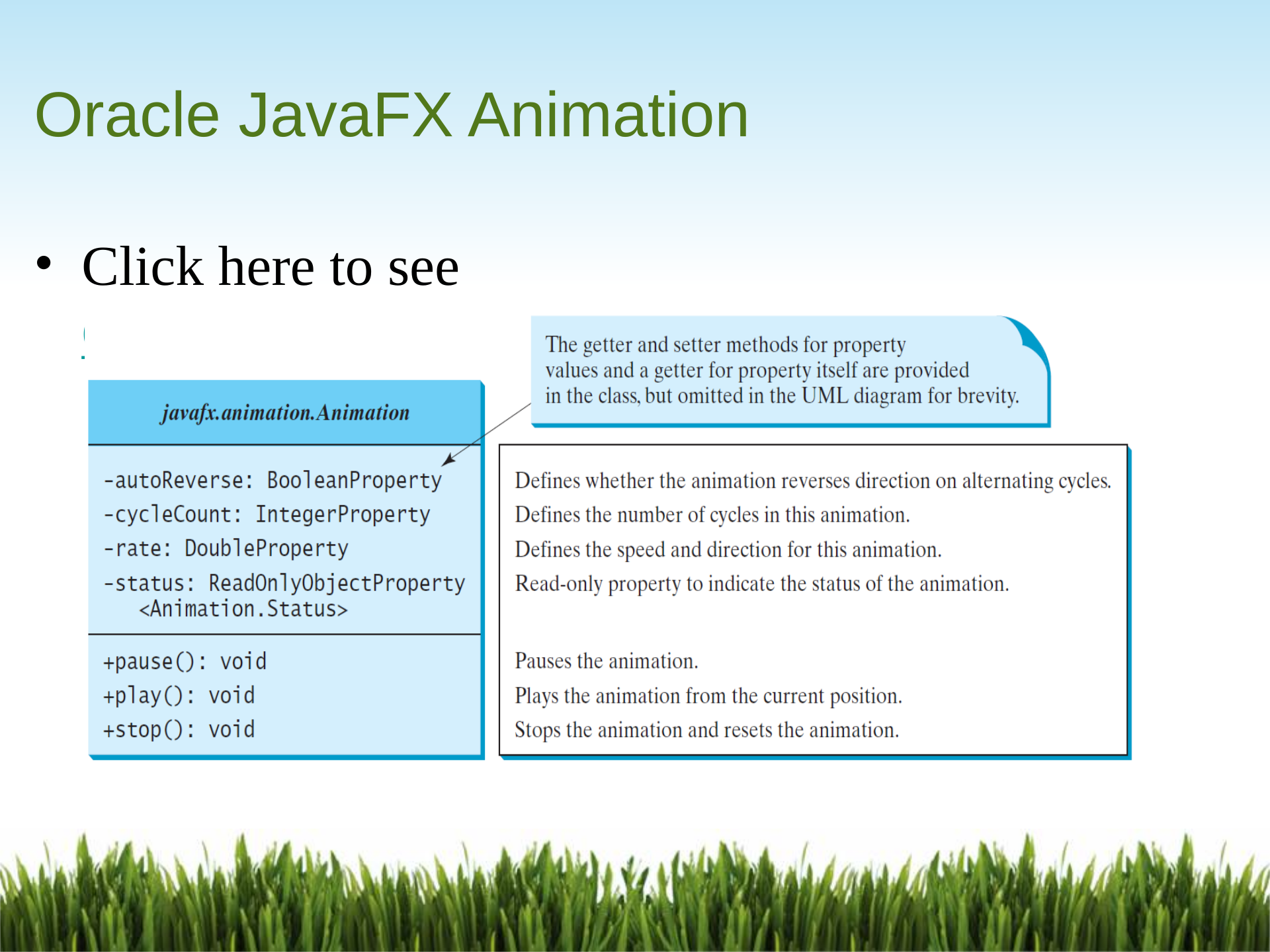
javafx.animation.Animation is the base class of all these classes.
•Animation in JavaFX can be divided into Timeline animation and
Transitions.
•Timeline and Transition are sub-classes of the
javafx.animation.Animation class.
•See the Oracle web site:
https://docs.oracle.com/javafx/2/animations/basics.htm
Transitions
•Transitions in JavaFX provide the means to incorporate animations in
an internal timeline. They are specialized animations.
•Type of Transitions:
A) Path: moves a node along a path from one end to the other over a given time.
(see PathTransitionDemo.java)
B) Fill: changes the filling of a shape over a duration.
C) Rotate: creates a rotation animation that spans a duration.
D) Fade: changes the opacity of a node over time. (see FadeTransitionDemo.java)
E) Parallel: executes several transitions simultaneously.
F) Sequential: executes several transitions one after another.
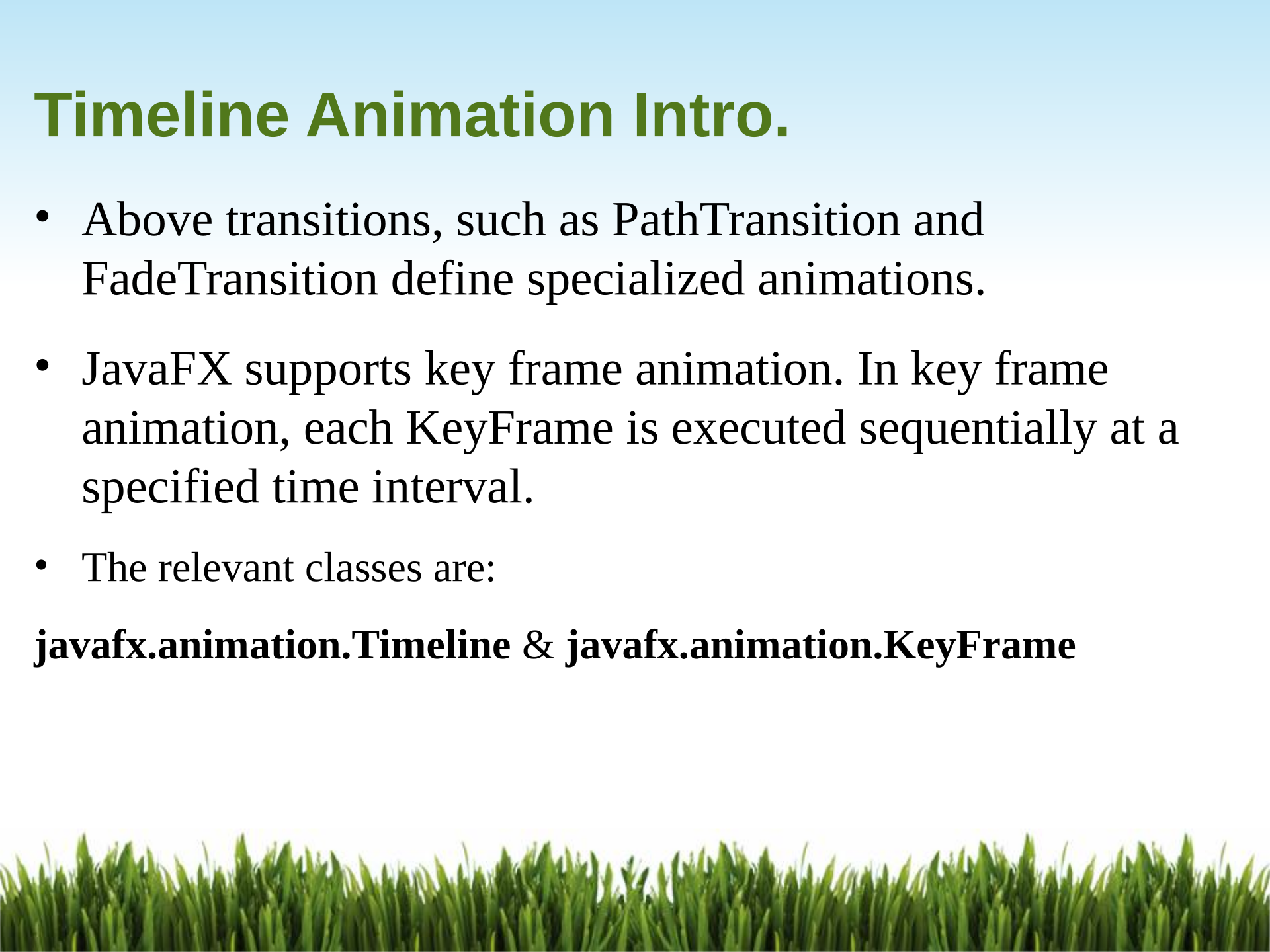
Timeline Animation Intro.
•Above transitions, such as PathTransition and
FadeTransition define specialized animations.
•JavaFX supports key frame animation. In key frame
animation, each KeyFrame is executed sequentially at a
specified time interval.
•The relevant classes are:
javafx.animation.Timeline & javafx.animation.KeyFrame
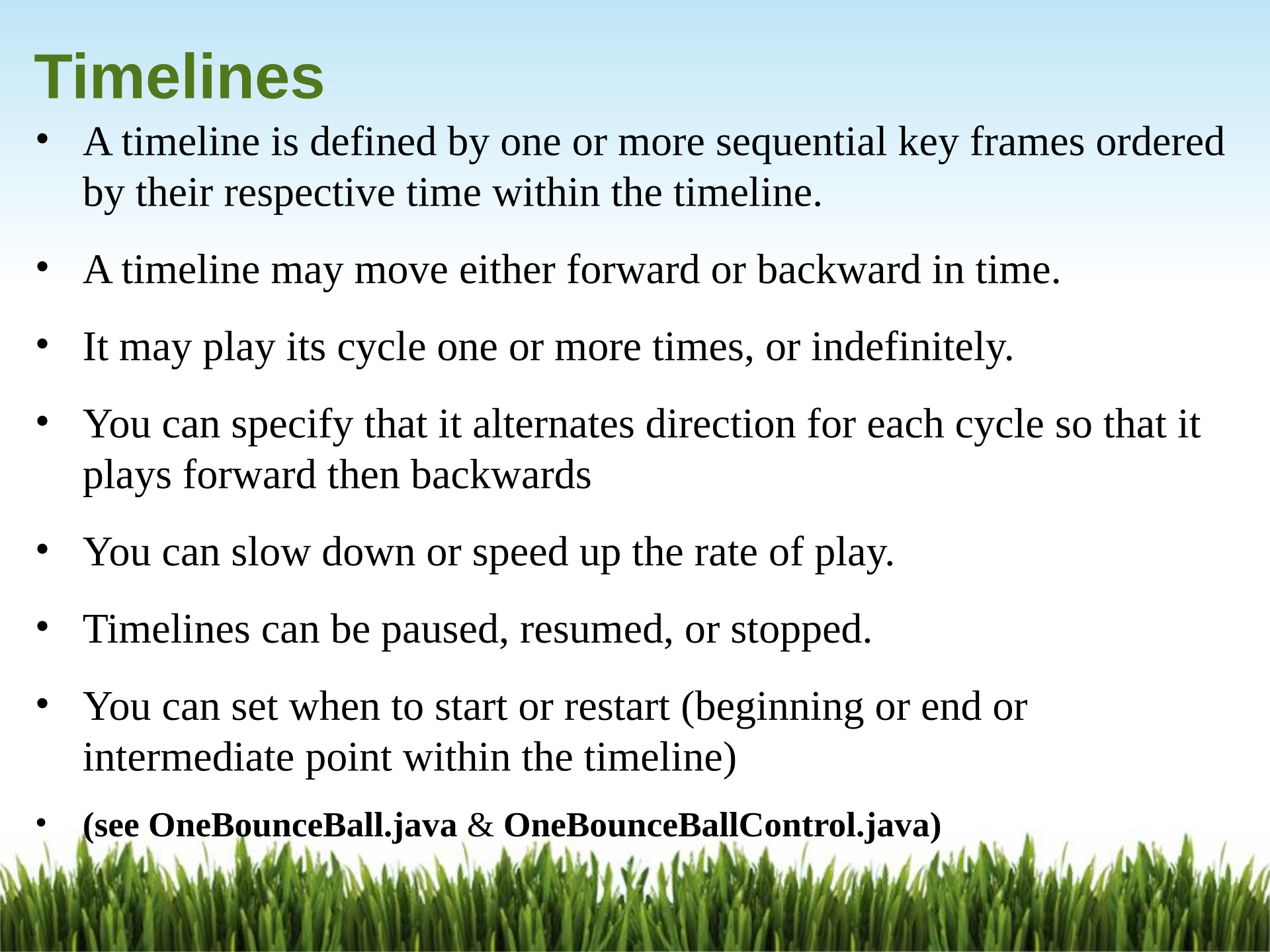
Timelines
•A timeline is defined by one or more sequential key frames ordered
by their respective time within the timeline.
•A timeline may move either forward or backward in time.
•It may play its cycle one or more times, or indefinitely.
•You can specify that it alternates direction for each cycle so that it
plays forward then backwards
•You can slow down or speed up the rate of play.
•Timelines can be paused, resumed, or stopped.
•You can set when to start or restart (beginning or end or
intermediate point within the timeline)
•(see OneBounceBall.java & OneBounceBallControl.java)
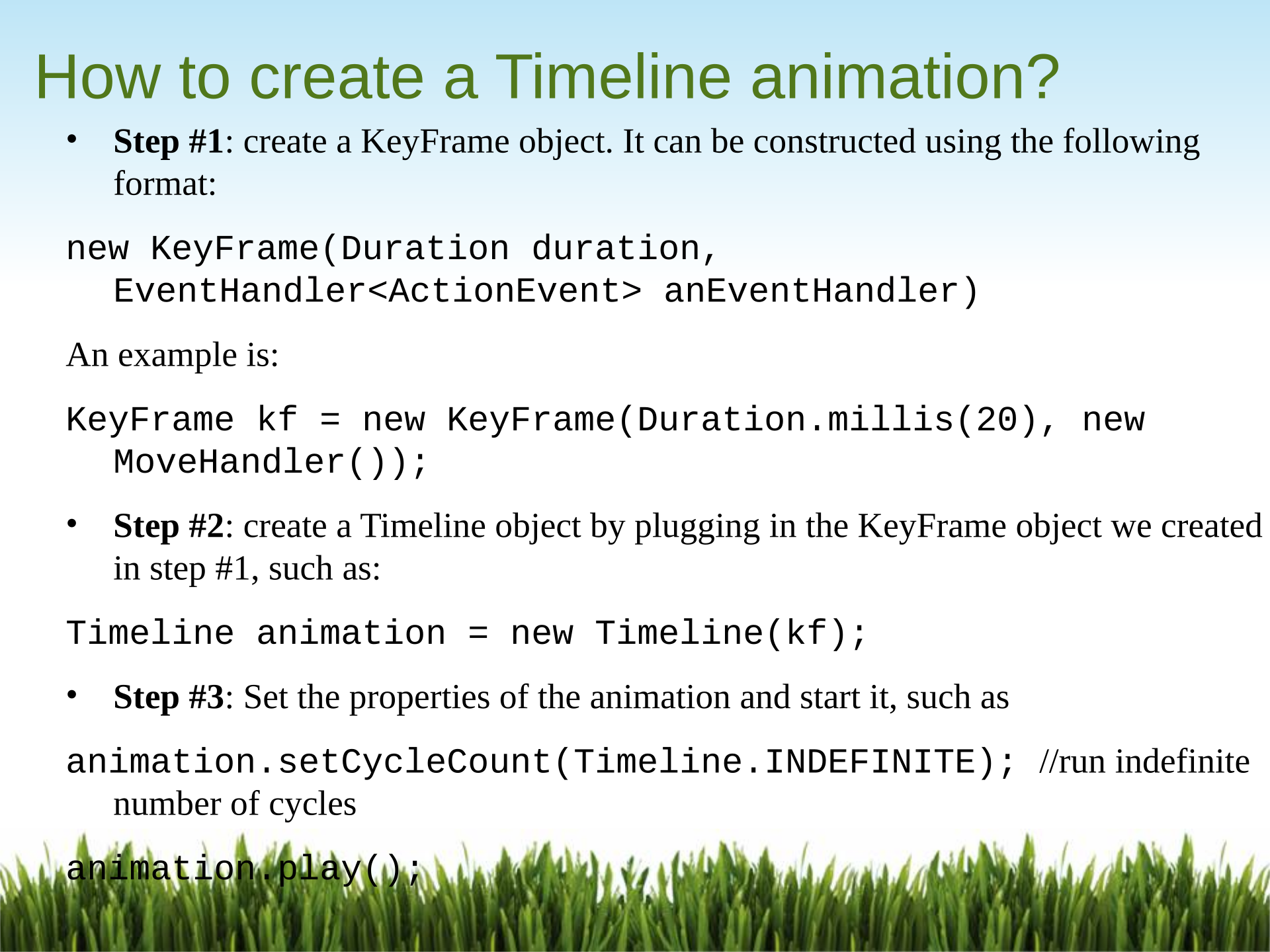
How to create a Timeline animation?
•Step #1: create a KeyFrame object. It can be constructed using the following
format:
new KeyFrame(Duration duration,
EventHandler<ActionEvent> anEventHandler)
An example is:
KeyFrame kf = new KeyFrame(Duration.millis(20), new
MoveHandler());
•Step #2: create a Timeline object by plugging in the KeyFrame object we created
in step #1, such as:
Timeline animation = new Timeline(kf);
•Step #3: Set the properties of the animation and start it, such as
animation.setCycleCount(Timeline.INDEFINITE); //run indefinite
number of cycles
animation.play();
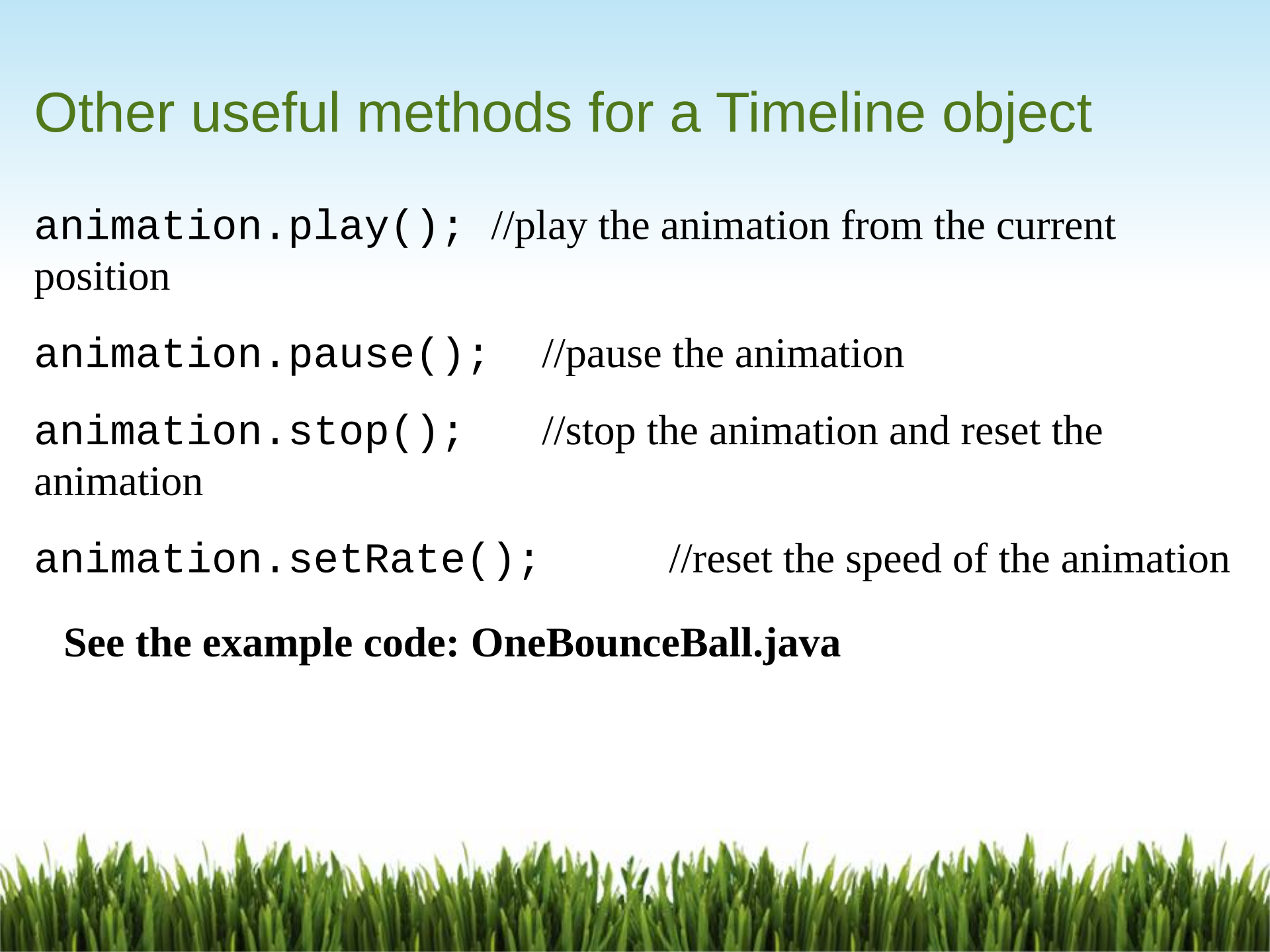
Other useful methods for a Timeline object
animation.play(); //play the animation from the current
position
animation.pause(); //pause the animation
animation.stop(); //stop the animation and reset the
animation
animation.setRate(); //reset the speed of the animation
See the example code: OneBounceBall.java
Powered by TCPDF (www.tcpdf.org)

