



//******************************************************************************
// CLASS: View
//
// DESCRIPTION
// Implements the GUI for a calculator.
// Author: Kailey Johnston (Based off of provided framework).
//******************************************************************************
import java.awt.*;
import java.awt.event.ActionEvent;
import java.awt.event.ActionListener;
import javax.swing.Box;
import javax.swing.BoxLayout;
import javax.swing.JButton;
import javax.swing.JFrame;
import javax.swing.JLabel;
import javax.swing.JOptionPane;
import javax.swing.JPanel;
import javax.swing.JTextField;
/**
* Implements the GUI for a calculator.
*/
public class HO2_51 extends JFrame implements ActionListener {
public static void main(String[] args) {
new HO2_51().run();
}
public void run() {
JFrame.setDefaultLookAndFeelDecorated(true);
// Declare and create a JPanel named panelFunctButton. Set the layout
manager to GridLayout
// with 2 rows and 2 columns. Call addButton() to add buttons labeled
"x^y", "log 10",
// "log e", and "sqrt".
JPanel panelFunctButton = new JPanel();
panelFunctButton.setLayout(new GridLayout(2, 2));
addButton(panelFunctButton, "x^y");
addButton(panelFunctButton, "log 10");
addButton(panelFunctButton, "log e");
addButton(panelFunctButton, "sqrt");
// Declare and create a JPanel named panelSysButton. Use the default
FlowLayout layout
// manager. Call addButton() to add buttons labeled "Clear",
"About", and "Exit".
JPanel panelSysButton = new JPanel();
addButton(panelSysButton, "Clear");
addButton(panelSysButton, "About");
addButton(panelSysButton, "Exit");
// Declare and create a JPanel named panelFunctSys. Use the
BorderLayout layout manager.
// Add panelFunctButton to the CENTER region. Add
panelSysButton to the SOUTH region.
JPanel panelFunctSys = new JPanel();
panelFunctSys.setLayout(new BorderLayout());
JLabel label1 = new JLabel();
panelFunctSys.add(panelFunctButton, BorderLayout.CENTER);
panelFunctSys.add(panelSysButton, BorderLayout.SOUTH);
// Declare and create a JPanel named panelKeypad. Use the
GridLayout layout manager with
// 4 rows and 4 columns. Call addButton() to add the buttons
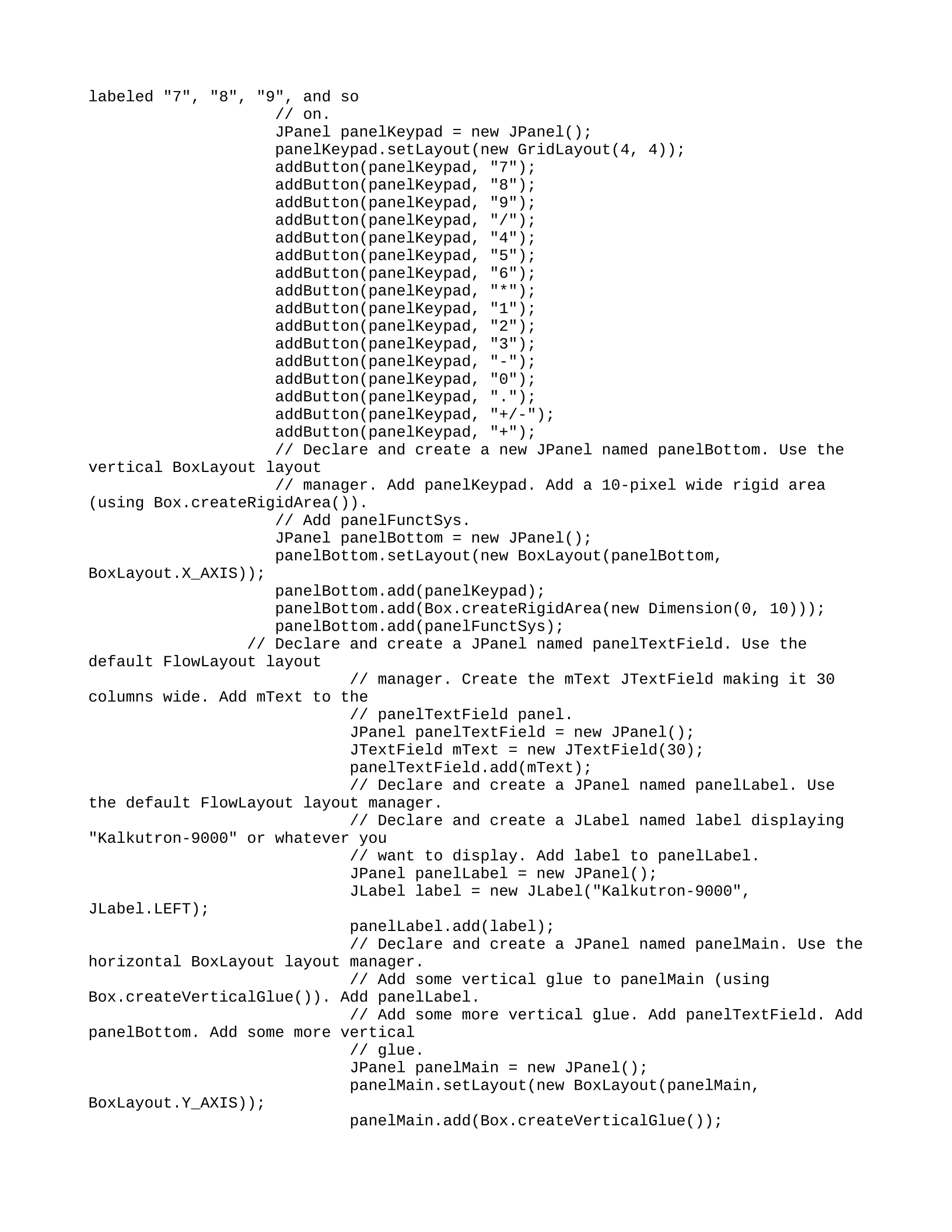
labeled "7", "8", "9", and so
// on.
JPanel panelKeypad = new JPanel();
panelKeypad.setLayout(new GridLayout(4, 4));
addButton(panelKeypad, "7");
addButton(panelKeypad, "8");
addButton(panelKeypad, "9");
addButton(panelKeypad, "/");
addButton(panelKeypad, "4");
addButton(panelKeypad, "5");
addButton(panelKeypad, "6");
addButton(panelKeypad, "*");
addButton(panelKeypad, "1");
addButton(panelKeypad, "2");
addButton(panelKeypad, "3");
addButton(panelKeypad, "-");
addButton(panelKeypad, "0");
addButton(panelKeypad, ".");
addButton(panelKeypad, "+/-");
addButton(panelKeypad, "+");
// Declare and create a new JPanel named panelBottom. Use the
vertical BoxLayout layout
// manager. Add panelKeypad. Add a 10-pixel wide rigid area
(using Box.createRigidArea()).
// Add panelFunctSys.
JPanel panelBottom = new JPanel();
panelBottom.setLayout(new BoxLayout(panelBottom,
BoxLayout.X_AXIS));
panelBottom.add(panelKeypad);
panelBottom.add(Box.createRigidArea(new Dimension(0, 10)));
panelBottom.add(panelFunctSys);
// Declare and create a JPanel named panelTextField. Use the
default FlowLayout layout
// manager. Create the mText JTextField making it 30
columns wide. Add mText to the
// panelTextField panel.
JPanel panelTextField = new JPanel();
JTextField mText = new JTextField(30);
panelTextField.add(mText);
// Declare and create a JPanel named panelLabel. Use
the default FlowLayout layout manager.
// Declare and create a JLabel named label displaying
"Kalkutron-9000" or whatever you
// want to display. Add label to panelLabel.
JPanel panelLabel = new JPanel();
JLabel label = new JLabel("Kalkutron-9000",
JLabel.LEFT);
panelLabel.add(label);
// Declare and create a JPanel named panelMain. Use the
horizontal BoxLayout layout manager.
// Add some vertical glue to panelMain (using
Box.createVerticalGlue()). Add panelLabel.
// Add some more vertical glue. Add panelTextField. Add
panelBottom. Add some more vertical
// glue.
JPanel panelMain = new JPanel();
panelMain.setLayout(new BoxLayout(panelMain,
BoxLayout.Y_AXIS));
panelMain.add(Box.createVerticalGlue());
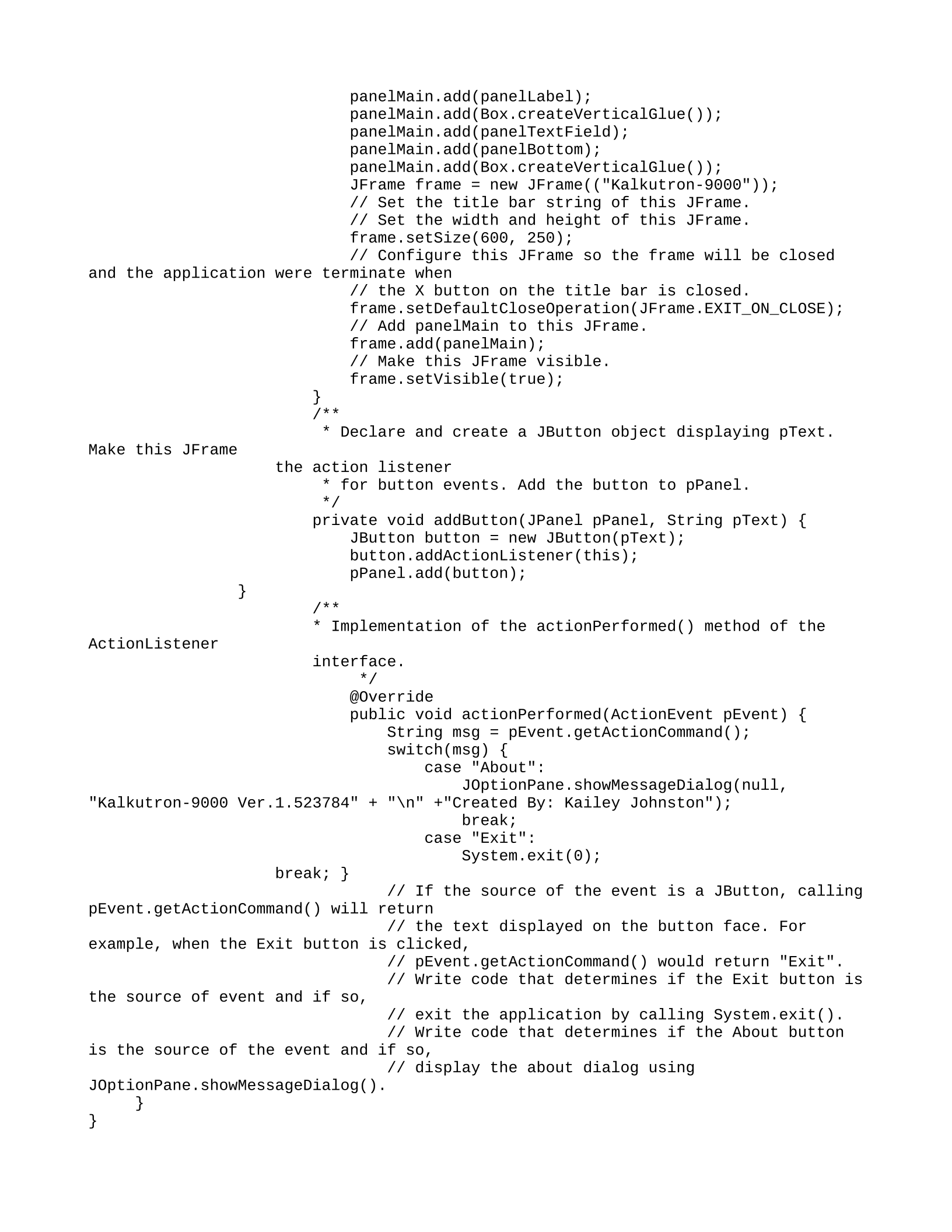
panelMain.add(panelLabel);
panelMain.add(Box.createVerticalGlue());
panelMain.add(panelTextField);
panelMain.add(panelBottom);
panelMain.add(Box.createVerticalGlue());
JFrame frame = new JFrame(("Kalkutron-9000"));
// Set the title bar string of this JFrame.
// Set the width and height of this JFrame.
frame.setSize(600, 250);
// Configure this JFrame so the frame will be closed
and the application were terminate when
// the X button on the title bar is closed.
frame.setDefaultCloseOperation(JFrame.EXIT_ON_CLOSE);
// Add panelMain to this JFrame.
frame.add(panelMain);
// Make this JFrame visible.
frame.setVisible(true);
}
/**
* Declare and create a JButton object displaying pText.
Make this JFrame
the action listener
* for button events. Add the button to pPanel.
*/
private void addButton(JPanel pPanel, String pText) {
JButton button = new JButton(pText);
button.addActionListener(this);
pPanel.add(button);
}
/**
* Implementation of the actionPerformed() method of the
ActionListener
interface.
*/
@Override
public void actionPerformed(ActionEvent pEvent) {
String msg = pEvent.getActionCommand();
switch(msg) {
case "About":
JOptionPane.showMessageDialog(null,
"Kalkutron-9000 Ver.1.523784" + "\n" +"Created By: Kailey Johnston");
break;
case "Exit":
System.exit(0);
break; }
// If the source of the event is a JButton, calling
pEvent.getActionCommand() will return
// the text displayed on the button face. For
example, when the Exit button is clicked,
// pEvent.getActionCommand() would return "Exit".
// Write code that determines if the Exit button is
the source of event and if so,
// exit the application by calling System.exit().
// Write code that determines if the About button
is the source of the event and if so,
// display the about dialog using
JOptionPane.showMessageDialog().
}
}


