


ACC306
Preview:
ACC306
:
Microcomputer
Applications
for
Accountants
Course
Guide
Prerequisites
ACC206
or
ACC304
Course
Description
This
course
covers
the
use
of
QuickBooks
Accountant,
Microsoft
Excel,
and
the
interface
between
the
two
(2)
software
packages,
as
well
as
the
functions
and
applications
available
under
QuickBooks
and
Excel.
Instructional
Materials
Required
Resources
Eric
Weinstein.
2017.
Microsoft
Excel
for
Accounting.
ACC306
Blackboard
Course.
https://www.strayerbookstore.com
e
Excel
Software:
As
a
Strayer
student
you
have
free
access
to
Office
365,
which
includes
Excel.
Patricia
Hartley.
2021.
QuickBooks
Online
Academic
Year
2021-2022
-
Comprehensive.
ACC306
Blackboard
Course.
https://www.strayerbookstore.com
e
QuickBooks
Software:
QuickBooks
Online
and
information
regarding
accessing
it
is
provided
with
this
textbook.
Note:
The
printed
books
available
for
this
course
come
bundled
with
access
codes
for
a
digital
homework
lab
that
your
course
will
not
be
using.
You
will
also
get
eBook
access
codes
to
redeem
at
VitalSource
with
the
printed
books.
Follow
these
steps
to
redeem
your
eBook
access
codes:

1.
Log
in
to
online.vitalsource.com
or
create
your
account.
2.
Click
Tools
in
the
upper
right
corner.
3.
Click
Redeem
codes.
4.
Type
in
your
Redemption
Code.
QuickBooks
Online
QuickBooks
has
moved
online!
QuickBooks
is
available
to
you
in
a
cloud-based
application.
1.
You
will
receive
an
email
by
the
middle
of
Week
4
from
Quickbooks
OR
Intuit.
Check
your
junk
mail
folders.
If
you
do
not
receive
an
email
by
the
middle
of
Week
4,
contact
your
instructor.
2.
Once
you
receive
the
email,
follow
the
instructions
at
this
link:
https://www.lablearning.com/web/html/QBO-install.html
to
accept
the
invitation
to
create
your
Quickbooks
account
and
company.
lf
your
document
scan
is
too
fuzzy
to
read,
does
not
show
your
full
and
legal
name,
or
shows
a
name
different
from
the
one
you
are
verifying
this
offer
under,
you
will
not
be
able
to
finalize
the
verification
process.
Please
do
not
include
any
confidential
information
on
the
uploaded
document,
such
as
social
security
numbers
or
banking
details.
Please
be
sure
any
sensitive
information
is
blacked
out
before
you
upload
your
document.
QuickBooks Support
Please
check
out
the
materials
listed
below
if
you
need
additional
information
or
resources:
QuickBooks
Welcome
Guide
[PDF].
System
Requirements
for
QuickBooks
Online
[PDF].
QuickBooks
Online
FAQs
[PDF].
Troubleshooting
QuickBooks
Online
[PDF].
Downloadable
Student
Data
Files
This
course
uses
the
following
student
file:
e
Student
Files
[ZIP].
When
you
download
this
file,
it
will
be
in
zipped
format.
Open
the
ZIP
file
and
save
the
contents
to
your
computer
in
a
place
you
will
easily
remember.
When
you
open
the
file,
you
will
see
folders
that

correspond
with
each
week
in
your
Excel
or
QuickBooks
text.
Within
each
folder
will
be
the
files
you
need
for
the
practice
assignments
or
the
homework
assignments.
Course
Learning
Outcomes
©
Demonstrate
the
use
of
various
functions
and
applications
in
Microsoft
Excel
for
accounting
records
and
reports.
Generate
accounting
records
and
reports
through
the
use
of
various
functions
and
applications
in
QuickBooks.
Weekly
Course
Schedule
Week
1
-
To
Do
List
Preparation:
Complete
the
tasks
in
Data
Files
and
Downloads.
Learn:
Read
Chapters
1
and
2
from
Microsoft
Excel
for
Accounting
and
view
their
associated
PowerPoint
presentations.
Discuss:
Introduce
yourself
and
complete
the
discussion,
Excel
in
Accounting
or
for
Personal
Use.
Activity:
Complete
this
week's
graded
practice
problems.
Activity:
Complete
this
week's
homework.
Week
2
-
To
Do
List
Learn:
Read
Chapter
3
from
Microsoft
Excel
for
Accounting
and
view
its
associated
PowerPoint
presentation.
Discuss:
Complete
the
discussion,
What-lf
Analysis
and
Features
in
Excel.
Activity:
Complete
this
week's
graded
practice
problems.
Activity:
Complete
this
week's
homework.

Week
3
-
To
Do
List
Learn:
Read
Chapter
5
from
Microsoft
Excel
for
Accounting
and
view
its
associated
PowerPoint
presentation.
Discuss:
Complete
the
discussion,
Bank
Reconciliation
and
Excel.
Activity:
Complete
this
week's
graded
practice
problems.
Activity:
Complete
this
week's
homework.
Week
4
-
To
Do
List
Learn:
Read
Chapter
6
from
Microsoft
Excel
for
Accounting.
Discuss:
Complete
the
discussion,
Depreciation
Calculations.
Activity:
Complete
this
week's
graded
practice
problems.
Activity:
Complete
this
week's
homework.
Prepare:
Read
the
instructions
and
prepare
for
next
week's
assignment.
Prepare:
Complete
the
QuickBooks
Preparation.
Week
5
-
To
Do
List
Learn:
Read
Chapter
9
from
Microsoft
Excel
for
Accounting
and
view
its
associated
PowerPoint
presentation.
Discuss:
Complete
the
discussion,
Using
Excel
to
Analyze
Financial
Statements.
Activity:
Complete
this
week's
graded
practice
problems.
Activity:
Complete
this
week's
homework.
Assignment:
Complete
the
assignment,
Competency
in
Microsoft
Excel.
Prepare:
Complete
the
QuickBooks
Preparation.
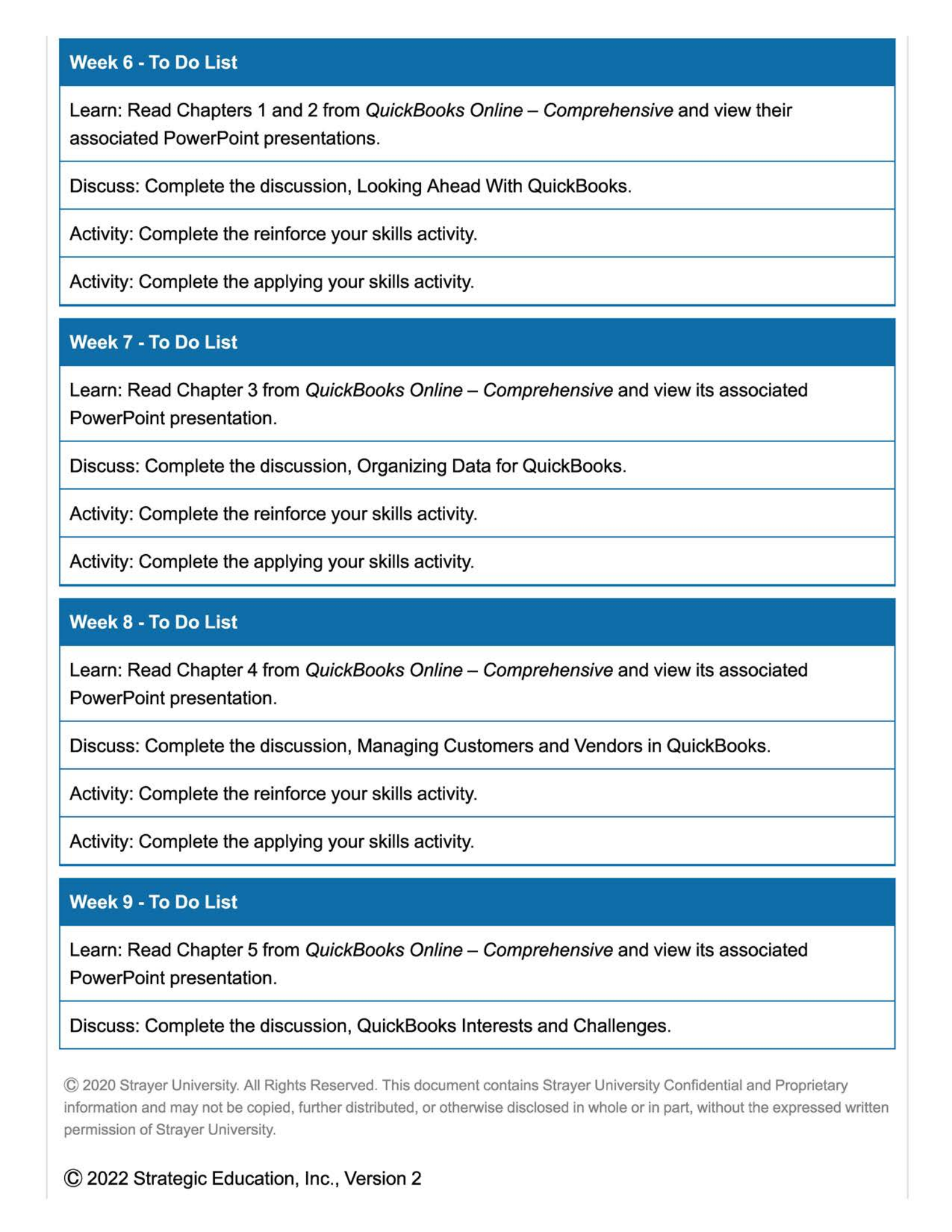
Week
6
-
To
Do
List
Learn:
Read
Chapters
1
and
2
from
QuickBooks
Online
—
Comprehensive
and
view
their
associated
PowerPoint
presentations.
Discuss:
Complete
the
discussion,
Looking
Ahead
With
QuickBooks.
Activity:
Complete
the
reinforce
your
skills
activity.
Activity:
Complete
the
applying
your
skills
activity.
Week
7
-
To
Do
List
Learn:
Read
Chapter
3
from
QuickBooks
Online
—
Comprehensive
and
view
its
associated
PowerPoint
presentation.
Discuss:
Complete
the
discussion,
Organizing
Data
for
QuickBooks.
Activity:
Complete
the
reinforce
your
skills
activity.
Activity:
Complete
the
applying
your
skills
activity.
Week
8
-
To
Do
List
Learn:
Read
Chapter
4
from
QuickBooks
Online
—
Comprehensive
and
view
its
associated
PowerPoint
presentation.
Discuss:
Complete
the
discussion,
Managing
Customers
and
Vendors
in
QuickBooks.
Activity:
Complete
the
reinforce
your
skills
activity.
Activity:
Complete
the
applying
your
skills
activity.
Week
9
-
To
Do
List
Learn:
Read
Chapter
5
from
QuickBooks
Online
—
Comprehensive
and
view
its
associated
PowerPoint
presentation.
Discuss:
Complete
the
discussion,
QuickBooks
Interests
and
Challenges.

Week
9
-
To
Do
List
Activity:
Complete
the
reinforce
your
skills
activity.
Activity:
Complete
the
applying
your
skills
activity.
Prepare:
Read
the
instructions
and
prepare
for
next
week's
assignment.
Week
10
-
To
Do
List
Learn:
Read
Chapter
6
from
QuickBooks
Online
—
Comprehensive.
Discuss:
Complete
the
discussion,
Accounting
Without
QuickBooks.
Assignment:
Complete
the
assignment,
Competency
in
QuickBooks
Online.
Week
11
-
To
Do
List
Discuss:
Complete
the
discussion,
Course
Reflection.
Grading
Scale
Participation
Total
Points
“%
of
Grade
Assignment
Total
Points
“%
of
Grade
Week
1
Activity:
Graded
Practice
Problems
10
1%
Week
1
Activity:
Homework
28
2.8%
Week
2
Activity:
Graded
Practice
Problems
10
1%
Week
2
Activity:
Homework
28
2.8%
Week
3
Activity:
Graded
Practice
Problems
10
1%
Week
3
Activity:
Homework
28
2.8%

Assignment
Total
Points
“%
of
Grade
Week
4
Activity:
Graded
Practice
Problems
10
1%
Week
4
Activity:
Homework
28
2.8%
Week
5
Activity:
Graded
Practice
Problems
10
1%
Week
5
Activity:
Homework
28
2.8%
Week
5
Assignment:
Competency
in
Microsoft
Excel
200
20%
Week
6
Activity:
Reinforce
Your
Skills
10
1%
Week
6
Activity:
Applying
Your
Skills
28
2.8%
Week
7
Activity:
Reinforce
Your
Skills
10
1%
Week
7
Activity:
Applying
Your
Skills
28
2.8%
Week
8
Activity:
Reinforce
Your
Skills
10
1%
Week
8
Activity:
Applying
Your
Skills
28
2.8%
Week
9
Activity:
Reinforce
Your
Skills
10
1%
Week
9
Activity:
Applying
Your
Skills
28
2.8%
Week
10
Assignment
-
Competency
in
QuickBooks
Online
238
23.8%
Totals
1000
100%

Final
Course
Grade
Points
Percentage
900
-
1000
90%
-
100%
A
800
-
899
80%
-
89%
B
700
-
799
70%
-
79%
C
600
-
699
60%
-
69%
D
0
-
599
09%
and
below
F
Unique
Course
Features
Grading
Scale
Notation
Please
consult
the
University
Catalog
and
your
academic
advisor
to
determine
the
final
grade
needed
in
this
class
to
satisfy
your
specific
degree
conferral
requirements.
Academic
Integrity
Please
be
sure
to
review
the
entire
Academic
Integrity
Policy
in
the
Student
Handbook
before
submitting
anything
in
this
course.
In
order
to
enforce
its
Academic
Integrity
Policy,
the
University
reserves
the
right
to
review
any
work
(draft
or
otherwise)
or
exam
submitted
by
a
student
during
his
or
her
entire
academic
career
at
Strayer.
Assignments
Week
1
Activity:
Graded
Practice
Problems
Summary
Click
the
linked
activity
title
to
access
this
activity.
Text
Graded
Excel
Practice
Problems

In
this
course
you
will
be
asked
to
complete
some
graded
Excel
practice
problems.
o
Templates
corresponding
to
Excel
activities
can
be
found
in
the
Student
Files
[ZIP]
file,
Excel
Weeks
1-5
folder.
The
directions
in
the
textbook
for downloading
and
saving
files
may
be
slightly
different
than
what
you
see
here.
Directions
from
the
courseroom
should
be
followed
for
downloading
and
submitting
files.
o
The
Excel
Weeks
1-5
folder
has
a
subfolder
for
each
of
the
first
five
weeks.
Inside
each
folder
you
will
find
subfolders.
Please
be
sure
that
you
are
using
the
correct
file
from
the
correct
folder
for
each
activity
you
complete.
o
Completing
graded
practice
activities
will
make
it
more
likely
that
you
will
successfully
complete
assignments.
Instructions
Complete
and
submit
the
following
graded
practice
activities
by
following
the
directions
found
in
your
Microsoft
Excel
for
Accounting
text
using
the
templates
provided
in
the
Practice
subfolder
for
Week
1.
Note
that
the
templates
used
in
this
activity
are
blank.
o
Chapter
1:
EA1-R2
-
Reinforcing
Your
Skills.
=»
Template:
EA1-R2-Journal-Entries.
o
Chapter
2:
EA2-R2
Create
Financial
Statements
for
Deep
Freeze
Co.
»
Template:
EA2-R2-FinancialStatements.
Grading
This
activity
is
graded
at
the
instructor's
discretion
using
the
following
criterion:
o
Submits
all
required
files
and
demonstrates
a
clear
adherence
to
textbook
directions
and
data
when
preparing
work.
Reminder:
As
a
Strayer
student
you
have
free
access
to
Office
365.
Use
the
following
link
for
information
and
access:
Microsoft
Office
365
Info.
Additional
Help
lf
you
find
that
you
are
struggling
with
aspects
of
Excel
or
just
need
another
resource
please
check
out
the
following
video:

o
Excel
2016
Essential
Training.
Scoring
Guide
Submit
all
required
files
and
demonstrate
a
clear
adherence
to
textbook
directions
and
data
when
preparing
work.
100
%
Unsatisfactory
(0
points)
Did
not
submit
required
files.
Needs
Improvement
(5
points)
Submitted
required
files,
but
with
significant
errors
or
omissions.
Exemplary
(10
points)
Submitted
all
required
files
and
demonstrated
a
clear
adherence
to
textbook
directions
and
data
when
preparing
work.
Week
1
Activity:
Homework
Summary
Click
the
linked
activity
title
to
access
this
activity.
Text
Important!
o
Make
sure
you
have
completed
this
week's
graded
practice
activity
before
beginning
this
activity!
o
Templates
corresponding
to
activities
can
be
found
in
the
Student
Files
[ZIP]
file,
Excel
Weeks
1—5
folder.
Instructions
Complete
and
submit
the
following
homework
by
following
the
directions
found
in
your
Microsoft
Excel
for
Accounting
text
using
the
templates
provided
in
the
Homework
subfolder
for
Week
1.
Note
that
the
templates
used
in
this
activity
are
blank.
o
Chapter
1:
EA1-A2
Record
Journal
Entries.
=»
Template:
EA1-A2-JournalEntries.

o
Chapter
2:
EA2-A1
Create
Financial
Statements
for
Titan
Corp.
=»
Template:
EA2-A1-FinancialStatements.
Excel
Homework
Grading
(Weeks
1—5)
The
Excel
homework
activities
in
this
course
are
graded
using
the
following
criterion:
o
Complete
each
chapter
report
using
accurate
figures,
correct
spreadsheet
functionality,
and
formatting
that
is
consistent
with
textbook
examples,
with
0—1
errors
or
omissions.
What
this
means:
o
Figures:
Files
should
be
created
using
accurate
data
or
figures.
o
Functionality:
The
spreadsheet
should
function
as
intended
with
embedded
formulas
and
accurate
computations
where
appropriate.
o
Formatting:
Formatting
should
strive
to
replicate
examples
used
in
the
text
in
areas
such
as
column
placement,
underlining,
correct
labeling.
Scoring
Guide

Complete
the
Chapter
1
report
using
accurate
figures,
correct
spreadsheet
functionality,
and
formatting
that
is
consistent
with
textbook
examples,
with
0-1
errors
or
omissions.
50
%
Unacceptable
(Below
60%)
Did
not
complete
the
Chapter
1
report
or
completed
it
using
accurate
amounts,
correct
functionality,
and
formatting
that
is
consistent
with
textbook
examples,
but
with
more
than
12
errors
or
omissions.
Needs
Improvement
(60-
69%)
Completed
the
Chapter
1
report
using
accurate
amounts,
correct
functionality,
and
formatting
that
is
consistent
with
textbook
examples,
with
9-12
errors
or
omissions.
Satisfactory
(70-
79%)
Completed
the
Chapter
1
report
using
accurate
amounts,
correct
functionality,
and
formatting
that
is
consistent
with
textbook
examples,
with
5—8
errors
or
omissions.
Competent
(80-
89%)
Completed
the
Chapter
1
report
using
accurate
amounts,
correct
unctionality,
and
ormatting
that
is
consistent
with
textbook
examples,
with
2—4
errors
or
omissions.
f
f
Exemplary
(90-
100%)
Completed
the
Chapter
1
report
using
accurate
figures,
correct
spreadsheet
functionality,
and
formatting
that
is
consistent
with
textbook
examples,
with
0-1
errors
or
omissions.

Complete
the
Chapter
2
report
using accurate
figures,
correct
spreadsheet
functionality,
and
formatting
that
is
consistent
with
textbook
examples,
with
0-1
errors
or
omissions.
50
%
Unacceptable
(Below
60%)
Did
not
complete
the
Chapter
2
report,
or
completed
it
using
accurate
amounts,
correct
functionality,
and
formatting
that
is
consistent
with
textbook
examples,
but
with
more
than
12
errors
or
omissions.
Needs
Improvement
(60-
69%)
Completed
the
Chapter
2
report
using
accurate
amounts,
correct
functionality,
and
formatting
that
is
consistent
with
textbook
examples,
with
9—12
errors
or
omissions.
Satisfactory
(70-
79%)
Completed
the
Chapter
2
report
using
accurate
amounts,
correct
functionality,
and
formatting
that
is
consistent
with
textbook
examples,
with
o—8
errors
or
omissions.
Competent
(80-
89%)
Completed
the
Chapter
2
report
using
accurate
amounts,
correct
functionality,
and
formatting
that
is
consistent
with
textbook
examples,
with
2—4
errors
or
omissions.
Exemplary
(90-
100%)
Completed
the
Chapter
2
report
using
accurate
figures,
correct
spreadsheet
functionality,
and
formatting
that
is
consistent
with
textbook
examples,
with
O—1
errors
or
omissions.
Week
2
Activity:
Graded
Practice
Problems
Summary
Click
the
linked
activity
title
to
access
this
activity.
Text
Instructions
Complete
and
submit
the
following
graded
practice
activity
by
following
the
directions
found
in
your
Microsoft
Excel
for
Accounting
text,
using
the
templates
provided
in
the
Week
2
subfolder
in
the
Student
Files
[ZIP].
Note
that
the
templates
used
in
this
activity
are
blank.
o
Chapter
3:
EA3-R2:
Complete
the
Statement
of
Cash
Flows
for
Hailstorm
Co.
=»
Template:
EA3-R2-StatementofCF.
Scoring
Guide

Submit
all
required
files
and
demonstrate
a
clear
adherence
to
textbook
directions
and
data
when
preparing
work.
100
%
Unsatisfactory
(0
points)
Did
not
submit
required
files.
Needs
Improvement
(5
points)
Submitted
required
files,
but
with
significant
errors
or
omissions.
Exemplary
(10
points)
Submitted
all
required
files
and
demonstrated
a
clear
adherence
to
textbook
directions
and
data
when
preparing
work.
Week
2
Activity:
Homework
Summary
Click
the
linked
activity
title
to
access
this
activity.
Text
Instructions
Complete
and
submit
the
following
homework
by
following
the
directions
found
in
your
Microsoft
Excel
for
Accounting
text
using
the
templates.
As
a
reminder,
you
will
find
the
templates
you
need
in
the
appropriately
labeled
weekly
subfolders.
o
Chapter
3:
EA3-A2,
Create
the
Statement
of
Cash
Flows
for
Fitness
Pros
Co.
»
Template:
EA3-A2-StatementofCF.
The
Excel
homework
activities
in
this
course
are
graded
using
the
following
criterion:
0
Completes
the
chapter
report
using
accurate
figures,
correct
spreadsheet
functionality,
and
formatting
that
is
consistent
with
textbook
examples
with
O—1
errors
or
omissions.
Scoring
Guide

Complete
the
chapter
report
using
accurate
figures,
correct
spreadsheet
functionality,
and
formatting
that
is
consistent
with
textbook
examples,
with
0-1
errors
or
omissions.
100
%
Unacceptable
(Below
60%)
Did
not
complete
the
chapter
report,
or
completed
it
using
accurate
amounts,
correct
functionality,
and
formatting
that
is
consistent
with
textbook
examples,
but
with
more
than
12
errors
or
omissions.
Needs
Improvement
(60-
69%)
Completed
the
chapter
report
using
accurate
amounts,
correct
functionality,
and
formatting
that
is
consistent
with
textbook
examples,
with
9—12
errors
or
omissions.
Satisfactory
(70-
79%)
Completed
the
chapter
report
using
accurate
amounts,
correct
functionality,
and
formatting
that
is
consistent
with
textbook
examples,
with
5-8
errors
or
omissions.
Competent
(80-
89%)
Completed
the
chapter
report
using
accurate
amounts,
correct
functionality,
and
formatting
that
is
consistent
with
textbook
examples,
with
2—4
errors
or
omissions.
Exemplary
(90-
100%)
Completed
the
chapter
report
using
accurate
figures,
correct
spreadsheet
functionality,
and
formatting
that
is
consistent
with
textbook
examples,
with
O—1
errors
or
omissions.
Week
3
Activity:
Graded
Practice
Problems
Summary
Click
the
linked
activity
title
to
access
this
activity.
Text
Instructions
Complete
and
submit
the
following
graded
practice
activity
by
following
the
directions
found
in
your
Microsoft
Excel
for
Accounting
text
using
the
templates
and
files
provided
in
the
Student
Files
[ZIP].
o
Chapter
5:
EA5-R1
Complete
a
Bank
Reconciliation
for
Auto
Salvage
Co.
»
Template:
EA5-R1-QBReport.
Scoring
Guide

Submit
all
required
files
and
demonstrate
a
clear
adherence
to
textbook
directions
and
data
when
preparing
work.
100
%
Unsatisfactory
(0
points)
Did
not
submit
required
files.
Needs
Improvement
(5
points)
Submitted
required
files,
but
with
significant
errors
or
omissions.
Exemplary
(10
points)
Submitted
all
required
files
and
demonstrated
a
clear
adherence
to
textbook
directions
and
data
when
preparing
work.
Week
3
Activity:
Homework
Summary
Click
the
linked
activity
title
to
access
this
activity.
Text
Instructions
Complete
and
submit
the
following
homework
by
following
the
directions
found
in
your
Microsoft
Excel
for
Accounting
text
using
the
provided
templates.
o
Chapter
5:
EA5-A1,
Create
a
Bank
Reconciliation
for
Charleston
Company.
=»
Template
EAS-A1-BankRec.xlsx.
The
Excel
homework
activities
in
this
course
are
graded
using
the
following
criterion:
o
Complete
the
chapter
report
using
accurate
figures,
correct
spreadsheet
functionality,
and
formatting
that
is
consistent
with
textbook
examples,
with
0—1
errors
or
omissions.
Scoring
Guide

Completed
the
chapter
report
using
accurate
figures,
correct
spreadsheet
functionality,
and
formatting
that
is
consistent
with
textbook
examples,
with
0-1
errors
or
omissions.
100
%
Unacceptable
(Below
60%)
Did
not
complete
the
chapter
report,
or
completed
it
using
accurate
amounts,
correct
functionality,
and
formatting
that
is
consistent
with
textbook
examples,
but
with
more
than
12
errors
or
omissions.
Needs
Improvement
(60-
69%)
Completed
the
chapter
report
using
accurate
amounts,
correct
functionality,
and
formatting
that
is
consistent
with
textbook
examples,
with
9—12
errors
or
omissions.
Satisfactory
(70-
79%)
Completed
the
chapter
report
using
accurate
amounts,
correct
functionality,
and
formatting
that
is
consistent
with
textbook
examples,
with
5-8
errors
or
omissions.
Competent
(80-
89%)
Completed
the
chapter
report
using
accurate
amounts,
correct
unctionality,
and
ormatting
that
is
consistent
with
textbook
examples,
with
2—4
errors
or
omissions.
f
f
Exemplary
(90-
100%)
Completed
the
chapter
report
using
accurate
figures,
correct
spreadsheet
functionality,
and
formatting
that
is
consistent
with
textbook
examples,
with
O—1
errors
or
omissions.
Week
4
Activity:
Graded
Practice
Problems
Summary
Click
the
linked
activity
title
to
access
this
activity.
Text
Instructions
Complete
and
submit
the
following
graded
practice
activity
by
following
the
directions
found
in
your
Microsoft
Excel
for
Accounting
text
using
the
template
provided
in
Student
Files
[ZIP].
Note
that
the
templates
used
in
this
activity
are
blank.
o
Chapter
6:
EA6-R1
Complete
a
Depreciation
Schedule
for
Linen
Wholesalers.
»
Template:
EA6-R1-Depreciation.
Scoring
Guide

Submit
all
required
files
and
demonstrate
a
clear
adherence
to
textbook
directions
and
data
when
preparing
work.
100
%
Unsatisfactory
(0
points)
Did
not
submit
required
files.
Needs
Improvement
(5
points)
Submitted
required
files,
but
with
significant
errors
or
omissions.
Exemplary
(10
points)
Submitted
all
required
files
and
demonstrated
a
clear
adherence
to
textbook
directions
and
data
when
preparing
work.
Week
4
Activity:
Homework
Summary
Click
the
linked
activity
title
to
access
this
activity.
Text
Instructions
Complete
and
submit
the
following
homework
by
following
the
directions
found
in
your
Microsoft
Excel
for
Accounting
text
using
the
provided
templates.
o
Chapter
6:
EA6-A1:
Depreciation
Schedule
for
JCW
Supplies.
=»
Template:
EA6-A1-Depreciation.
The
Excel
homework
activities
in
this
course
are
graded
using
the
following
criterion:
o
Complete
the
chapter
report
using
accurate
figures,
correct
spreadsheet
functionality,
and
formatting
that
is
consistent
with
textbook
examples
with
O—1
errors
or
omissions.
Scoring
Guide

Completed
the
chapter
report
using
accurate
figures,
correct
spreadsheet
functionality,
and
formatting
that
is
consistent
with
textbook
examples,
with
0-1
errors
or
omissions.
100
%
Unacceptable
(Below
60%)
Did
not
complete
the
chapter
report,
or
completed
it
using
accurate
amounts,
correct
functionality,
and
formatting
that
is
consistent
with
textbook
examples,
but
with
more
than
12
errors
or
omissions.
Needs
Improvement
(60-
69%)
Completed
the
chapter
report
using
accurate
amounts,
correct
functionality,
and
formatting
that
is
consistent
with
textbook
examples,
with
9—12
errors
or
omissions.
Satisfactory
(70-
79%)
Completed
the
chapter
report
using
accurate
amounts,
correct
functionality,
and
formatting
that
is
consistent
with
textbook
examples,
with
5-8
errors
or
omissions.
Competent
(80-
89%)
Completed
the
chapter
report
using
accurate
amounts,
correct
functionality,
and
formatting
that
is
consistent
with
textbook
examples,
with
2—4
errors
or
omissions.
Exemplary
(90-
100%)
Completed
the
chapter
report
using
accurate
figures,
correct
spreadsheet
functionality,
and
formatting
that
is
consistent
with
textbook
examples,
with
O—1
errors
or
omissions.
Week
5
Activity:
Graded
Practice
Problems
Summary
Click
the
linked
activity
title
to
access
this
activity.
Text
Instructions
Complete
and
submit
the
following
Graded
Practice
activity
by
following
the
directions
found
in
your
Microsoft
Excel
for
Accounting
text
using
the
template
provided
in
the
Student
Files
[ZIP].
Note
that
the
templates
used
in
this
activity
are
blank.
o
Chapter
9:
EA9-R1
Perform
a
Financial
Statement Analysis
for
Ronald's
Beverage
Barn.
»
Template:
EA9-R1-FSA.
Scoring
Guide

Submit
all
required
files
and
demonstrate
a
clear
adherence
to
textbook
directions
and
data
when
preparing
work.
100
%
Unsatisfactory
(0
points)
Did
not
submit
required
files.
Needs
Improvement
(5
points)
Submitted
required
files,
but
with
significant
errors
or
omissions.
Exemplary
(10
points)
Submitted
all
required
files
and
demonstrated
a
clear
adherence
to
textbook
directions
and
data
when
preparing
work.
Week
5
Activity:
Homework
Summary
Click
the
linked
activity
title
to
access
this
activity.
Text
Instructions
Complete
and
submit
the
following
homework
by
following
the
directions
found
in
your
Microsoft
Excel
for
Accounting
text
using
the
provided
templates.
o
Chapter
9:
EA9-A1
Perform
a
Financial
Statement
Analysis for
Legal
Services
Co.
=»
Template:
EA9-A1-FSA.
The
Excel
homework
activities
in
this
course
are
graded
using
the
following
criterion:
°o
Complete
the
chapter
report
using
accurate
figures,
correct
spreadsheet
functionality,
and
formatting
that
is
consistent
with
textbook
examples
with
0-1
errors
or
omissions.
Scoring
Guide

Complete
the
chapter
report
using
accurate
figures,
correct
spreadsheet
functionality,
and
formatting
that
is
consistent
with
textbook
examples,
with
0-1
errors
or
omissions.
100
%
Unacceptable
(Below
60%)
Did
not
complete
the
chapter
report,
or
completed
it
using
accurate
amounts,
correct
functionality,
and
formatting
that
is
consistent
with
textbook
examples,
but
with
more
than
12
errors
or
omissions.
Needs
Improvement
(60-
69%)
Completed
the
chapter
report
using
accurate
amounts,
correct
functionality,
and
formatting
that
is
consistent
with
textbook
examples,
with
9—12
errors
or
omissions.
Satisfactory
(70-
79%)
Completed
the
chapter
report
using
accurate
amounts,
correct
functionality,
and
formatting
that
is
consistent
with
textbook
examples,
with
o—8
errors
or
omissions.
Competent
(80-
89%)
Completed
the
chapter
report
using
accurate
amounts,
correct
functionality,
and
formatting
that
is
consistent
with
textbook
examples,
with
2—4
errors
or
omissions.
Exemplary
(90-
100%)
Completed
the
chapter
report
using
accurate
figures,
correct
spreadsheet
functionality,
and
formatting
that
is
consistent
with
textbook
examples,
with
O—1
errors
or
omissions.
Week
5
Assignment:
Competency
in
Microsoft
Excel
Summary
Click
the
linked
activity
title
to
access
this
assignment.
Text
Overview
In
this
assignment
you
apply
fundamental
Excel
skills
to
complete
financial
statements
and
ratio
analysis.
Instructions
Part
1:
Financial
Statements

1.
Open
the
Excel
file
EA2-E2
FinancialStatements.xlxs
found
in
the
Excel
-
Weeks
1-5
Folder
in
the
Student
Files
zip
file.
Note
that
this
is
a
blank
template.
2.
From
Microsoft
Excel
for
Accounting,
complete
"Extend
Your
Skills
EA2-E2:
Create
Financial
Statements
for
BeBo
Industries"
found
in
Chapter
2
of
your
Microsoft
Excel
for
Accounting
text.
3.
Use
formulas
and
functions
to
create
the
following
financial
statements
for
the
firm
on
separate
tabs
in
the
template,
using
the
same
names
provided
here:
=»
Prepare
the
firm's
Balance
Sheet
with
0-2
errors
or
omissions
that includes
the
use
of
Excel
formulas
for
required
calculations.
=»
Prepare
the
firm's
Income
Statement
with
O—2
errors
or
omissions
that
includes
the
use
of
Excel
formulas
for
required
calculations.
=
Prepare
the
firm's
Statement
of
Owner's
Equity
with
0-2
errors
or
omissions
that
includes
the
use
of
Excel
formulas
for
required
calculations.
Part
2:
Computing
Financial
Ratios
1.
Refer
to
Chapter
9
of
Microsoft
Excel
for
Accounting
to
access
formulas
for
these
ratio
calculations.
2.
Using
the
data
from
the
financial
statements
in
Part
1,
perform
the
specified
ratio
analyses
with
O—
2
errors
or
omissions
that
includes
the
use
of
Excel
formulas.
=»
Current
ratio.
=
Quick
ratio.
=»
Debt
ratio.
=»
Equity
ratio.
=»
Debt-to-equity
ratio.
»
Profit
margin
ratio.
Requirements
NOTE:
You
must
use
Excel
formulas
to
compute
the
ratios
and
totals
on
the
financial
statements
where
applicable.
Points
will
be
deducted
if
you
do
not
use
formulas
for
calculations.
o
Submit
one
Excel
file
with
the
following
tabs:
=»
Balance
Sheet.
=»
Income
Statement.
s
Statement
of
Owner's
Equity.
=
Financial
Ratios.

The
specific
course
learning
outcome
associated
with
this
assignment
is:
o
Demonstrate
the
use
of
various
functions
and
applications
in
Microsoft
Excel
for
accounting
records
and
reports.
Scoring
Guide
Prepare
the
firm’s
balance
sheet
with
0-2
errors
or
omissions.
Use
Excel
formulas
for
required
calculations.
25
%
Unacceptable
(Below
60%)
|
Did
not
prepare
the
firm's
balance
sheet,
or
had
more
than
8
errors
or
omissions.
Used
Excel
formulas
for
required
calculations.
Needs
Improvement
(60-
69%)
,
Prepared
the
firm’s
balance
sheet
with
7-8
errors
or
omissions.
Used
Excel
formulas
for
required
calculations.
Satisfactory
(70-
79%)
Prepared
the
firm’s
balance
sheet
with
5-6
errors
or
omissions.
Used
Excel
formulas
for
required
calculations.
Competent
(80-
89%)
Prepared
the
firm’s
balance
sheet
with
3-4
errors
or
omissions.
Used
Excel
formulas
for
required
calculations.
Exemplary
(90-
100%)
Prepared
the
firm’s
balance
sheet
with
0-2
errors
or
omissions.
Used
Excel
formulas
for
required
calculations.
Prepare
the
firm’s
Income
Statement
with
0-2
errors
or
omissions.
Use
Excel
formulas
for
required
calculations.
25
%
Unacceptable
(Below
60%)
Did
not
prepare
the
firm's
income
so
with
more
than
8
errors
or
omissions.
statement,
Used
Excel
formulas
for
required
calculations.
or
di
Needs
Improvement
(60-
eee
Prepared
the
Statement
with
7-8
errors
or
omissions.
Used
Excel
formulas
for
firm’s
required
calculations.
Income
d
Satisfactory
(70-
79%)
Prepared
the
firm’s
Income
5_6
errors
or
omissions.
Used
Excel
formulas
for
Statement
required
calculations.
wit
Competent
(80-
89%)
Prepared
the
firm’s
Income
3-4
errors
or
omissions.
Used
Excel
formulas
for
Statementwit
required
calculations.
Exemplary
(90-
100%)
Prepared
the
firm’s
Income
0-2
errors
or
omissions.
Used
Excel
formulas
for
required
calculations.
Statement
with
h
h

Prepare
the
firm’s
Statement
of
Owner's
Equity
with
0-2
errors
or
omissions.
Use
Excel
formulas
for
required
calculations.
25
%
Unacceptable
(Below
60%)
Did
not
prepare
the
firm’s
statement
of
owner's
equity,
or
didso
with
more
than
8
errors
or
omissions.
Used
Excel
formulas
for
required
calculations.
Needs
Improvement
(60-
ae
Prepared
the
firm's
Statement
Of
Owner's
Equitywith
7-8
errors
OF
omissions.
Used
Excel
formulas
for
required
calculations.
Satisfactory
(70-
79%)
Prepared
the
firm’s
Statement
of
Owner's
Equity
with5-6
errors
or
omissions.
Used
Excel
formulas
for
required
calculations.
Competent
(80-
89%)
Prepared
the
firm’s
Statement
of
Owner's
Equitywith3-4
errors
or
omissions.
Used
Excel
formulas
for
required
calculations.
Exemplary
(90-
100%)
Prepared
the
_firm’s
Statement
of
Owner's
Equity
with
0-2
errors
or
omissions.
Used
Excel
formulas
for
required
calculations.
Perform
the
specified
ratio
analyses
with
0-2
errors
or
omissions
and
use
Excel
formulas.
25
%
Unacceptable
(Below
60%)
Did
not
perform
the
specified
ratio
analysis
or
did
so
with
more
than
8
errors
or
omissions.
Used
Excel
formulas.
Needs
Improvement
(60-
69%)
,
Perform
specified
ratio
analyses
with
/—
8
errors
or
omissions.
Used
Excel
formulas.
Satisfactory
(70-
79%)
Perform
specified
ratio
analyses
with
5—
6
errors
or
omissions.
Used
Excel
formulas.
Competent
(80-
89%)
Perform
specified
ratio
analyses
with
3-
4
errors
or
omissions.
Used
Excel
formulas.
Exemplary
(90-
100%)
Perform
specified
ratio
analyses
with
Q-—
2
errors
or
omissions.
Used
Excel
formulas.
Week
6
Activity:
Reinforce
Your
Skills
Summary
Click
the
linked
activity
title
to
access
this
activity.
Text

Important
Information
About
Completing
QuickBooks
Activities
in
This
Course
Weeks
6—10
require
you
to
work
on
a
company
called
Puppy
Luv
in
cumulative
QuickBooks
activities.
Successful
completion
of
current
work
is
dependent
upon
correct
work
completed
in
previous
activities.
All
activities
are
graded
and
must
be
completed
in
the
order
they
are
assigned.
Make
sure
to
correctly
complete
the
previous
week's
work
before
completing
the
current
week's
"Develop
Your
Skills"
activity,
FOLLOWED
BY
the
"Applying
Your
Skills"
activity.
ITEMS
YOU
ENTER
IN
ERROR
OR
FAIL
TO
ENTER
WILL
CARRYOVER
UNLESS
YOU
CORRECT
THEM.
You
can
keep
on
track
by
referring
to
your
textbook's
Check
Figure
data,
found
in
each
chapter,
where
you
will
also
find
correct
running
totals.
Instructions
Do
the
following:
o
Use
QuickBooks
to
open
the
Puppy
Luv
Company
that
you
created
in
the
earlier
QuickBooks
Preparation
activity.
o
Use
this
information
to
complete
the
following,
using
the
directions
found
in
QuickBooks
Online
Chapter
2.
Review
the
"Project:
Puppy
Luv
Pampered
Pooch"
section
and
follow
the
subsequent
directions:
»
Reinforce
Your
Skills
2-1,
2-2,
and
2-3.
=»
Develop
Your
Skills,
2-2
through
2-6.
o
Submit
a
screenshot
of
your
products
and
services
list
and
chart
of
accounts.
IMPORTANT!
Make
sure
to
review
the
"Check
Figure"
data
in
the
textbook
to
check
your
work!

QuickBooks
"Develop
Your
Skills"
Grading
(Weeks
6-10)
This
activity
is
graded
at
the
instructor's
discretion
using
the
following
criterion:
o
Submits
all
required
files
and
demonstrates
a
clear
adherence
to
textbook
directions
and
data
when
preparing
work.
Scoring
Guide
Submit
all
required
files
and
demonstrates
a
clear
adherence
to
textbook
directions
and
data
when
preparing
work.
100
%
Unsatisfactory
(0
points)
Did
not
submit
required
files.
Needs
Improvement
(5
points)
Submitted
required
files,
but
with
significant
errors
or
omissions.
Exemplary
(10
points)
Submitted
all
required
files
and
demonstrated
a
clear
adherence
to
textbook
directions
and
data
when
preparing
work.
Week
6
Activity:
Applying
Your
Skills
Summary
Click
the
linked
activity
title
to
access
this
activity.
Text
Important
Applying
Your
Skills
Activities
Notes
o
Make
sure
you
have
completed
this
week's
Reinforcing
Your
Skills
and
Developing
Your
Skills
activities
before
beginning
this
activity!
o
Note:
If
you
received
a
"Needs
Improvement"
grade
in
your
previous
activity,
or
you
did
not
submit
it,
you
will
need
to
go
back
and
make
the
necessary
revisions.
o
Downloads
corresponding
to
the
activity
can
be
found
in
the
Student
Files
[ZIP]
QuickBooks
Weeks
6-10
folder
for
this
week.
Note
that
the
textbook
provides
different
directions
for
downloads.
All
downloads
for
this
course
should
be
taken
from
corresponding
folders
found
in
the
student
files
folder.

Instructions
Follow
the
directions
in
the
"Applying
Your
Skills"
section
of
Chapter
2
and
complete
the
following
in
your
Puppy
Luv
QuickBooks
account:
o
Chapter
2:
Apply
Your
Skills
2-1
through
2-3:
=»
Complete
the
Chart
of
Accounts
Setup.
=»
Complete
the
Products
and
Services
Setup.
»
Enter
Opening
Balances.
o
Export
the
QuickBooks
Report
files
to
Excel
for
submission
as
an
Excel
file.
IMPORTANT!
Make
sure
to
review
the
"Check
Figure"
data
in
your
textbook
to
check
your
work!
This
will
assure
that
you
keep
on
track.
QuickBooks
Applying
Your
Skills
Grading
(Weeks
6-9)
The
QuickBooks
Applying
Your
Skills
activities
in
this
course
are
graded
using
the
following
criterion:
o
Submit
required
deliverables
that
are
consistent
with
examples
and
directions
in
the
QuickBooks
Online
text
with
an
average
of
0-2
errors
or
omissions
per
report.
Scoring
Guide

Submit
required
deliverables
that
are
consistent
with
examples
and
directions
in
the
QuickBooks
Online
text,
with
an
average
of
0-2
errors
or
omissions
per
report.
100
%
Unacceptable
(Below
60%)
Did
not
submit
required
deliverables,
or
did
so
with
more
than
8
errors
or
omissions
per
report.
Needs
Improvement
(60-
69%)
Submitted
required
deliverables
that
are
consistent
with
examples
and
directions
in
the
QuickBooks
Online
text,
with
an
average
of
/—
8
errors
or
omissions
per
report.
Satisfactory
(70-
79%)
Submitted
required
deliverables
that
are
consistent
with
examples
and
directions
in
the
QuickBooks
Online
text,
with
an
average
of
5—
6
errors
or
omissions
per
report.
Competent
(80-
89%)
Submitted
required
deliverables
that
are
consistent
with
examples
and
directions
in
the
QuickBooks
Online
text,
with
an
average
of
3-
4
errors
or
omissions
per
report.
Exemplary
(90-
100%)
Submitted
required
deliverables
that
are
consistent
with
examples
and
directions
in
the
QuickBooks
Online
text,
with
an
average
of
0-
2
errors
or
omissions
per
report.
Week
7
Activity:
Reinforce
Your
Skills
Summary
Click
the
linked
activity
title
to
access
this
activity.
Text
Instructions
Complete
and
submit
the
following
activity
by
following
the
directions
found
in
your
QuickBooks
Online
text.
o
Chapter
3:
Reinforce
Your
Skills
3-1
through
3-3.
=
Import
the
CHO3
Import
Clients
in
QuickBooks
as
a
part
of
this
exercise.
=»
Export
the
Sales
by
Client
Summary
to
a
PDF
and
submit.
IMPORTANT!
Make
sure
to
review
the
"Check
Figure"
data
in
the
textbook
to
check
your
work!

Scoring
Guide
Submit
all
required
files
and
demonstrate
a
clear
adherence
to
textbook
directions
and
data
when
preparing
work.
100
%
Unacceptable
(0
points)
Did
not
submit
required
files.
Needs
Improvement
(5
points)
Submitted
required
files,
but
with
significant
errors
or
omissions.
Exemplary
(10
points)
Submitted
all
required
files
and
demonstrated
a
clear
adherence
to
textbook
directions
and
data
when
preparing
work.
Week
7
Activity:
Applying
Your
Skills
Summary
Click
the
linked
activity
title
to
access
this
activity.
Text
Instructions
Follow
the
directions
in
the
"Applying
Your
Skills"
section
of
Chapter
3
and
complete
the
following
in
your
Puppy
Luv
QuickBooks
account:
o
Chapter
3:
Apply
Your
Skills,
3-1
THROUGH
3-3.
Export
the
following
as
PDFs
and
submit.
s
Sales
by
Client
Summary
Report
August
6,
2026.
s
Sales
by
Client
Summary
Report
August
7,
2026.
s
Sales
by
Client
Summary
Report
August
6-8.
The
QuickBooks
Applying
Your
Skills
activities
in
this
course
are
graded
using
the
following
criterion:
o
Submit
required
deliverables
that
are
consistent
with
examples
and
directions
in
the
QuickBooks
Online
text
with
an
average
of
02
errors
or
omissions
per
report.
Scoring
Guide

Submit
required
deliverables
that
are
consistent
with
examples
and
directions
in
the
QuickBooks
Online
text,
with
an
average
of
0-2
errors
or
omissions
per
report.
100
%
Unacceptable
(Below
60%)
Did
not
submit
required
deliverables,
or
did
so
with
more
than
8
errors
or
omissions
per
report.
Needs
Improvement
(60-
69%)
Submitted
required
deliverables
that
are
consistent
with
examples
and
directions
in
the
QuickBooks
Online
text,
with
an
average
of
/—
8
errors
or
omissions
per
report.
Satisfactory
(70-
79%)
Submitted
required
deliverables
that
are
consistent
with
examples
and
directions
in
the
QuickBooks
Online
text,
with
an
average
of
5—
6
errors
or
omissions
per
report.
Competent
(80-
89%)
Submitted
required
deliverables
that
are
consistent
with
examples
and
directions
in
the
QuickBooks
Online
text,
with
an
average
of
3-—
4
errors
or
omissions
per
report.
Exemplary
(90-
100%)
Submitted
required
deliverables
that
are
consistent
with
examples
and
directions
in
the
QuickBooks
Online
text,
with
an
average
of
0-
2
errors
or
omissions
per
report.
Week
8
Activity:
Reinforce
Your
Skills
Summary
Click
the
linked
activity
title
to
access
this
activity.
Text
Instructions
Complete
and
submit
the
following
activity
by
following
the
directions
found
in
your
QuickBooks
Online
text.
o
Reinforce
Your
Skills
4-1
through
4-4.
=»
Export
the
Transaction
List
by
Vendor
to
a
PDF
and
submit.
IMPORTANT!
Make
sure
to
review
the
"Check
Figure"
data
in
the
textbook
to
check
your
work!
Scoring
Guide

Submit
all
required
files
and
demonstrate
a
clear
adherence
to
textbook
directions
and
data
when
preparing
work.
100
%
Unacceptable
(0
points)
Did
not
submit
required
files.
Needs
Improvement
(5
points)
Submitted
required
files,
but
with
significant
errors
or
omissions.
Exemplary
(10
points)
Submitted
all
required
files
and
demonstrated
a
clear
adherence
to
textbook
directions
and
data
when
preparing
work.
Week
8
Activity:
Applying
Your
Skills
Summary
Click
the
linked
activity
title
to
access
this
assignment.
Text
Follow
the
directions
in
the
"Applying
Your
Skills"
section
of
Chapter
4
and
complete
the
following
in
your
Puppy
Luv
QuickBooks
account:
o
Chapter
4:
Apply
Your
Skills,
4-1
through
4-3.
Export
the
following
as
PDFs
and
submit.
=»
Accounts
Payable
Aging
Summary
8.15.26.
=»
Vendor
Balance
Summary.
=
Transaction
List
by
Vendor.
The
QuickBooks
Applying
Your
Skills
activities
in
this
course
are
graded
using
the
following
criterion:
o
Submit
required
deliverables
that
are
consistent
with
examples
and
directions
in
the
QuickBooks
Online
text,
with
an
average
of
0-2
errors
or
omissions
per
report.
Scoring
Guide
©
2020
Strayer
University.
All
Rights
Reserved.
This
document
contains
Strayer
University
Confidential
and
Proprietary
information
and
may
not
be
copied,
further
distributed,
or
otherwise
disclosed
in
whole
or
in
part,
without
the
expressed
written
permission
of
Strayer
University.
©
2022
Strategic
Education,
Inc.,
Version
2

Submit
required
deliverables
that
are
consistent
with
examples
and
directions
in
the
QuickBooks
Online
text,
with
an
average
of
0-2
errors
or
omissions
per
report.
100
%
Unacceptable
(Below
60%)
Did
not
submit
required
deliverables,
or
did
so
with
more
than
8
errors
or
omissions
per
report.
Needs
Improvement
(60-
69%)
Submitted
required
deliverables
that
are
consistent
ith
examples
and
directions
in
the
QuickBooks
Online
text,
with
an
average
of
/—
8
errors
or
omissions
per
report.
w
Satisfactory
(70-
79%)
Submitted
required
deliverables
that
are
consistent
with
examples
and
directions
in
the
QuickBooks
Online
text,
with
an
average
of
5—
6
errors
or
omissions
per
report.
Competent
(80-
89%)
Submitted
required
deliverables
that
are
consistent
with
examples
and
directions
in
the
QuickBooks
Online
text,
with
an
average
of
3-
4
errors
or
omissions
per
report.
Exemplary
(90-
100%)
Submitted
required
deliverables
that
are
consistent
with
examples
and
directions
in
the
QuickBooks
Online
text,
with
an
average
of
0-
2
errors
or
omissions
per
report.
Week
9
Activity:
Reinforce
Your
Skills
Summary
Click
the
linked
activity
title
to
access
this
activity.
Text
Instructions
Complete
and
submit
the
following
activity
by
following
the
directions
found
in
your
QuickBooks
Online
text.
o
Chapter
5:
Reinforce
Your
Skills
5-1
through
5-3.
=»
Take
and
submit
a
screenshot
of
completed
reconciliation.
=
Note
you
will
need
to
import
CHO5
CC
Transactions
as
a
part
of
this
exercise.
IMPORTANT!
Make
sure
to
review
the
"Check
Figure"
data
in
the
textbook
to
check
your
work!

Scoring
Guide
Submit
all
required
files
and
demonstrate
a
clear
adherence
to
textbook
directions
and
data
when
preparing
work.
100
%
Unacceptable
(0
points)
Did
not
submit
required
files.
Needs
Improvement
(5
points)
Submitted
required
files,
but
with
significant
errors
or
omissions.
Exemplary
(10
points)
Submitted
all
required
files
and
demonstrated
a
clear
adherence
to
textbook
directions
and
data
when
preparing
work.
Week
9
Activity:
Applying
Your
Skills
Summary
Click
the
linked
activity
title
to
access
this
activity.
Text
Follow
the
directions
in
the
"Applying
Your
Skills"
section
of
Chapter
5
and
complete
the
following
in
your
Puppy
Luv
QuickBooks
account:
o
Chapter
5
Apply
Your
Skills
5-1
through
5-3.
Export
the
following
as
PDFs
and
submit.
=»
Chapter
5
Balance
Sheet.
=»
Chapter
5
Profit
and
Loss.
=»
Chapter
5
Los
Angeles
City
Bank
Register.
»
You
will
need
to
import
the
following
into
QuickBooks
as
a
part
of
this
exercise:
»
CHO5
LA
City
Bank
Statement.
=»
CHO5
Los
Angeles
City
Bank
Transactions.
The
QuickBooks
Applying
Your
Skills
activities
in
this
course
are
graded
using
the
following
criterion:
o
Submit
required
deliverables
that
are
consistent
with
examples
and
directions
in
the
QuickBooks
Online
text
with
an
average
of
0-2
errors
or
omissions
per
report.
Scoring
Guide

Submit
required
deliverables
that
are
consistent
with
examples
and
directions
in
the
QuickBooks
Online
text,
with
an
average
of
0-2
errors
or
omissions
per
report.
100
%
Unacceptable
(Below
60%)
Did
not
submit
required
deliverables,
or
did
so
with
more
than
8
errors
or
omissions
per
report.
Needs
Improvement
(60-
69%)
Submitted
required
deliverables
that
are
consistent
with
examples
and
directions
in
the
QuickBooks
Online
text,
with
an
average
of
/—
8
errors
or
omissions
per
report.
Satisfactory
(70-
79%)
Submitted
required
deliverables
that
are
consistent
with
examples
and
directions
in
the
QuickBooks
Online
text,
with
an
average
of
5—
6
errors
or
omissions
per
report.
Competent
(80-
89%)
Submitted
required
deliverables
that
are
consistent
with
examples
and
directions
in
the
QuickBooks
Online
text,
with
an
average
of
3-
4
errors
or
omissions
per
report.
Exemplary
(90-
100%)
Submitted
required
deliverables
that
are
consistent
with
examples
and
directions
in
the
QuickBooks
Online
text,
with
an
average
of
0-
2
errors
or
omissions
per
report.
Week
10
Assignment
-
Competency
in
QuickBooks
Online
Summary
Click
the
linked
activity
title
to
access
this
assignment.
Text
Overview
Over
the
last
four
weeks,
you
conducted
a
wide
variety
of
activities
in
QuickBooks.
In
this
assignment
you
pull
it
all
together
as
you
create
and
summarize
weekly
and
month-end
financial
reports
for
Puppy
Luv.
Instructions

o
Review
the
directions
in
"Before
You
Begin"
in
Chapter
6.
o
Starting
with
the
correct
figures
in
your
Puppy
Luv
register
is
essential
to
successful
completion
of
this
assignment.
Make
sure
to
use
the
"Check
Figures"
graphics
throughout
Chapter
6
to
ensure
your
work
to
date
is
complete
and
correct.
If
you find
an
error,
review
your
transactions
to
make
sure
they
are
entered
correctly.
Contact
your
instructor
if
you
have
questions.
o
This
assignment
requires
the
following
files,
found
in
your
Student
Files
folder:
=»
CHO6
Los
Angeles
City
Bank
Transactions.csv.
=»
CHO6
City
Credit
Union
CC
Transactions.csv.
»
CHO6
City
Credit
Union
August
Statement.
pdf.
»
CHO06
LA
City
Bank
August
Statement.pdf.
Use
the
files
listed
above
and
follow
the
directions
in
Chapter
6
starting
at
"Before
You
Begin"
section
through
"Prepare
Your
Deliverables
-
Set
4"
to
complete
the
following
four
sets.
Name
the
files
as
denoted
below.
Set
|:
Prepare
Your
Deliverables
-
8/15/2026
o
CHO6
Sales
by
Client
Summary
8-15-26.
o
CHO6
LA
City
Bank
Register.
o
CHO6
City
Credit
Union
Register.
Set
2:
Prepare
Your
Deliverables
-
8/22/2026
o
CHO6
Sales
by
Client
Summary
8-22-26.
Set
3:
Prepare
Your
Deliverables
-
8/29/2026
o
CHO6
Sales
by
Client
Summary
8-29-26.

Set
4:
Prepare
Your
Deliverables
-
9/1/2026
o
CHO6
Sales
by
Client
Summary
August
2026.
o
CHO06
Balance
Sheet
August
2026.
o
CHO6
Profit
and
Loss
Statement
August
2026.
Important:
o
As
noted
above,
you
will
be
graded
upon
the
accuracy
of
your
reports,
so
make
sure
you
are
starting
with
correct
data.
o
Export
and
submit
all
8
files
as
PDF
files.
The
specific
course
learning
outcome
associated
with
this
assignment
is:
o
Generate
accounting
records
and
reports
through
the
use
of
various
functions
and
applications
in
QuickBooks.
scoring
Guide
Create
all
required
Set
1
reports
as
specified
in
the
textbook,
with
0-2
errors
or
omissions
per
report.
37
%
Unacceptable
(Below
60%)
Did
not
created
all
required
Set
1
reports
as
specified
in
the
textbook,
or
did
so
with
more
than
errors
or
omissions
per
report.
Needs
Improvement
(60-
69%)
Created
all
required
Set
1
reports
as
specified
in
the
textbook,
with
7—
8
errors
or
omissions
per
report.
Satisfactory
(70-
79%)
Created
all
required
Set
1
reports
as
specified
in
the
textbook,
with
5—
6
errors
or
omissions
per
report.
Competent
(80-
89%)
Created
all
required
Set
1
reports
as
specified
in
the
textbook,
with
3-
4
errors
or
omissions
per
report.
Exemplary
(90-
100%)
Created
all
required
Set
1
reports
as
specified
in
the
textbook,
with
O-
2
errors
or
omissions
per
report.

Create
the
Set
2
report
as
specified
in
the
textbook,
with
0—2
errors
or
omissions.
13
%
Unacceptable
(Below
60%)
Did
not
submit
the
Set2
report
as
specified
in
the
textbook,
or
did
so
with
more
than
8
errors
or
omissions.
Needs
Improvement
(60-
69%
Createdthe
Set
2
report
as
specified
in
the
textbook,
with
7-
8
errors
or
omissions.
Satisfactory
(70-
79%)
Created
the
Set
2
report
as
specified
inthe
textbook,
with
5—
6
errors
or
omissions.
Competent
(80-
89%)
Createdthe
Set
2
report
as
specifiedinthe
textbook,
with
3—
4
errors
or
omissions.
Exemplary
(90-
100%)
Created
the
Set
2
report
as
specified
in
the
textbook,
with
O—
2
errors
or
omissions.
Create
the
Set
3
report
as
specified
in
the
textbook,
with
0-2
errors
or
omissions.
13
%
Unacceptable
(Below
60%)
Did
not
submit
the
Set3
report
as
specified
in
the
textbook,
or
did
so
with
more
than
8
errors
or
omissions.
Needs
Improvement
(60-
69%
Createdthe
Set
3
report
as
specified
in
the
textbook,
with
7-
8
errors
or
omissions.
Satisfactory
(70-
79%)
Created
the
Set
3
report
as
specified
in
the
textbook,
with
5—
errors
or
omissions.
Competent
(80-
89%)
Createdthe
Set
3
report
as
specified
in
the
textbook,
with
3—
4
errors
or
omissions.
Exemplary
(90-
100%)
Created
the
Set
3
report
as
specified
in
the
textbook,
with
O0—
2
errors
or
omissions.
6

Create
all
required
Set
4
reports
as
specified
in
the
textbook,
with
0—2
errors
or
omissions
per
report.
37
%
Unacceptable
(Below
60%)
Did
not
created
all
required
Set
4
reports
as
specified
in
the
textbook,
or
did
so
with
more
than
errors
or
omissions
per
report.
Needs
Improvement
(60-
69%)
Created
all
required
Set
4
reports
as
specified
in
the
textbook,
with
7—
8
errors
or
omissions
per
report.
Satisfactory
(70-
79%)
Created
all
required
Set
4
reports
as
specified
in
the
textbook,
with
5—
6
errors
or
omissions
per
report.
Competent
(80-
89%)
Created
all
required
Set
4
reports
as
specified
in
the
textbook,
with
3—
4
errors
or
omissions
per
report.
Exemplary
(90-
100%)
Created
all
required
Set
4
reports
as
specified
in
the
textbook,
with
O-
2
errors
or
omissions
per
report.
©
2020
Strayer
University.
All
Rights
Reserved.
This
document
contains
Strayer
University
Confidential
and
Proprietary
information
and
may
not
be
copied,
further
distributed,
or
otherwise
disclosed
in
whole
or
in
part,
without
the
expressed
written
permission
of
Strayer
University.
©
2022
Strategic
Education,
Inc.,
Version
2

