


Running head: Linux Lab Introduction
1
Report
Linux Familiarization Lab
Rodger Frears
Liberty University
Overview of Computer Security
CSCI 501
Dr. Joe Wilson

LAB 1a REPORT
2
Linux Familiarization Lab
*** Please ensure that you document the steps and include screenshots as needed. Also highlight
important details to show the answer clearly and in your personalized way to differentiate from
the screenshots in the lab instructions. Include your initial or name on each screenshot. All
sections must be completed.***
Objective
This lab is designed to provide a basic introduction into using a Linux system.
Scenario
This lab is designed to provide a basic introduction into using a Linux system. You will use the
terminal command line in Linux to enter various commands.
Linux Task List
•
Identifying the System
•
Identifying Files and the File System
•
Changing and Creating a Directory
•
Creating a File
•
Display Contents of a File
•
Moving around the File System
•
Go Back to Home
•
Identify Running Processes
•
Generate SSH Keys
•
Using the find Command
•
Identify setuid and setguid Binaries
•
Identifying All Commands Run
•
Identifying Status of all Services
•
Identifying User Access Information
•
Identifying User Hashed Passwords
•
Continue Identification
•
Log into Kali Linux
•
Using Linux Continued
•
Start Apache Server and View Files
•
Browse to Apache Server Homepage
•
Create and Host a File on a Web Server
•
View Created File in Browser
•
Identifying and Changing CMD Line History Size
•
Identifying Directory Path
•
Identifying DNS Information
Estimated Lab Duration: 2 hours

LAB 1a REPORT
3
Linux Lab Tasks–STEPS
Access and
Launch the
Linux
Familiarizat
ion Lab
Course Content/Module/Week 1 – Security and Communications/Assignments
Using Linux
In this section, you will become familiar with the use of the Linux Operating
System (press OK).
Task 1:
Login
Login into the Kali Linux VM: (You may need to <CTRL C> for the username
prompt.
Username: root
Password: toor
Task 2:
Open a
Terminal
Open a terminal on the Kali Linux machine by clicking the black terminal icon.
Click on this symbol: $_
Task 3:
Identifying
the System
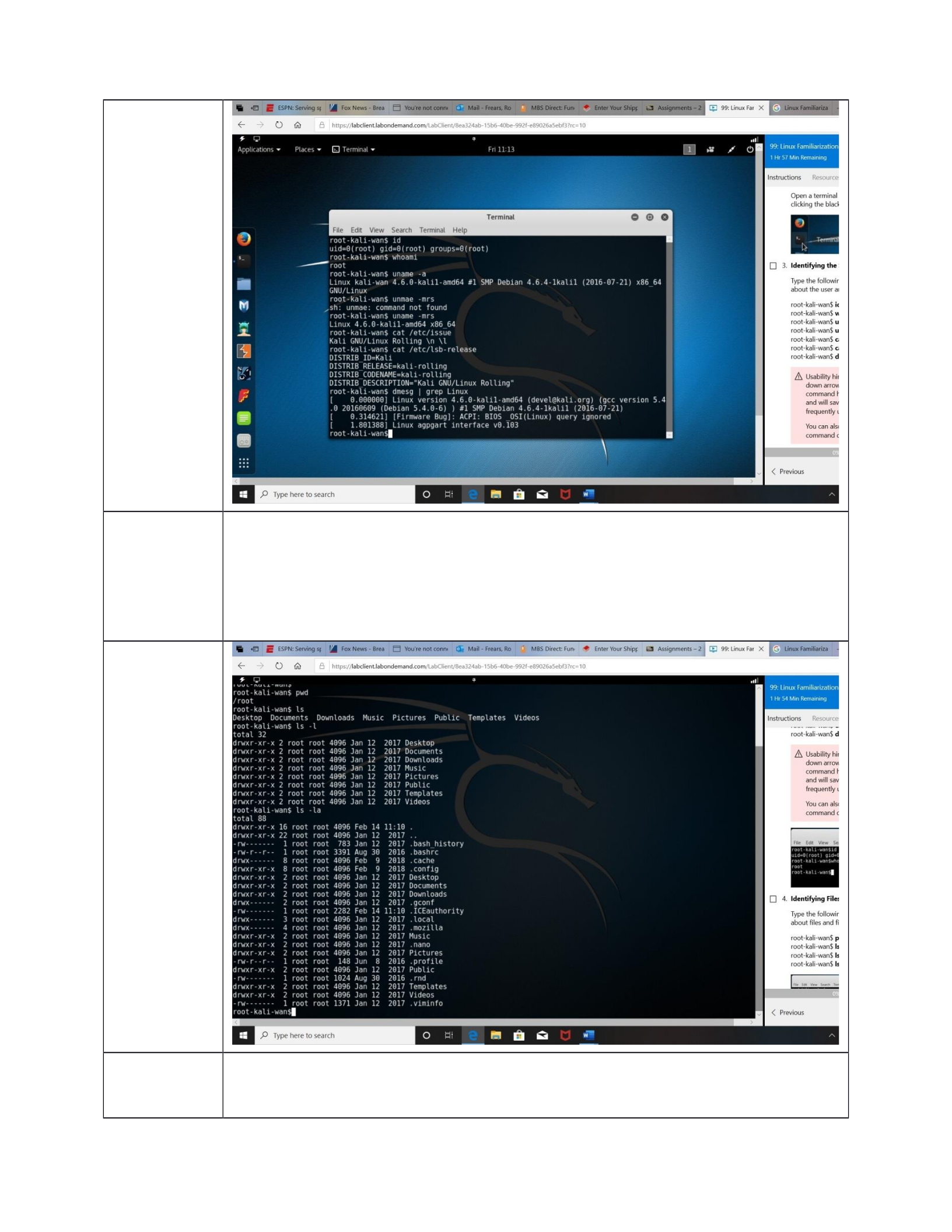
Click on “Identifying the System”
Type the following commands to gain information about the user and the system.
root-kali-wan$ id
root-kali-wan$ whoami
root-kali-wan$ uname -a
root-kali-wan$ uname -mrs
root-kali-wan$ cat /etc/issue
root-kali-wan$ cat /etc/lsb-release
root-kali-wan$ dmesg | grep Linux
LAB 1a REPORT
4
Paste
screenshot
here. Capture
all command
information.
Task 4:
Identifying
files and the
file system
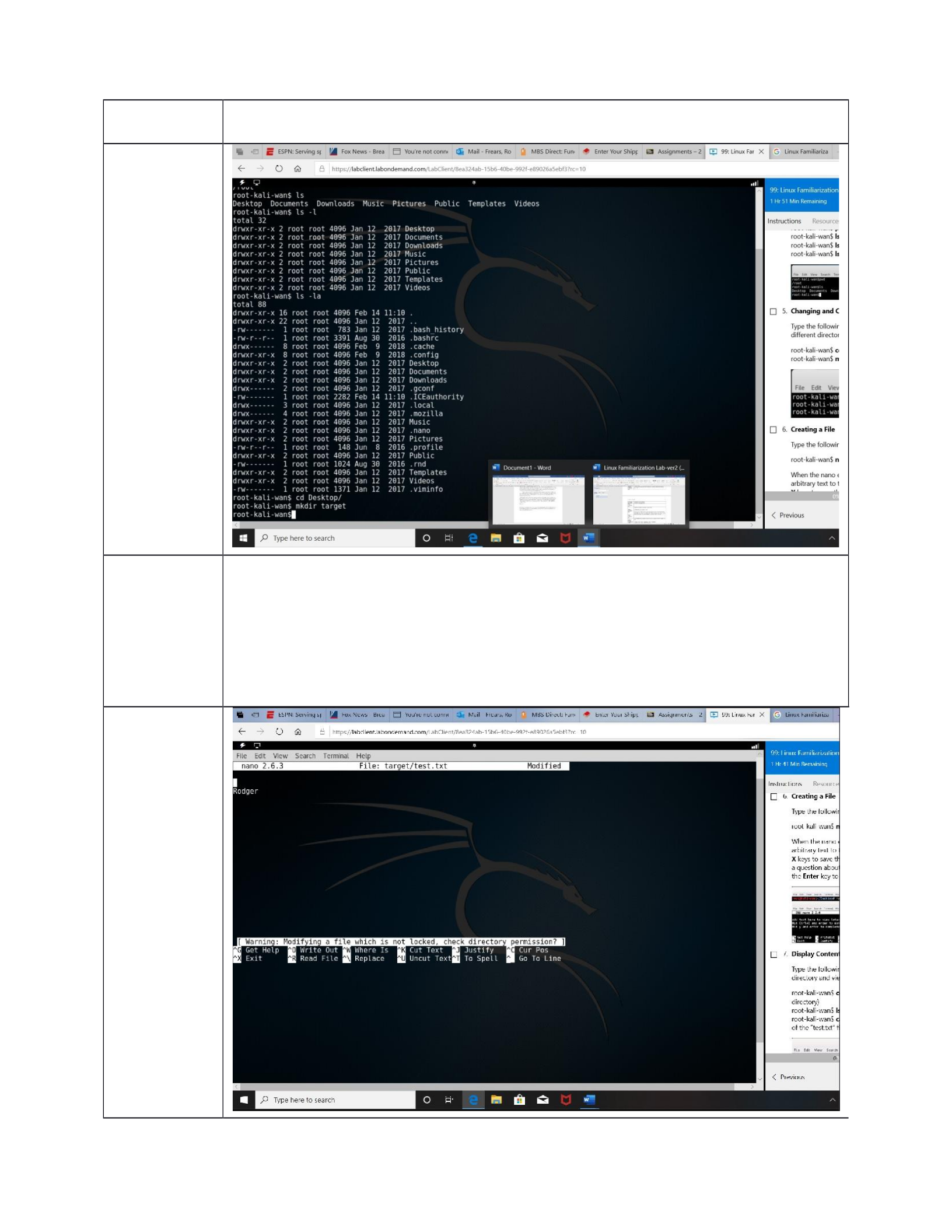
Type the following commands to gain information about files and file system.
root-kali-wan$ pwd
root-kali-wan$ ls
root-kali-wan$ ls –l
root-kali-wan$ ls -la
Paste
screenshot
here
Task 5:
Changing
and
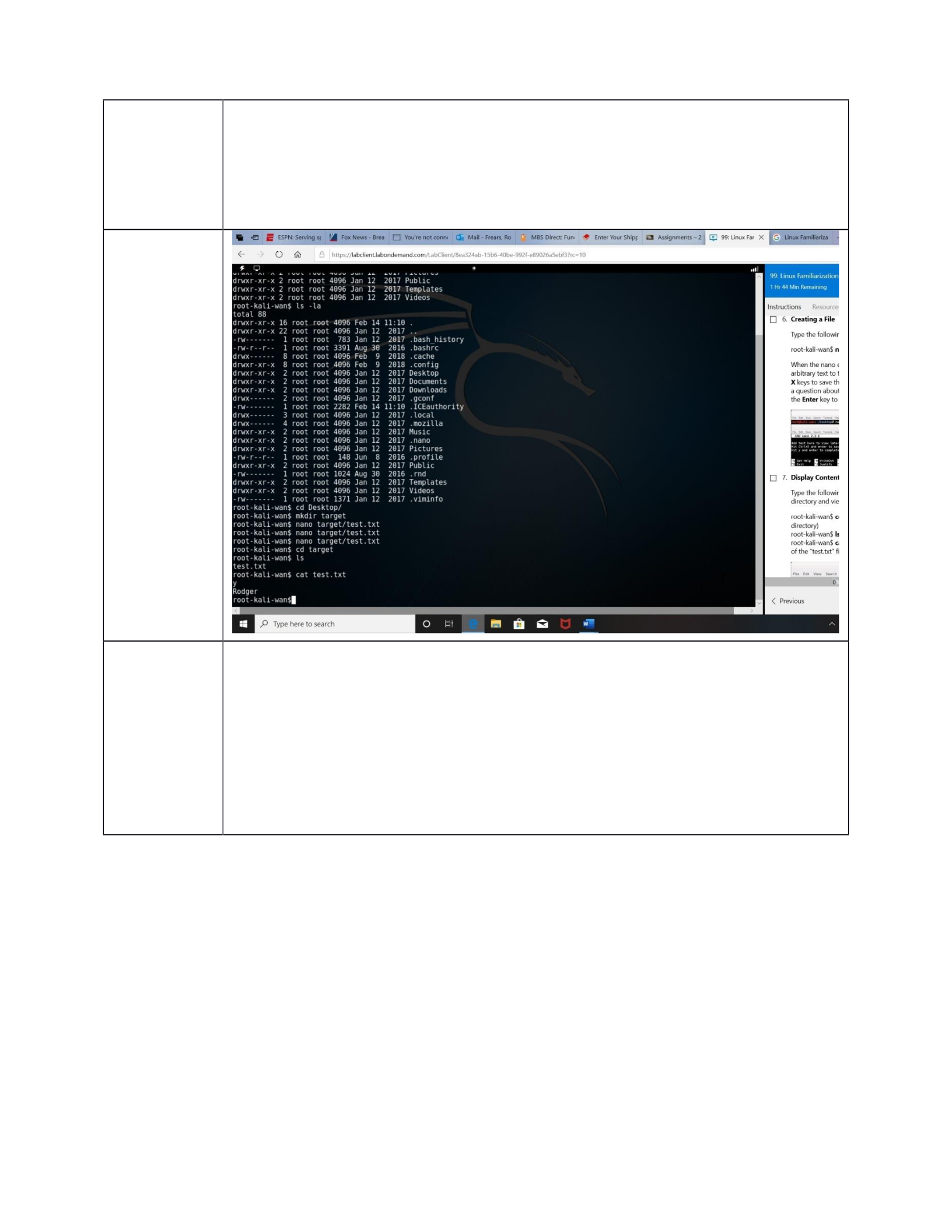
Type the following commands to change to a different directory and create a
directory.
LAB 1a REPORT
5
Creating a
Directory
root-kali-wan$ cd Desktop/
root-kali-wan$ mkdir target
Paste
screenshot
here
Tasks 6:
Creating a
File
Type the following commands to create a file.
root-kali-wan$ nano target/test.txt
When the nano editor comes up, add some arbitrary text to the file and then hit
the CTRL and X keys to save the text file. When prompted with a question about
the buffer, hit the Y key and hit the Enter key to save and close the file.
Paste
screenshot
here
LAB 1a REPORT
6
Task 7:
Display
Contents of
a File
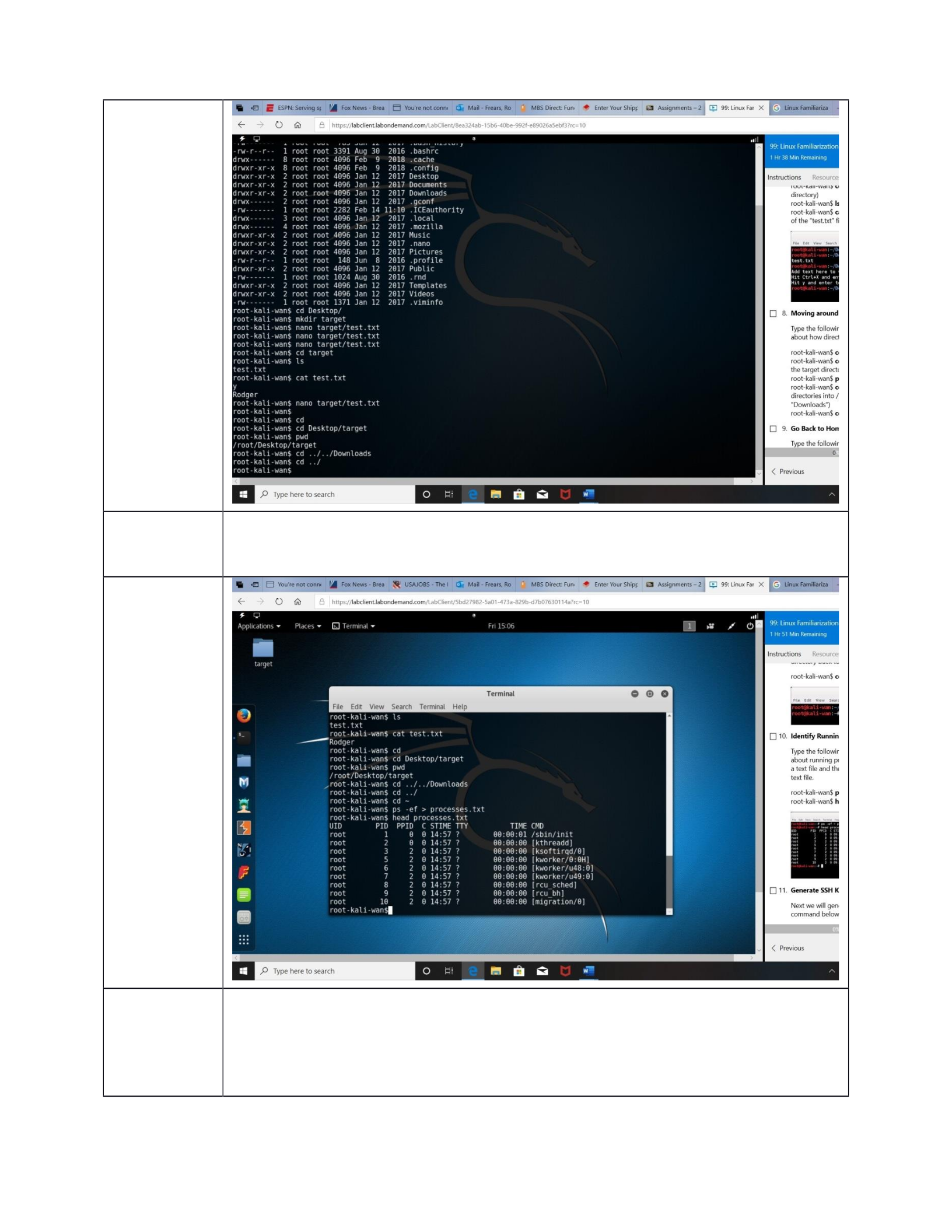
Type the following commands to move to a directory and view the contents of a
file.
root-kali-wan$ cd target (change into “target” directory)
root-kali-wan$ ls (list contents of directory)
root-kali-wan$ cat test.txt (display the contents of the “test.txt” file)
Paste
screenshot
here
Type the following commands to gain information about how directories are set
up.
Task 8:
Moving
Around the
File System
root-kali-wan$ cd (return to home directory)
root-kali-wan$ cd Desktop/target (change into the target directory)
root-kali-wan$ pwd (list current directory)
root-kali-wan$ cd ../../Downloads (go up 2 directories into /root then down into
"Downloads")
root-kali-wan$ cd ../
LAB 1a REPORT
7
Paste
screenshot
here
Task 9: Go
Back to
Home
Type the following commands to change the directory back to home.
root-kali-wan$ cd ~
Paste
screenshot
here
Task 10:
Identifying
Running
Processes
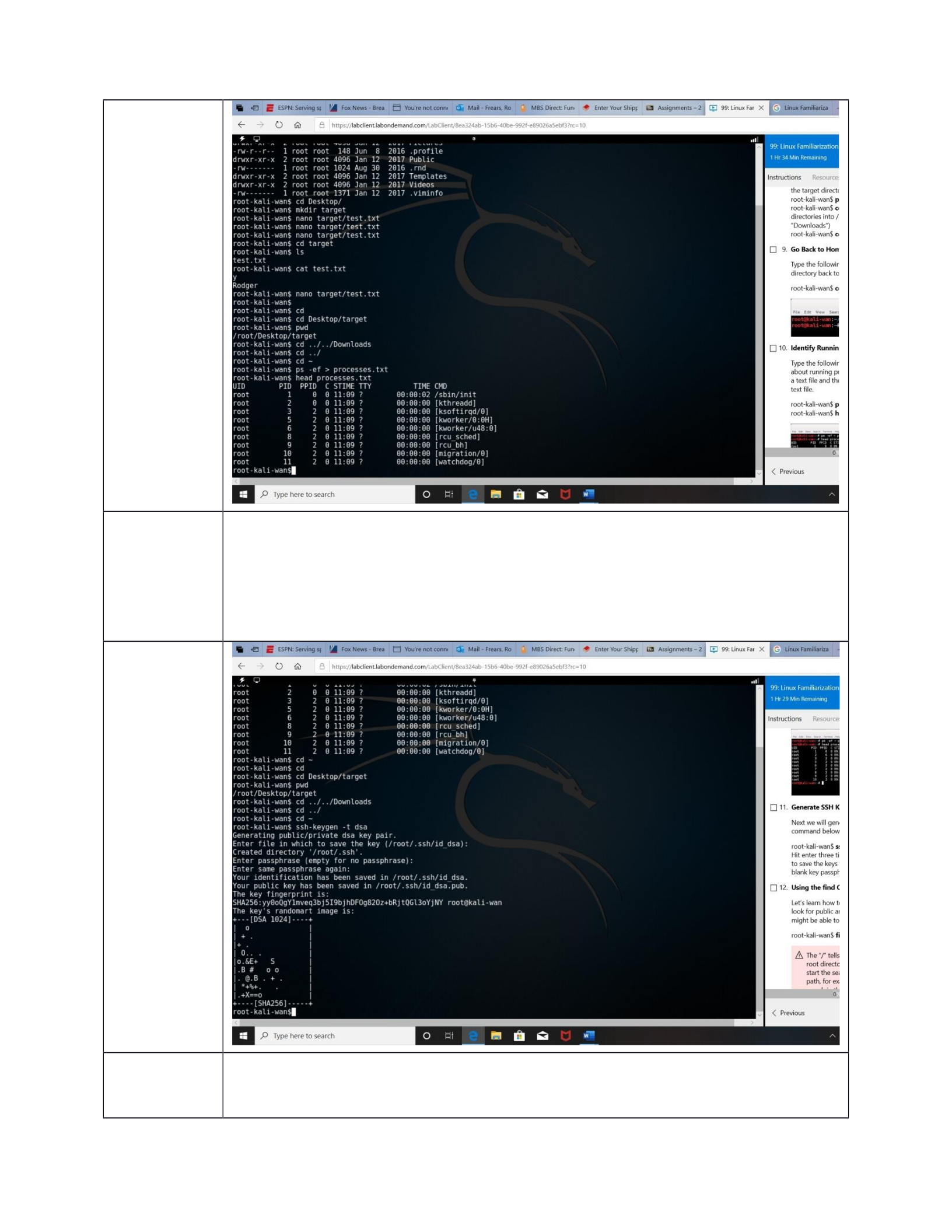
Type the following commands to gain information about running processes, send
the information to a text file and then view the top few lines in that text file.
root-kali-wan$ ps -ef > processes.txt
root-kali-wan$ head processes.txt
LAB 1a REPORT
8
Paste
screenshot
here
Task 11:
Generate
SSH Keys
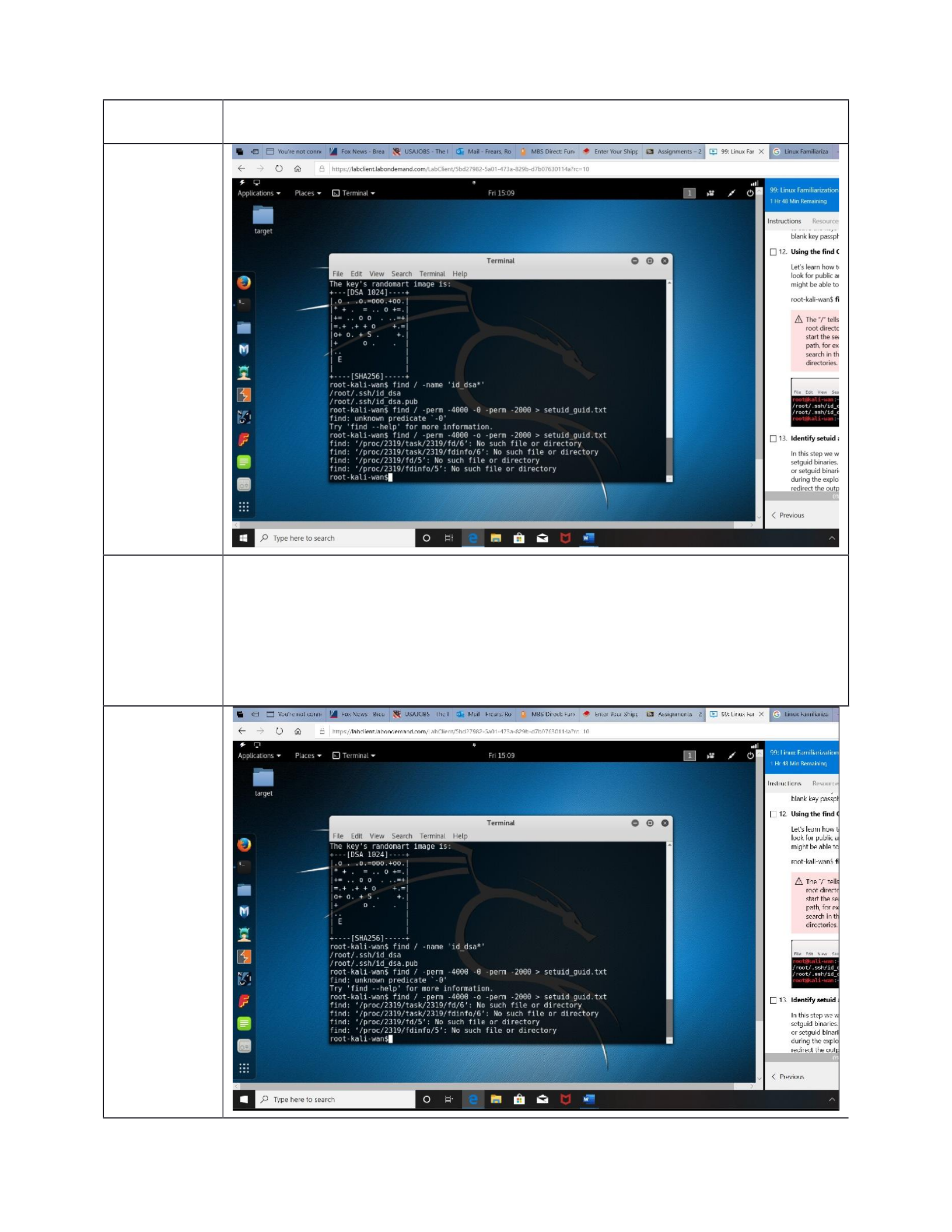
Next we will generate an ssh key pair. First run the command below.
root-kali-wan$ ssh-keygen -t dsa
Hit enter three times after running the command to save the keys to a default
location and to use a blank key passphrase.
Paste
screenshot
here
Task 12:
Using the
Find
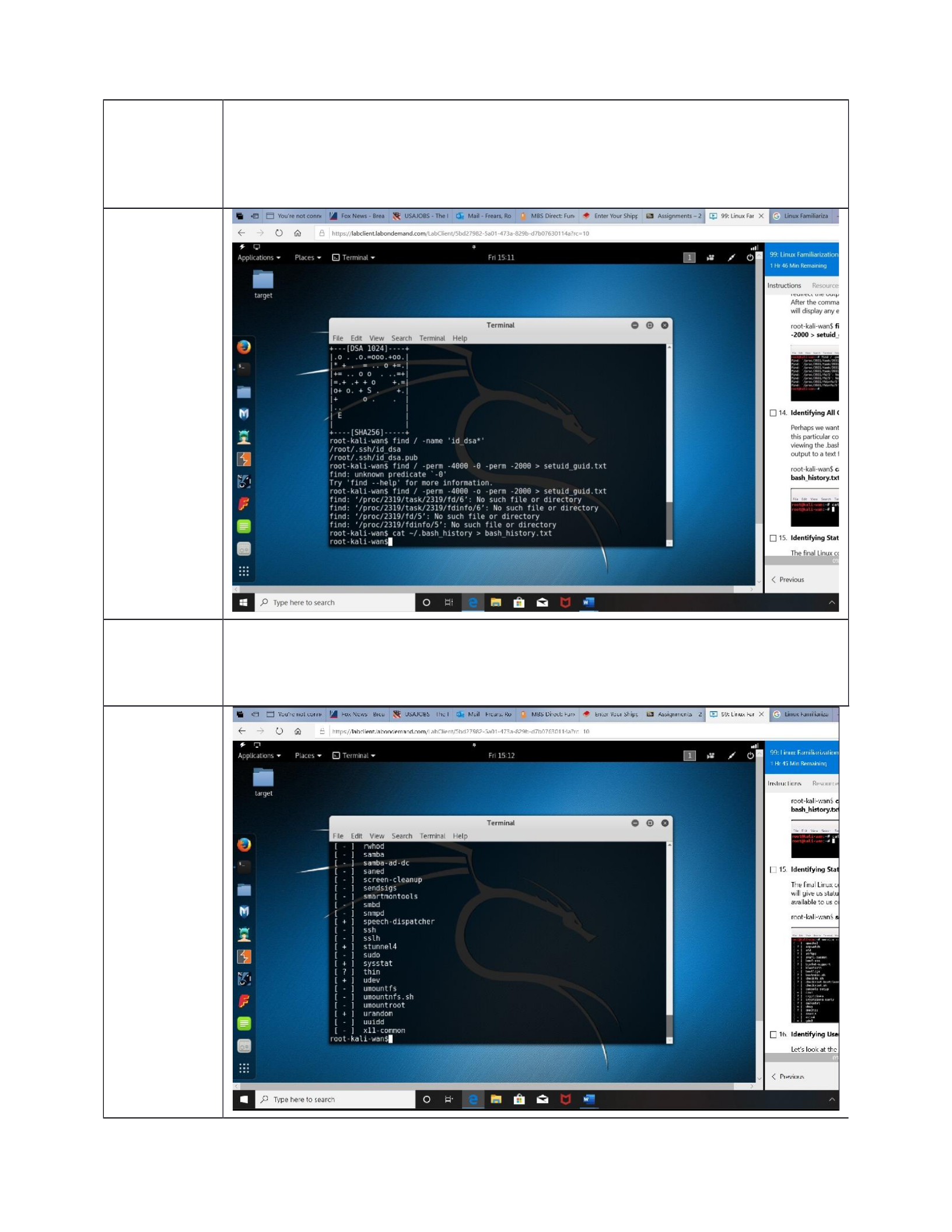
Let’s learn how to use the “find” command and look for public and private SSH
keys that we might be able to use in the future.
LAB 1a REPORT
9
Command
root-kali-wan$ find / -name 'id_dsa*'
Paste
screenshot
here
Task 13:
Identify
setuid and
setguid
Binaries
In this step we will search for all the setuid and setguid binaries. We may be able
to exploit setuid or setguid binaries to escalate our privileges during the
exploitation phase. In this example we redirect the output of our search to a .txt
file. After the command is run, the terminal window will display any errors that
occurred.
root-kali-wan$ find / -perm -4000 -o -perm -2000 > setuid_guid.txt
Paste
screenshot
here
LAB 1a REPORT
10
Task 14:
Identifying
All
Commands
Run
Perhaps we want to see all the commands run on this particular computer. We
can do this by viewing the .bash_history file and redirect the output to a text file
with the following syntax:
root-kali-wan$ cat ~/.bash_history > bash_history.txt
Paste
screenshot
here
Task 15:
Identifying
Status of All
Services
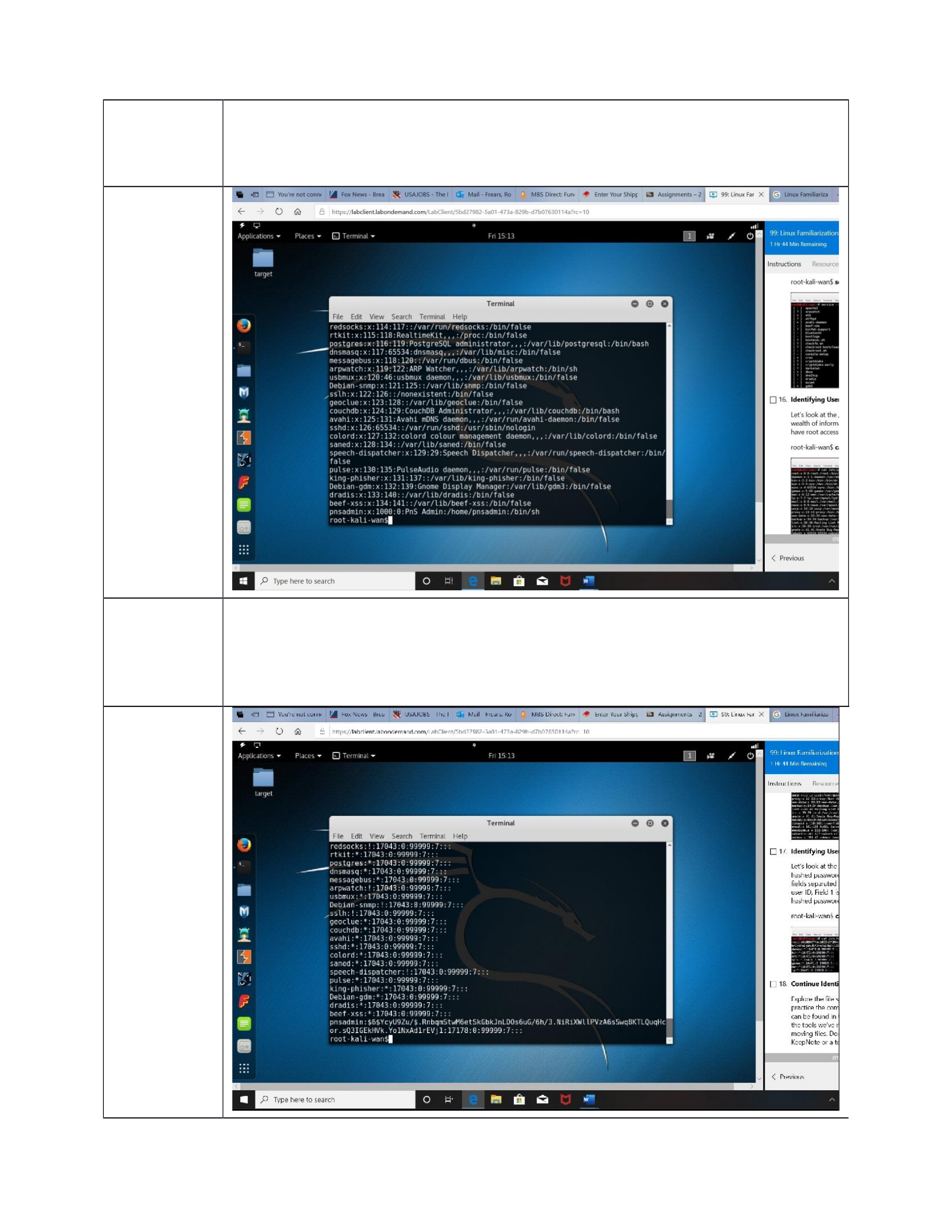
The final Linux command we’ll review in this lab will give us status information
on all the services available to us on the target host.
root-kali-wan$ service --status-all
Paste
screenshot
here
LAB 1a REPORT
11
Task 16:
Identifying
User Access
Information
Let’s look at the /etc/passwd file which contains a wealth of information,
including the users that have root access to the system.
root-kali-wan$ cat /etc/passwd
Paste
screenshot
here
Task 17:
Identifying
User Hashed
Passwords
Let’s look at the /etc/shadow file which contains hashed passwords for users.
Each entry contains 8 fields separated by a “:” where the Field 0 is the user ID,
Field 1 is the hashing algorithm, salt, and hashed password separated by a “$”.
root-kali-wan$ cat /etc/shadow
Paste
screenshot
here
LAB 1a REPORT
12
Task 18:
Continuing
Identificatio
n
Explore the file system and take some time to practice the commands with
various switches that can be found in the manual pages associated with the tools
we’ve now learned. Practice making, and moving files.
Document your findings in KeepNote or a text file on your attack (Kali) box.
Paste
screenshot
here
Task 19:
Start
Apache
Server and
View Files
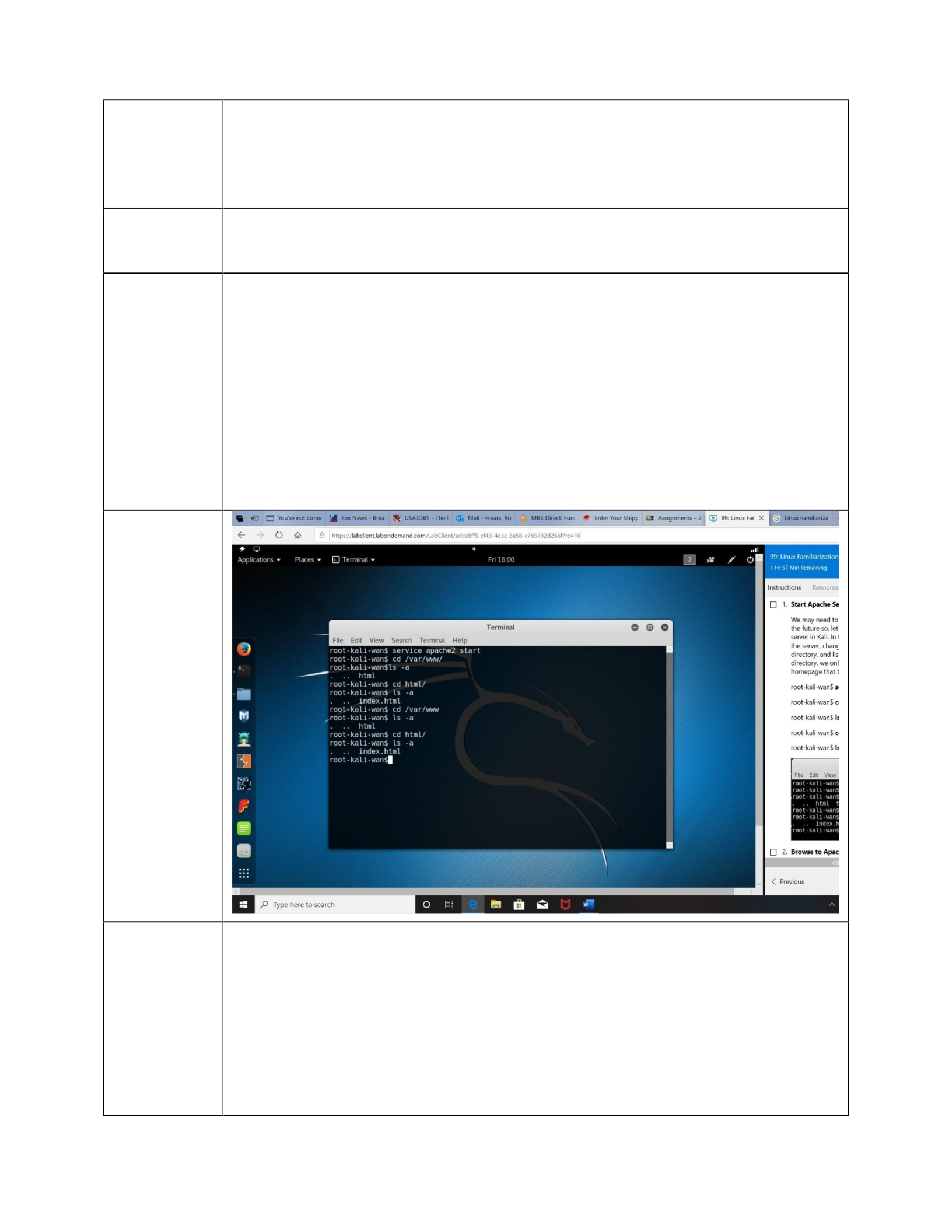
We may need to host an exploit at some time in the future so, let’s learn about
the apache web server in Kali. In the following steps we will start the server,
change into the default home page directory, and list all the files. In the
“/var/www/” directory, we only see the simple, default homepage that the
Apache2 service offers.
root-kali-wan$ service apache2 start
root-kali-wan$ cd /var/www/
root-kali-wan$ ls -a
root-kali-wan$ cd html/
root-kali-wan$ ls -a
Paste
screenshot
here
Task 20:
Browse to
Apache
Server
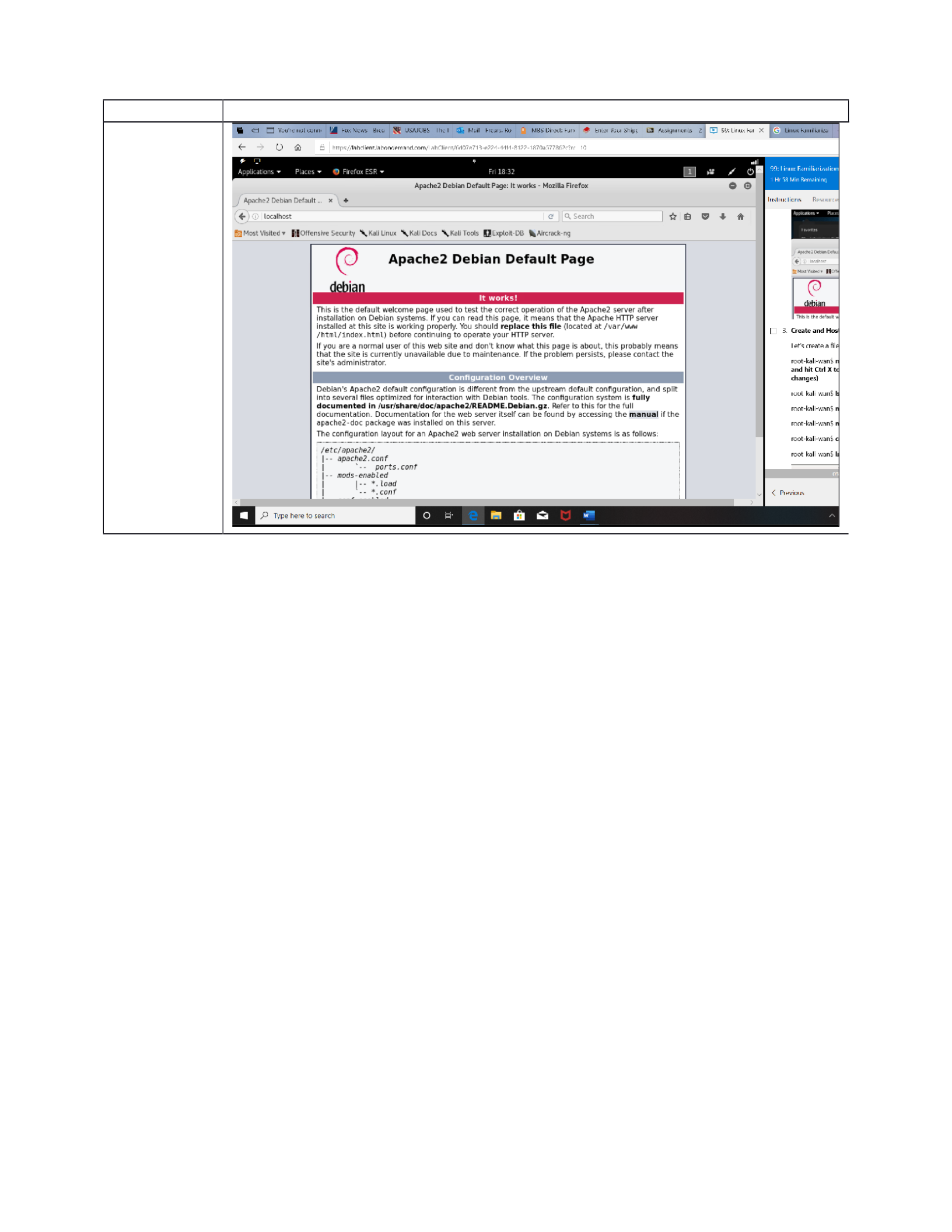
Let’s browse to the homepage we’re hosting on the Apache server.
Go under the Applications menu, located on the top left of the screen, and click
on the Firefox ESR icon. When the browser comes up
type localhost, or 127.0.0.1, into the URL/address bar and then hit enter.
Note: The It works! page is the default page for initial installations of the Apache
server. By seeing this, you know that this website probably has not been
LAB 1a REPORT
13
modified yet from that initial installation.
Paste
screenshot
here

LAB 1a REPORT
14
Lab Assessment Questions
LA 1
What is the command used in Linux to display information about files and directories
contained within the current working directory?
Answer
ls
LA 2
Which is the name of the Linux command used for directory traversal?
Answer
cd
LA 3
What is the Linux command that can be used for turning off or restarting a Linux host?
Answer
Shutdown
LA 4
What is a Linux command that can display an absolute path to (i.e. full filename) of the
current working directory is called?
Answer
pwd
LA 5
What is a Linux command used for transferring files/directories to a different directory
called?
Answer
mv
LA 6
What is the name of a Linux command used for renaming files and directories?
Answer
mv
LA 7
Which Linux command allow for moving one level up in Linux directory tree?
Answer
cd ..
LA 8
What is the name of a Linux command-line utility used for reporting statistics on running
processes?
Answer
ps
LA 9
What does th “/” tells ‘find’ to do?
Answer
ls
LA 10
How can you cycle through the command history?
Answer
Up arrow
LAB 1a REPORT
15
LINUX LAB CHALLENGE QUESTIONS
In this section, you will identify and use various Linux commands to identify and save
information.
CQ 4.1: Create a
Host File and host
it on the Web
Server created in
the previous
steps.
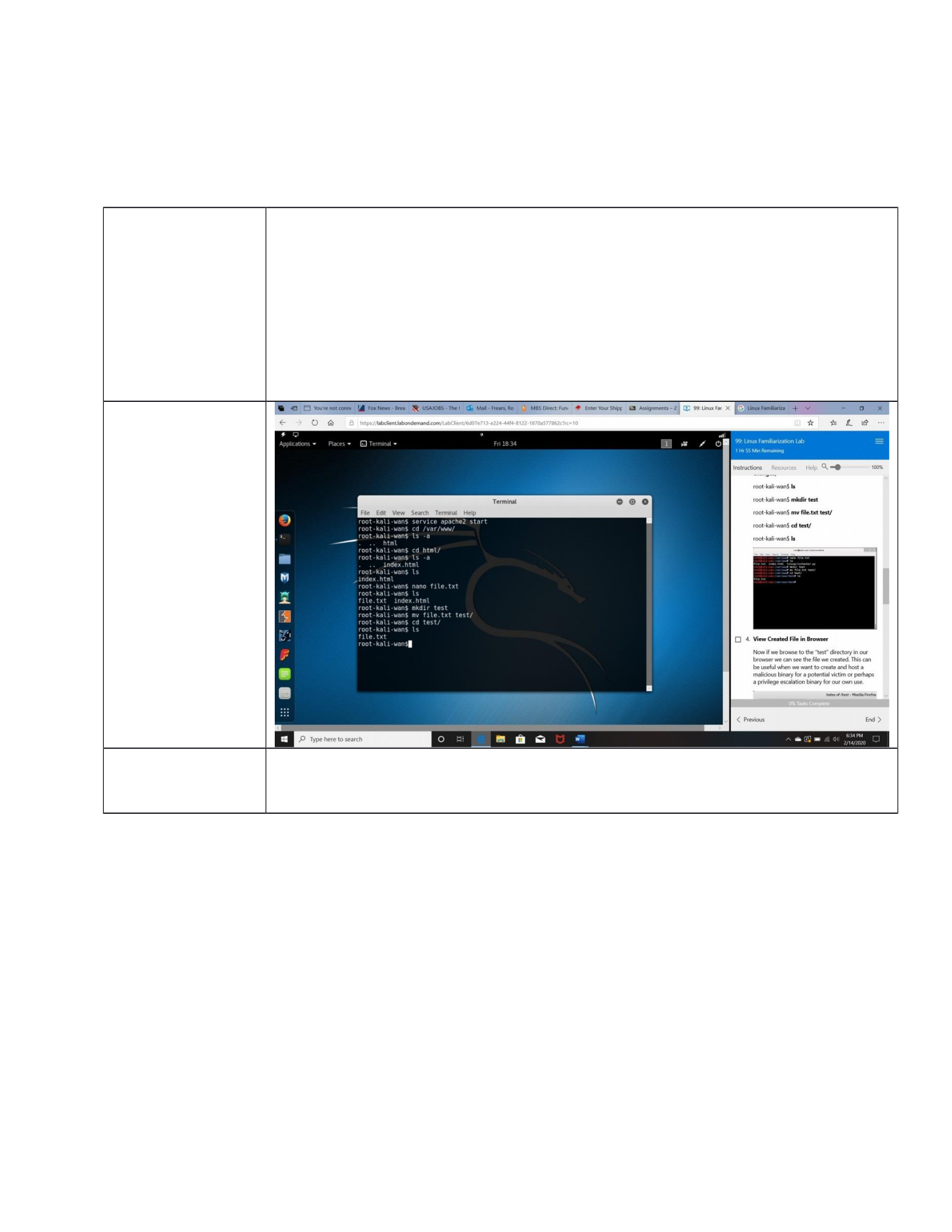
Let’s create a file and host it on our web server.
root-kali-wan$ nano file.txt (enter some text and hit Ctrl X to exit - type Y to save
your changes)
root-kali-wan$ ls
root-kali-wan$ mkdir test
root-kali-wan$ mv file.txt test/
root-kali-wan$ cd test/
root-kali-wan$ ls
Paste screenshot
here
CQ 4.2: View
Created File in
Browser
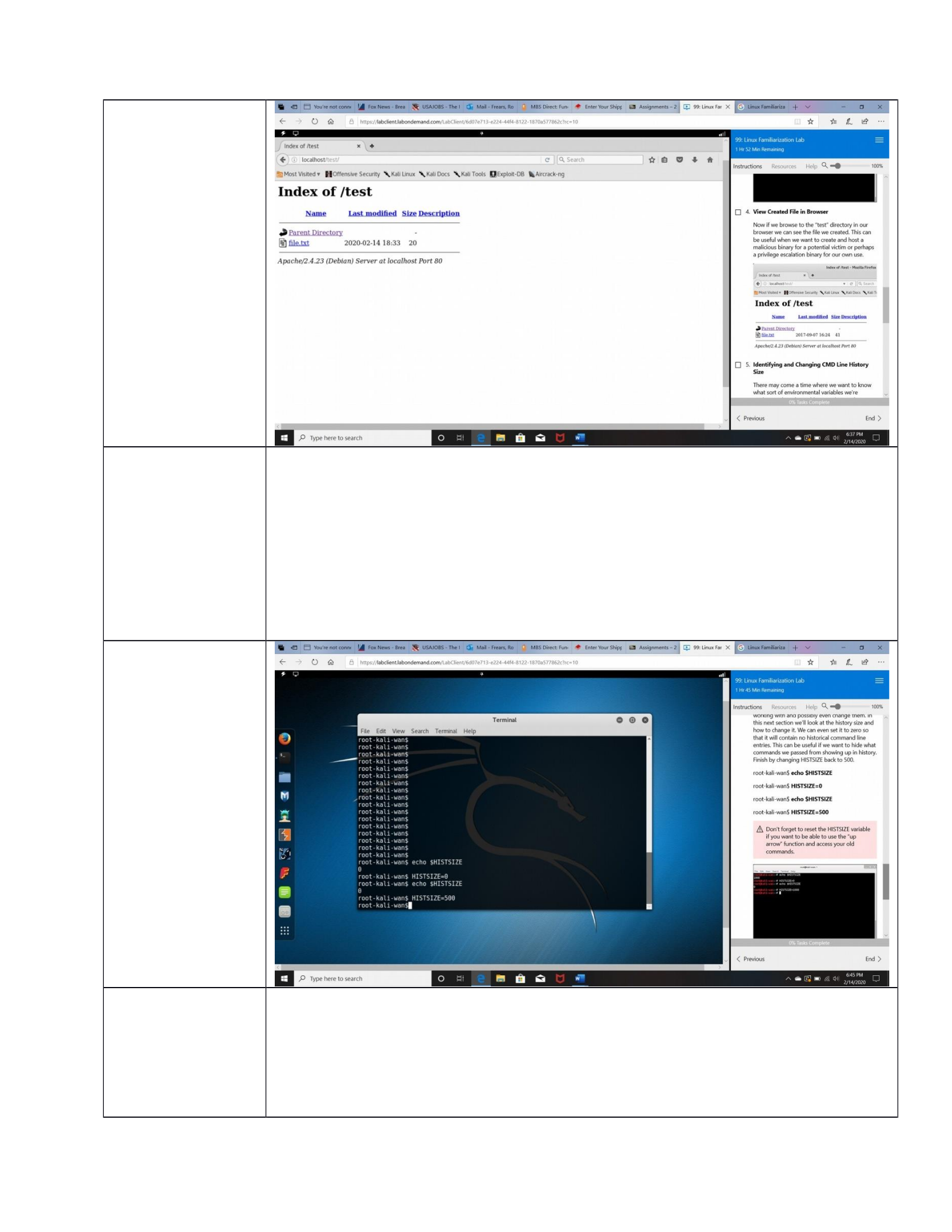
Now if we browse to the “test” directory in our browser we can see the file we
created. This can be useful when we want to create and host a malicious binary
for a potential victim or perhaps a privilege escalation binary for our own use.
LAB 1a REPORT
16
Paste screenshot
here
CQ 4.3:
Identifying and
Changing CMD
Line History Size
There may come a time where we want to know what sort of environmental
variables we’re working with and possibly even change them. In this next section
we’ll look at the history size and how to change it. We can even set it to zero so
that it will contain no historical command line entries. This can be useful if we
want to hide what commands we passed from showing up in history. Finish by
changing HISTSIZE back to 500.
root-kali-wan$ echo $HISTSIZEroot-kali-wan$ HISTSIZE=0
root-kali-wan$ echo $HISTSIZEroot-kali-wan$ HISTSIZE=500
Paste screenshot
here
CQ 4.4:
Identifying
directory Path
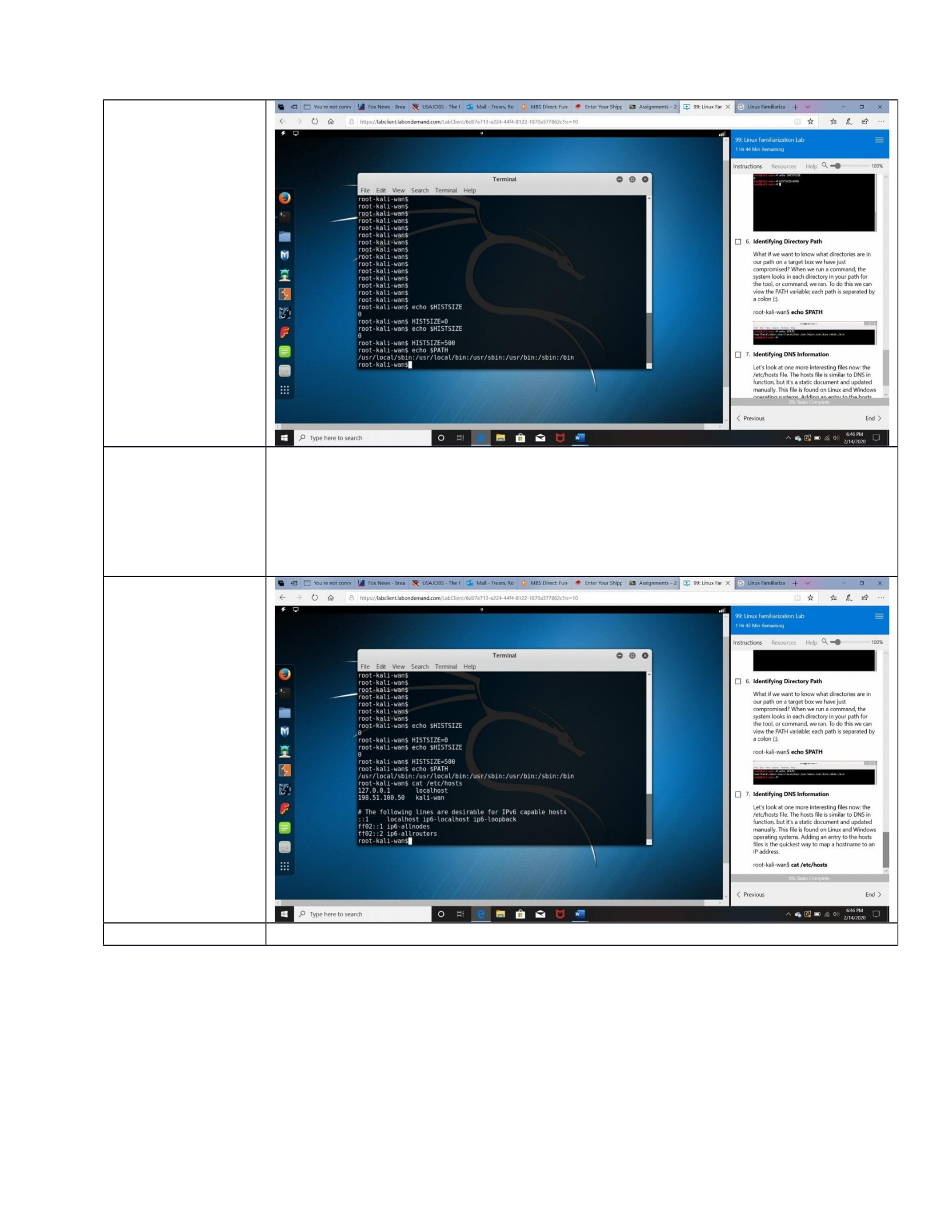
What if we want to know what directories are in our path on a target box we have
just compromised? When we run a command, the system looks in each directory
in your path for the tool, or command, we ran. To do this we can view the PATH
variable; each path is separated by a colon (:).
root-kali-wan$ echo $PATH
LAB 1a REPORT
17
Paste screenshot
here
CQ 4.5:
Identifying DNS
Information
Let’s look at one more interesting files now: the /etc/hosts file. The hosts file is
similar to DNS in function, but it’s a static document and updated manually. This
file is found on Linux and Windows operating systems. Adding an entry to the
hosts files is the quickest way to map a hostname to an IP address.
root-kali-wan$ cat /etc/hosts
Paste screenshot
here
Finisthed
Congratulations, you have successfully completed the Linux Familiarization Lab

