


JavaFx

JavaFX is a set of graphics and media packages that can be used to design rich client
applications that operate consistently across diverse platforms
Graphical User Interface(GUI) controls and their functionalities are defined in the following
packages of JavaFX
javafx.application, javafx.stage, javafx.scene and javafx.scene.layout
Commonly used GUI controls are available inside javafx.scene.control package
Some of the GUI controls in this package are:
Label, TextField, Button, MenuButton, CheckBox, RadioButton, ScrollPane.

Java program has to extend Application class of javafx.application package
Life cycle methods of javaFX application:
start(Stage stage)
launch(String args[])
Major Components of JavaFX application:
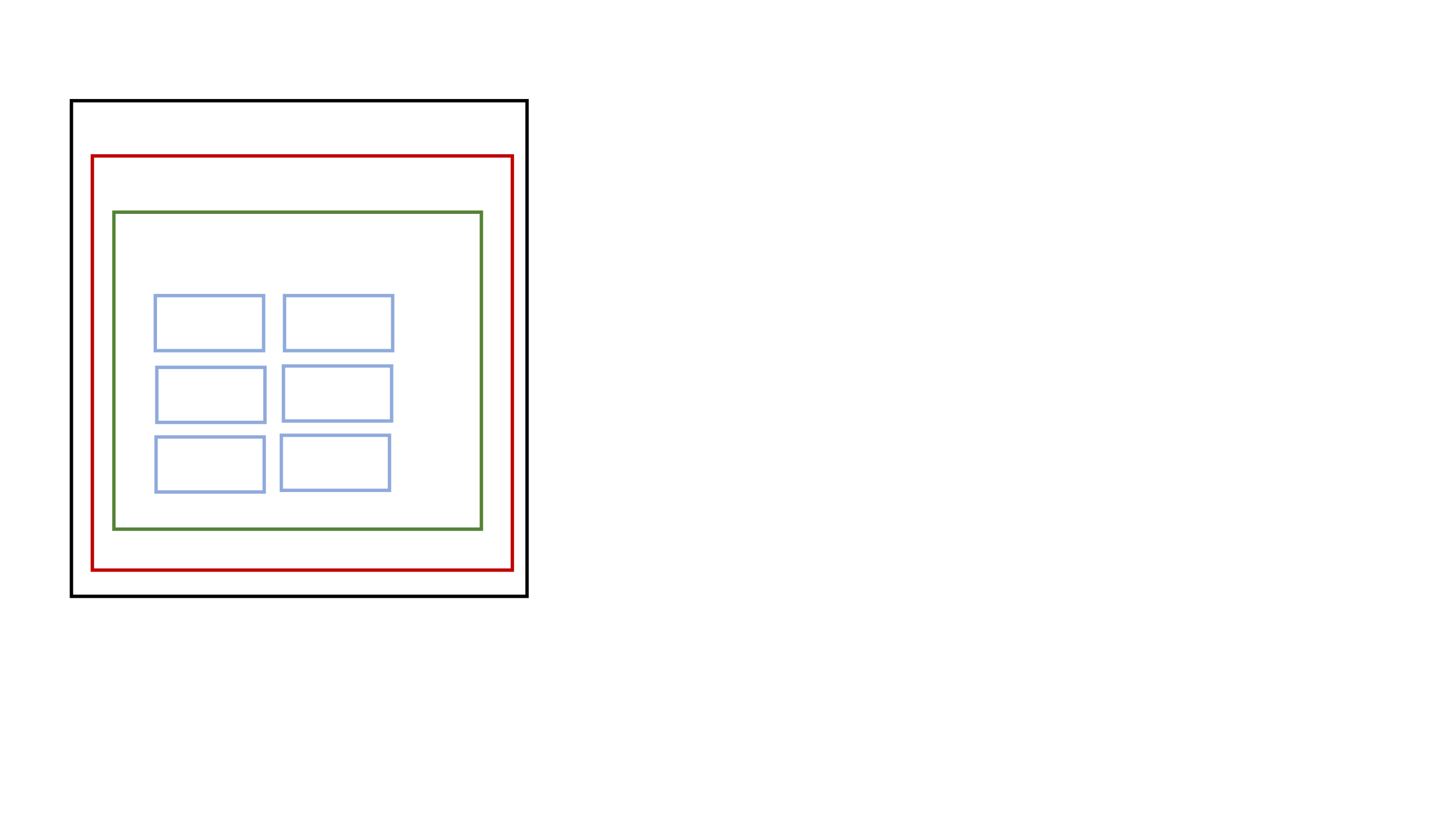
Stage: Contains all objects of the JavaFX application
Scene: Contains all the current contents of the scene graph
Node: Visual object of the scene graph (UI Controls, Geometry Objects)
Scene graph is a tree like data structure that is a collection of nodes.
Stage
Scene
Scene Graph
Node
Node
Node
Node
Node
Node
public void start(Stage stage)
{
//Create Text
Text text=new Text("First Application");
//Create VBox
VBox root = new VBox();
// add text to box
root.getChildren().add(text);
//set size of the VBox
root.setMinSize(200, 200);
//Create Scene
Scene scene =new Scene(root);
stage.setX(100);
stage.setY(200);
stage.setMinHeight(300);
stage.setMinWidth(300);
//adding Scene to stage
stage.setScene(scene);
stage.setTitle("First JavaFx Example");
stage.show();
}
Sample start() method in JavaFx application

Structure of the JavaFx Application
//IMPORT REQUIRED JAVAFX PACKAGES
Public class FXApplication extends Application
{
public static void main(String args[])
{
//launch Application
Application.launch(args);
}
public void start(Stage stage)
{
//Declare UI controls
//Add UI controls to scenegraph
// Add scenegraph to scene
//Add scene to stage
//show stage
}
}
Working with JavaFX UI Controls:
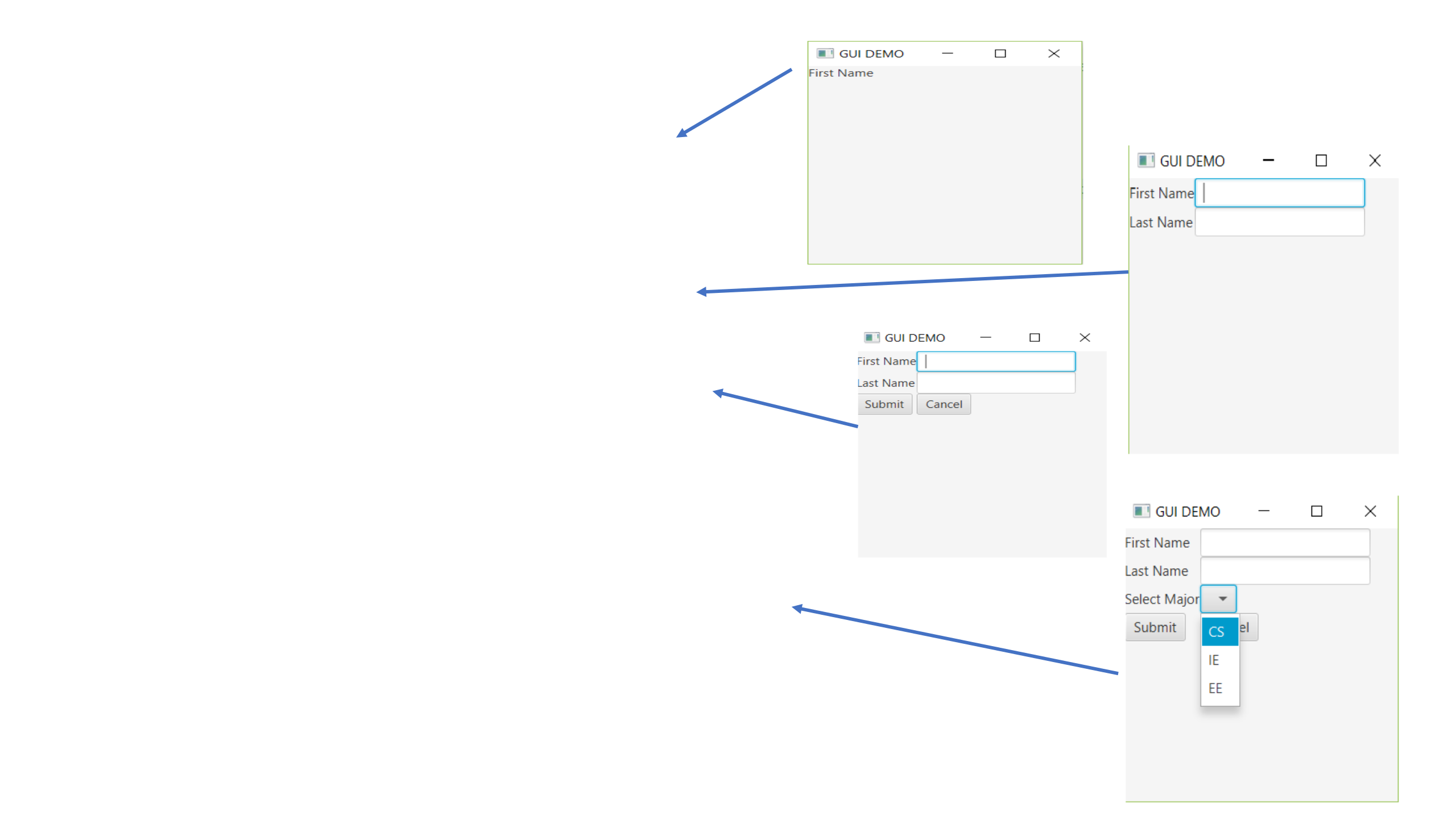
1.Label
Label label1=new Label(“First Name”)
label1.setFont(new Font(“Arial”,30))
2. TextField
TextField fname=new TextField();
3. Button
Button button1=new Button(“Submit”)
4. MenuButton
//Create MenuButton
MenuButton mb=new MenuButton();
MenuItem item1=new MenuItem("CS");
MenuItem item2=new MenuItem("IE");
MenuItem item3=new MenuItem("EE");
mb.getItems().addAll(item1,item2,item3);
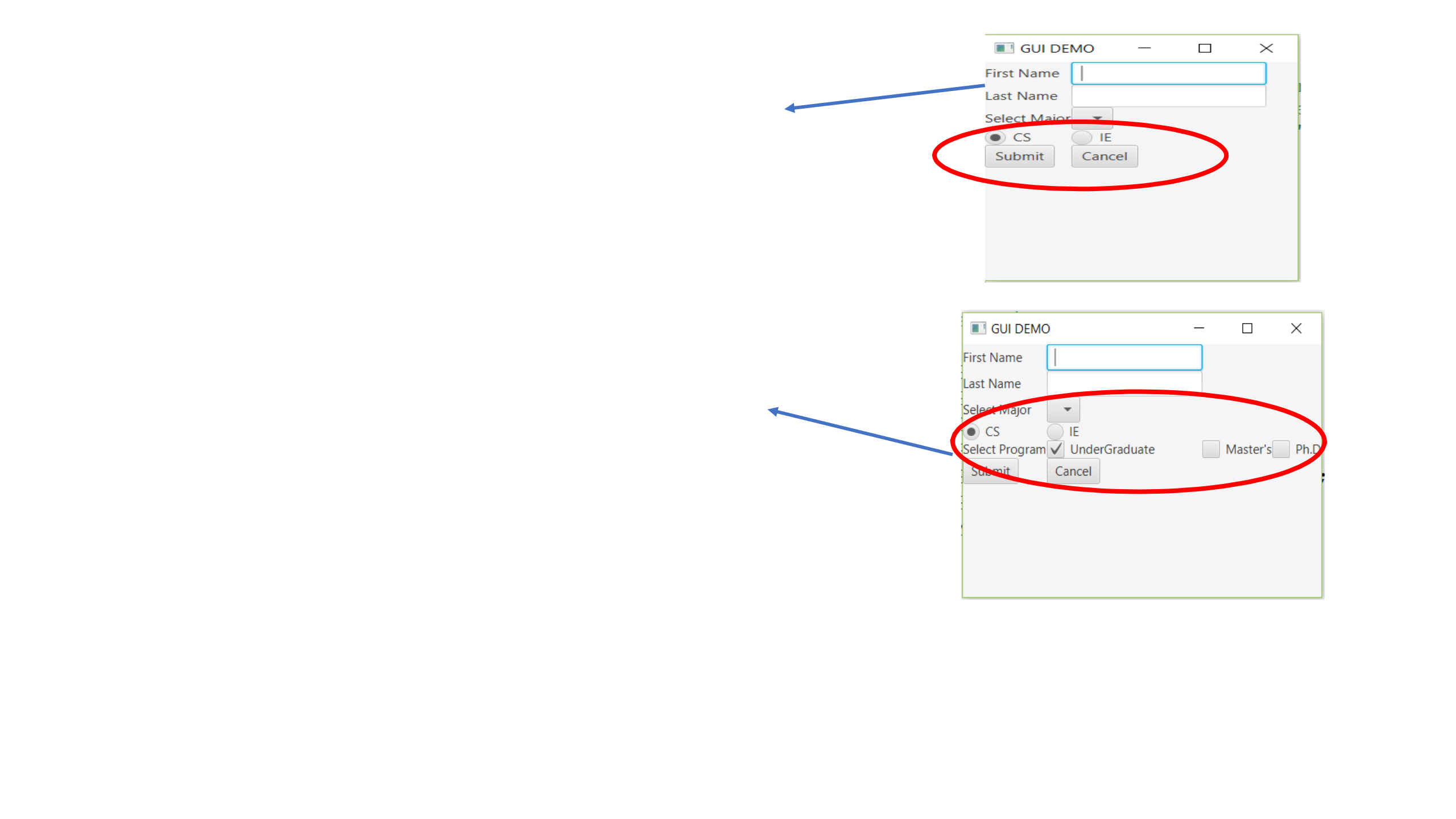
5. RadioButton
RadioButton rb1=new RadioButton(“CS”)
Adding to radio buttons to the group
final ToggleGroup group= new ToggleGroup()
rb1.setToggleGroup(group)
rb1.setSelected(true)
6. CheckBox
CheckBox cb1= new CheckBox(“Master’s”)
cb1.setSelected(true)
7. ListView
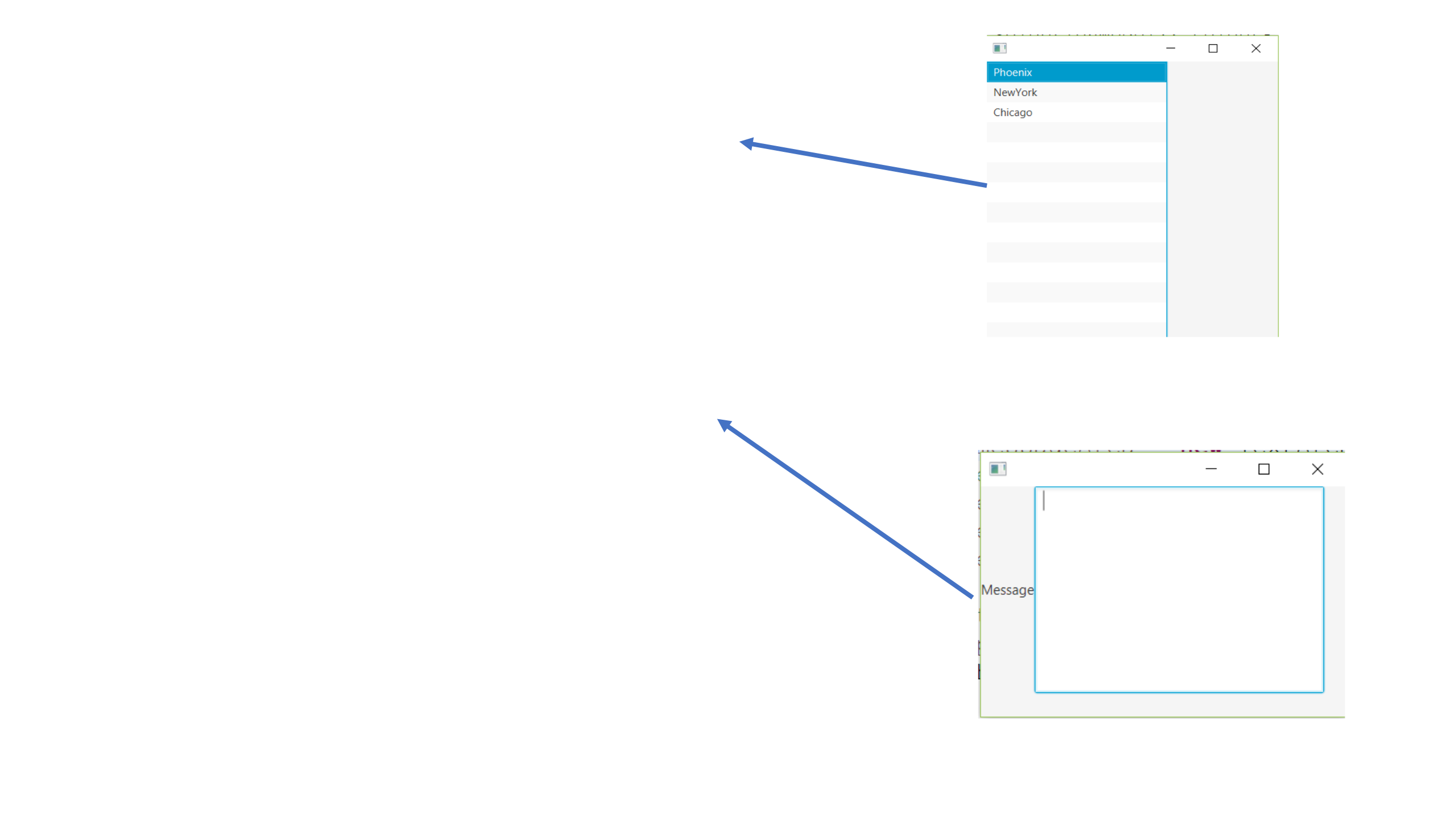
ListView<String> cities=new ListView<String>();
cities.getItems().addAll("Phoenix","NewYork","Chicago");
cities.getSelectionModel().selectFirst();
8. TextArea
TextArea messageArea = new TextArea();
// Set the Prompt and Size of the TextArea
messageArea.setPromptText("Your Message:");
messageArea.setPrefColumnCount(20);
messageArea.setPrefRowCount(10);
9. TabPane
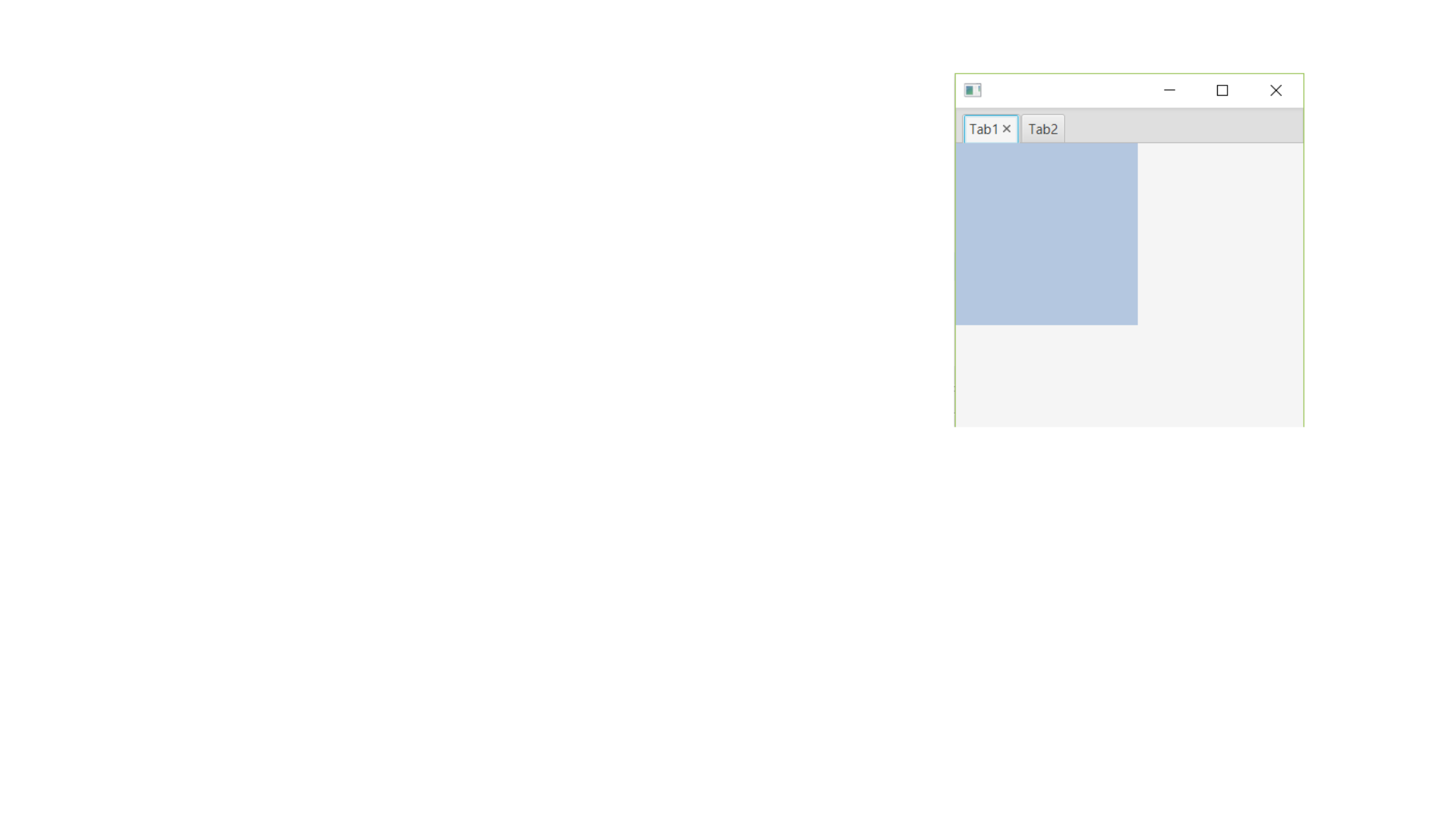
TabPane tabpane=new TabPane()
create Tab
Tab tab1=new Tab(“Tab1”)
Add content to tab
tab1.setContent(<Node>)
Add tab to TabPane
tabpane.getTabs().add(tab1)

Layout Panes
Arranging Nodes on the Scene [ Package: javafx.scene.layout]
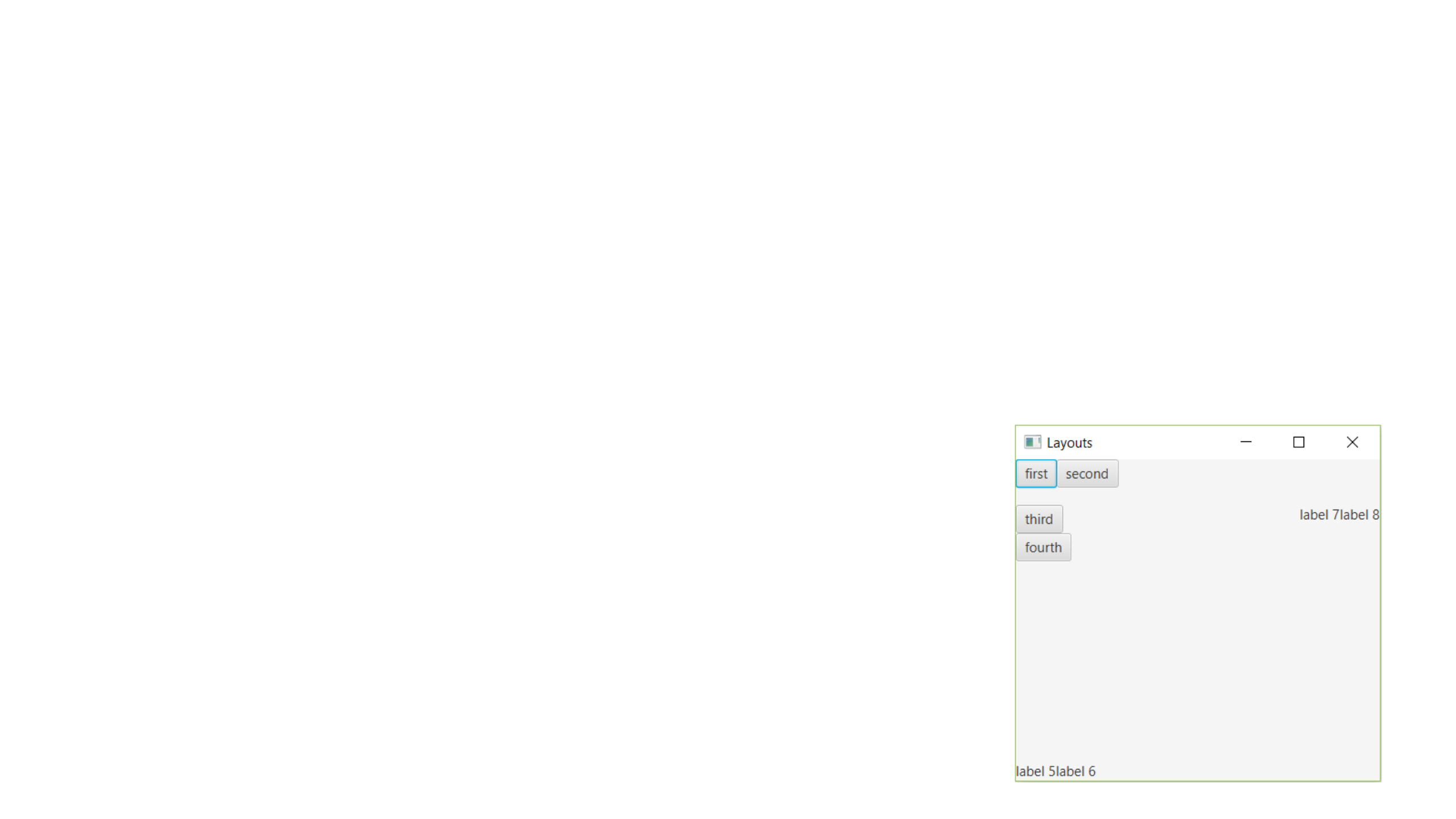
1. BorderPane
Nodes can be placed in five regions: left, right, top, bottom, center
BorderPane border=new BorderPane()
Border.setTop(<NodeName>)
2. HBox
Arranging nodes in a single row
HBox hbox=new HBox();
hbox.getChildren.addAll(<NodeList>)
3. Vbox
Arranging nodes in a single column
VBox vbox=new VBox();
vbox.getChildren.addAll(<NodeList>)
4. GridPane
Creates a flexible grid of rows and columns that can be used to layout the nodes
GridPane pane=new GridPane()
pane.addRow(int,<Nodelist>)
5. FlowPane
Nodes in FlowPane are laid out consecutively and wrap at boundary set for the Pane
FlowPane pane=new FlowPane()
pane.getChildren().addAll(<Nodelist>)
6. StackPane
Places all nodes in a single stack with each node placed one above the other
7. TilePane
Similar to FlowPane, with each cell of same size.
8. AnchorPane
Anchor’s nodes to positions: left, right, top, bottom and center

