summary for four chapters
 stepheny
 ch3.pdf
Chapter 3: Technology
1 of 36
ACCOUNTING INFORMATION SYSTEMS: A DATABASE APPROACH by: Uday S. Murthy, Ph.D., ACA and S. Michael Groomer, Ph.D., CPA, CISA
Technology
Learning Objectives
After studying this chapter you should be able to:
• describe various information technologies used for data input
• explain in some technical detail the components of a computer system
• explain the technologies used to process data
• describe alternative computer output technologies
• distinguish between systems software and applications software
• describe the categories and functions of systems software
• describe the categories and functions of applications software
• briefly describe the issues surrounding systems configurations
In the previous chapter, we discussed some basic elements of information system such as fields, records, files, and file processing methods. The general systems model was also presented. Systems theory suggests that every information system have the following components: input, processing, storage, and output. In this chapter, we focus on the technology of information systems in terms of the hardware and software. Hardware components can be broadly categorized into input, processing, storage, and output technologies. Software will be discussed under three classifications—systems software, programming languages and applications software.
This chapter is somewhat lengthy and contains what might seem to be a fairly esoteric discussion of technical issues surrounding personal computer (PC) hardware and software. However, knowledge of these technical issues and the related vocabulary is important for two reasons. First, you may very likely be called upon to provide advice to your employer or a client regarding hardware and software issues. You need to be prepared and able to accomplish this mission. Second, information systems professionals speak the language of computers. If you do not know this language, you will be unable to communicate with them effectively. In order to make this point clearer to you, visit the web sites of HP or Dell computers. These are two of the largest suppliers of made-to-order PCs in the world. Both of their websites allow customers to configure and order desktop, laptop, and tablet computers. As you explore the various
Chapter 3: Technology
2 of 36
configurations, you are immediately forced to deal with considerable technical jargon. If you are not conversant with terms like “DDR3,” “SSD” or “L3 Cache,” then the recommendations you might make could be seriously flawed, potentially causing your employer or a client many thousands of dollars in losses. The purpose of this chapter is to enhance your understanding of the vocabulary of computer technology.
HARDWARE As indicated above, hardware can be classified into the following broad categories: input, processing, storage, and output. Input technologies are used to convert data into computer readable form, either automatically or through varying degrees of human involvement. Processing technologies are contained within the “black box” itself and are used to convert raw data into meaningful information. Data storage technologies are employed to either temporarily or permanently store data. Finally, output technologies come into play in making information available to the end user. Conventional “hard copy” outputs in the form of paper, as well as “soft copy” output on the computer screen are two of the most common output options used in computer-based information systems. There are a number of recent developments in hardware which have revolutionized input, processing, storage, and output technologies. Multimedia technologies in general and optical disks (DVDs and CDs), have become extremely popular while their costs continue on a downward spiral. Note that the discussion of hardware that follows focuses primarily, although not exclusively, on microcomputer technology simply because you will very likely be interacting with microcomputers either in a stand alone or a networked environment.
Input technology
There are a number of technologies available for entering data into computer systems. Older technologies, some of which are still in use, require extensive human involvement. Newer technologies for data input require less extensive human involvement. Some new technologies almost entirely automate the process of converting data into computer-readable form. An example of a relatively old technology is a keying device used for data entry, better known as a keyboard. This device involves manual entry of data into the computer system using keystrokes. Typically a keyboard device for a personal computer is connected to the PC via a Universal Serial Bus (USB) port. USB will be discussed in more detail later in this chapter. Today there are a number of vendors like Microsoft and Logitech that offer wireless versions of keyboarding devices. A wireless keyboard will require a wireless transmitter connected to the computing device, again, via a USB port. Input devices commonly used in personal computing environments include the mouse and its variants such as the trackpad and the trackpoint. These devices involve using fingers to manipulate a device in order to move the cursor on the computer screen. The devices also allow the user to select objects and perform actions by clicking on buttons either attached to or adjacent to the mouse, trackpad, and trackpoint devices. A mouse is an opto-mechanical device in which movements of a ball underneath the mouse cause corresponding movements of the cursor on the computer screen. The trackpad
Chapter 3: Technology
3 of 36
device presents the user with a small flat panel about four inches square. The user moves his or her finger on the pad to control the movement of the cursor on the screen. Finally, a trackpoint is an eraser-head like device wedged between keys near the center of the keyboard. The user presses the trackpoint in the direction the cursor should be moved on the screen. On a mouse, the buttons to be clicked by the user are placed on the top of the mouse itself. In addition, many mouse devices have a “wheel” positioned between the left and right pads to provide the ability to more easily “scroll” though the materials on the output device. Some of these devices are optical in nature and do not require a ball beneath the mouse to cause the corresponding movements of the cursor as described previously. In addition, there are wireless counterparts to all of these pointing devices. For the trackpad and trackpoint, the buttons are typically placed below and to the left and right of the pad or the trackpoint. Thus, with these pointing devices the options are mechanical, optical, wired and/or wireless. Like the wireless keyboard, a wireless pointing device requires a transmitter connected to the personal computer. Visit the Microsoft hardware site to see examples of wired/wireless keyboards and wired/ wireless/mechanical/optical mouse devices.
Light pens and touch screen devices are also used for input in certain applications. A light pen is a small, photosensitive device that is connected to a computer. By moving the light pen over a computer screen, the user can in effect manipulate data in the computer system. Touch screen devices, commonly used in airports and large hotels allow the user to simply touch the computer screen with a finger to make selections. The Apple iPhone is a recent example of a device that with one exception (the on-off button) is a totally touch screen driven device. Technology for input that has recently matured is audio input or voice input. It is now possible to speak to a computer not only to issue commands but also to enter data into the computer system. At the heart of this technology is voice recognition software that is capable of recognizing words spoken clearly into a microphone. As you may be aware with technologies such as “Siri” on the Apple iPhone, this voice recognition technology works quite well, but is far from perfect. In addition to audio input, video input is also possible where a video or still camera transmits moving or static images directly into the computer system. It is important to recognize, however, that audio and video data streams take up considerable storage space.
Let us now turn to input devices which automate, to varying degree, the task of entering data into a computer system. Bar code scanners, optical character readers (OCR), and magnetic ink character readers (MICR) are all designed to automatically read data. A bar code scanner is a special device designed to read the Universal Product Code symbol (UPC) attached to a product. You have undoubtedly observed these scanners in operation at grocery stores and retail outlets. An OCR device works much like a bar code scanner except that it is designed to read characters that are imprinted in a specific manner. A MICR device is used by banks and other financial institutions to automatically read the magnetically coated characters imprinted at the bottom of checks, deposit slips, and similar documents. A key advantage of these devices is that data entry is fast and virtually error free. Bar code scanners in particular have fostered huge efficiencies in the check out lanes at grocery and department stores. A related input technology is the point of sale device (POS) which reads the bar code of
Chapter 3: Technology
4 of 36
products being sold and instantaneously triggers a series of actions such as updating inventory, reorder levels, and perhaps even a purchase order or a production schedule. Thus, more than simply automating the task of entering data, a POS device goes on to perform related actions based on the automatically entered data.
A relatively recent technology for automating data input is radio-frequency identification (RFID). This technology involves the use of transponders or special “RFID tags” that are embedded into products. Unlike the UPC code which must be scanned from inches away, the RFID tag can be “read” from several feet away, since (as the name implies) the technology involves using radio waves to transmit data. Most RFID tags contain an integrated circuit that stores information and processes the radio- frequency signal, and an antenna that transmits and receives signals. A variant of RFID technology that does not involve the use of an integrated circuit chip, known as “chipless RFID,” permits tag information to be printed directly onto products, thereby lowering costs. Presently, RFID is an emerging technology that is increasingly being used to improve the efficiency of inventory tracking and management.
Page and hand held scanners are other input devices which can be used to automatically enter text and graphics into a computer system. Scanning photographs or other images into the computer system results in the creation of a graphics file which can then be edited using appropriate software. Scanning text is very useful when combined with OCR software that can convert the images of characters into editable text. Many organizations are using scanners to digitize paper documents received from external sources such as invoices from vendors. It is thus possible, at least in theory, to have an entirely “paperless” office where all data inputs are converted into computer readable form and all information outputs are delivered to users electronically. The following table lists the input devices described above.
Input Devices
Keyboard Mouse Trackpad Trackpoint Light pen Touch screen device Audio input Bar code scanner OCR reader MICR reader RFID (radio-frequency ID) Hand held and page scanners
Chapter 3: Technology
5 of 36
Processor technology
Having discussed alternative input technologies let us now turn our attention to processor technology. At the core of any computer system is the central processing unit (CPU), which is often referred to simply as the “processor.” The CPU is comprised of a control unit and an arithmetic-logic unit (ALU). As its name suggests, it is the ALU that performs all the calculations and comparisons. In essence, the ALU is the number crunching unit that performs the bulk of the work within a computer system. The control unit, which is synchronized to the computer's internal clock, receives program instructions and coordinates the functioning of the ALU. The speed of operation of the control unit is a function of the speed of the computer's clock unit which oscillates at a frequency of several million cycles per second. For example, the clock on a 100 megahertz (MHz) processor oscillates at a speed of 100 million cycles per second. Thus, the speed of the clock unit is one determinant of the speed of a computer since the operation of the processor (CPU) is synchronized to the internal clock. The I/O bus is simply a channel over which information flows between the CPU and peripheral devices like a modem, hard drive or serial port. The following diagram shows the CPU and its interaction with the memory components within a typical computer system.
RAM (DIMM chips)
As shown in the above diagram, typically only the control unit and the ALU are housed on the processor chip; the memory unit is external to this chip. The memory unit comprises electronic registers that temporarily hold data and instructions both before and after they are processed by the ALU. Each location on the memory unit has a unique address, and the ALU accesses a memory location by activating the address of
Chapter 3: Technology
6 of 36
that location. The memory unit is also referred to as primary memory or random access memory (RAM). The memory on modern computers comes in the form of “dual inline memory module” (DIMM) chips. Today, microcomputers are commonly equipped with a minimum of 4 gigabytes of RAM, or approximately 4000 million bytes of storage. Presently the cost of RAM is relatively inexpensive and it is not uncommon for users to add a considerable amount of memory to their personal computers. Users interested in running games or facilitating new operating systems like Microsoft Windows 7 or Windows 8 may have 6 to 8 GBs of memory installed on their machines. It is also important to note that personal computers do have limits on the amount of RAM that can be installed and addressed by the operating system.
Most present day CPUs contain another type of memory called cache memory. Cache memory, which is relatively small compared to RAM, is used to store data and instructions that are likely to be needed by the ALU. Access to cache memory is about four times faster than accessing RAM. On a well designed processor, the ALU will find what it needs in cache memory 95% of the time. Modern microprocessors such as the Intel Pentium family can house upwards of 4MB of cache memory. Data and instructions stored in both RAM and cache memory are lost when the power supply to the CPU is turned off.
The memory unit and the CPU (control unit and ALU) communicate via a channel or data path called the internal bus or system bus. There are three manifestations of this internal (system) bus. The data bus sends data and instructions back and forth between the memory unit and the processor unit. The address bus identifies the memory locations that will be accessed during the next processing cycle. Finally, the control bus is used to carry signals from the control unit which direct the operation of the ALU. The width of the internal bus, or the data path, is another factor that determines the speed of the CPU. Older buses were 16 bits, but newer buses are 32 and even 64 bits. Thus, wide data paths and fast clock units contribute to faster CPUs. As processors have become faster and faster (over 3 gigahertz), the system bus has become one of the chief bottlenecks in modern PCs. Typical bus speeds on present day PCs are 800 MHz, 1066 MHz, and 1333 Mhz.
Since the mid-1990s, the bus system on Intel-based personal computers has converged to the Universal Serial Bus (USB) standard. Drawing its intelligence from the host PC, USB ports automatically detect when devices are added or removed, which, unlike older connection technologies, can be done with the power on and without having to re-boot the system. Moreover, offering true plug-and-play operation, the Universal Serial Bus automatically determines what host resources, including driver software and bus bandwidth, each peripheral needs and makes those resources available without user intervention. Lastly, the Universal Serial Bus specification defines a standardized connector and socket, which all peripherals can use, thus eliminating the existing mixture of connector types. Almost all personal computers today are configured with several USB ports. Some flat panel monitors (LCD Monitors) have USB ports on-board. Many users find a USB expansion hub as a way to connect multiple devices to the PC. Typical devices that connect to the Universal Serial Bus include telephones or telephone network, modem, printer, microphone, digital speakers, writing stylus,
Chapter 3: Technology
7 of 36
joystick, keyboard, mouse, scanner, hard drives and digital camera. USB technology has replaced the parallel port as a way to connect printers to the personal computer. The USB 2.0 standard released in 2000 provides speeds of up to 480 Megabits per second (Mbps), or 40 times faster than original USB 1.1 (12 Mbps) specification. In 2008, the USB 3.0 standard was released, providing speeds of up to 5 gigabits per second (5 Gbps). Just recently, in July 2013, the USB 3.1 specification was released, which is referred to as “SuperSpeed+ USB” providing speeds of up to 10 Gbps. Look for USB 3.0 or 3.1 connectors for devices such as video cameras that typically involve large volumes of data transfer.
Another technology that facilitates devices on the PC is the FireWire Technology (IEEE 1394). This technology is most predominantly found on the MacIntosh, although its use is finding its way onto Intel based PC’s. FireWire provides a single plug-and- socket connection on which up to 63 devices can be attached with data transfer speeds up to 480 Mbps (IEEE 1394a). The FireWire 800 (IEEE 1394b) standard facilitates data transfer at roughly twice the rate (800 Mbps) of the original FireWire. Together, FireWire and USB radically simplify I/O connections for the user. FireWire ports are more common on Apple computers than on PCs. Almost all peripheral devices available today connect to the PC using either USB or FireWire ports. With USB 2.0, 3.0, and now 3.1 standards which support higher transfer speeds, however, FireWire ports are rare to find on present day desktop and portable computers.
Let us now relate the above discussion of processor technology specifically to microcomputers. In 1982, Intel provided a processor for the first serious personal computer, the IBM Personal Computer (PC). This machine used the Intel 8088 microprocessor, running at a lowly speed of six megahertz. In the years since 1982, microprocessor technology has improved by leaps and bounds. The most recent incarnation of Intel’s processors is the Intel Core i7 Processor Extreme, which has speeds of 3.90 gigahertz (Ghz) and an 8 MB cache.
Intel still offers older versions of processors such as the Pentium, Celeron, which are referred to as “value processors.” For a long time, the leading Intel processors were the family of Intel Core 2 Duo processors. The Intel Core 2 Duo processor is notable in that it employs two processor CPUs--that is, a “dual core” processor. The high-end variant of this processor, number E8600, supports a 6MB L2 cache and up to a 3.33 ghz clock speed with a 1333 MHz front side bus. This microprocessor permits three times faster multitasking performance than the older Pentium family of processors, but it is also more energy efficient. Intel also offers quad core processors called the Intel Core 2 Quad Processor, with a whopping four processor cores and up to 12MB of L2 cache, designed for high end applications.
Intel is not the only game in town. Advanced Micro Devices (AMD) provides Intel- compatible processors. The high-end processor range from AMD is the AMD FX 8-Core processor. AMD also offers Phenom II processors, which come in dual-core, triple- core, and quad-core variants. The Athlon 64 X2 Dual-Core processor, for example, is a 64 bit processor contain two processing cores, residing on one chip, that perform calculations on two streams of data, thereby increasing efficiency and speed while running multiple programs and the new generation of multi-threaded software. AMD’s
Chapter 3: Technology
8 of 36
Sempron processor line is designed to compete against Intel's Celeron line of processors that are aimed at value conscious customers. Both Dell and HP offer AMD processors in some of their product lines.
Motorola, Apple and IBM have collaborated in the development of the Power PC processor. The IBM-Motorola Power PC processor is a reduced instruction set or RISC processor. RISC implies that the processor recognizes only a limited number of assembly language instructions, but is optimized to handle those instructions. The Pentium processor is considered a complex instruction set processor (CISC) which means that it is capable of recognizing and executing a wider variety of instructions. As a result of being optimized to handle fewer instructions, a RISC processor can outperform a conventional CISC processor when running software that has been appropriately designed to take advantage of the RISC processor. Tests have shown that a RISC processor can be as much as 70% faster than a CISC processor. The PowerPC was also designed using superscalar architecture, but can perform four operations in one clock cycle (as opposed to the Pentium's two instructions per cycle).
For many years Apple used the PowerPC processor exclusively in its product line of Macintosh personal computers. In a recent turn of events, Apple has switched exclusively to the Intel family of microprocessors for its personal computers. This is a dramatic turn of events for the Mac. The reason for this move was one of supply and demand--IBM and Motorola could not meet Apple’s demand for Power PC processors for its line of laptops.
Storage technology
Temporary storage In our discussion of processor technology we have already discussed temporary storage of data and instructions within the CPU. The memory unit, or random access memory (RAM), is the main location for temporary storage of data and instructions. Many of today's most complex software programs require large amounts of RAM to operate. Cache memory is another type of temporary internal storage of data and instructions. A third type of memory is read-only memory (ROM) which, as the name suggests, cannot be altered by the user.
For an application software program to run, it must first be loaded into the computer's RAM. The main RAM unit is sometimes referred to as dynamic RAM or DRAM to distinguish it from static RAM or SRAM which refers to the computer's cache memory (to be discussed a little later). As indicated above, many software programs require a minimum amount of RAM in order to successfully load and run. Program instructions are loaded into primary memory, RAM, from a secondary memory storage device, typically a magnetic disk drive (referred to as a hard drive), a floppy disk drive, or a CD- ROM. As needed, data requiring processing are also loaded into RAM. These data and instructions can be transferred to and processed by the computer's arithmetic-logic unit (ALU) very quickly, as directed by the control unit. Access times to RAM are expressed
Chapter 3: Technology
9 of 36
in terms of nanoseconds (or billionths of a second). Access times to RAM can range from 32 to 60 nanoseconds (a nanosecond, ns, is a billionth of a second—lower the ns number the faster the access time). Eventually, data are written back from RAM to the secondary storage device - either a hard drive or a floppy drive. The size of RAM dictates the number of applications software and/or programs that can be run simultaneously. The larger the RAM, the greater the number of programs that can be run concurrently. Applications also run faster when the size of RAM is large because data and instructions needed for processing are more likely to be found in RAM, which can be accessed very quickly, than on the secondary storage device, to which access is considerably slower. A few years ago, most microcomputers were equipped with asynchronous DRAM. In asynchronous mode, the CPU sends a request to RAM which then fulfills the request. These two steps occur in one clock cycle. Synchronous DRAM (SDRAM), which is more expensive than asynchronous DRAM, is now the most common type of memory on PCs. Synchronous DRAM stores the requested data in a register and can receive the next data address request while the CPU is reading data from the previous request. The CPU and RAM can therefore be synchronized to the same clock speed; hence the term “synchronous” DRAM.
DDR SDRAM stands for “double data rate” SDRAM. As the name implies, DDR SDRAM effectively doubles the rate of data transfer, since it uses both the “falling” and “rising” edges of the CPU clock cycle to transfer information. DDR SDRAM was followed by DDR2 SDRAM and then DDR3 SDRAM which is the most common today. The DDR2 and DDR3 technologies use an input/output buffer between the memory and the data bus so that the data bus can be run faster than the speed of the memory clock. Thus, DDR2 SDRAM can effectively achieve a total of 4 data transfers per memory clock cycle, while DDR3 SDRAM doubles the rate of data transfer over DDR2 SDRAM and uses less power. Most present day desktop PCs and laptops feature DDR3 SDRAM. An advanced type of memory, usually used only for servers because of the high cost, is Error Checking and Correcting (ECC) memory. This type of memory can find and automatically correct certain types of memory errors, thereby providing greater data integrity. By contrast, non-ECC memory would result in a system crash when a memory error is encountered.
Cache memory can significantly improve system performance. Cache memory, also referred to as static RAM (SRAM), is an area of very high-speed memory that stores data and instructions that are likely to be needed by the CPU. When the ALU needs data and/or instructions, it first accesses cache memory and accesses RAM only if the needed data or instructions were not found in cache memory. However, more often than not the ALU will find the needed data and instructions in cache memory. Why does cache memory speed up processing? Whereas dynamic RAM (DRAM) is typically accessed at the rate of 32 to 60 ns, cache memory—static RAM (SRAM)—can be accessed at under 10 ns. Thus, access times to cache memory are six to seven times faster than that for RAM. Most processors in today's computers include a certain amount of cache memory built into the chip itself. Cache memory that is integrated onto the chip itself is referred to as Level 1 (or simply L1) cache.
Chapter 3: Technology
10 of 36
Other than cache memory built into the chip, the system board can also house external cache memory (i.e., external to the processor chip) on a separate chip. This external cache comes in two variants--either Level 2 (L2) cache or Level 3 (L3) cache; L3 cache is typically larger than L2 cache. Both L2 and L3 cache are somewhat slower than the L1 cache that is built into the chip, but it speeds up processing nevertheless. L2 and L3 cache can be either asynchronous or synchronous. In an asynchronous cache design, the CPU sends an address request to the cache which looks it up and returns the result. All three of these steps occur in one clock cycle. Asynchronous cache is adequate for computers with clock speeds under 100 MHz. But at speeds of 100 MHz and above, the three steps simply cannot be performed in one clock cycle. The solution is synchronous cache, a variation of which is called pipeline burst cache. In these designs, the address request, access, and return steps are spread over more than one clock cycle. In this manner, cache accesses can occur while the CPU is reading data from the previous access thereby speeding up the process.
Instructions that direct the computer's operations when power is first turned on are stored in ROM. For Intel-based PCs, these instructions constitute a program called “basic input/output system” (BIOS). BIOS instructions involve checking the memory registers, determining which devices are connected to the computer, and loading the operating system into RAM. Unlike RAM and cache memory, the contents of the ROM- BIOS are not lost when power is turned off (a small long-life battery provides sufficient power to retain the ROM-BIOS instructions). ROM-BIOS instructions are stored in a special type of memory located on the system board, referred to as “flash” memory, specifically CMOS (complementary metal-oxide semiconductor). The ROM-BIOS instructions located in flash memory can be easily upgraded via a diskette.
Memory Types Memory Description
Cache memory High speed memory used to store data and instructions that are likely to be required in the next cycle. Cache memory represents the speediest type of memory.
RAM Random access memory; used to temporarily store data and instructions to run applications and the operating system.
ROM Read only memory; used to permanently store instructions required upon boot up. “Flash” ROM instructions facilitate easy upgrades.
SDRAM Synchronous RAM; is speedier than asynchronous RAM because CPU does not have to wait for the next instruction.
DDR SDRAM Double Data Rate SDRAM. Another contender as the replacement for SDRAM. Theoretically doubles the memory throughput compared to conventional SDRAM.
ECC Error checking and correcting memory. A very expensive type of memory used mainly for servers.
Chapter 3: Technology
11 of 36
Permanent Storage Let us now turn to a discussion of permanent storage of data. The three primary media for permanent storage of data are magnetic tapes, magnetic disks, and optical disks (also referred to as compact digital disks, or CD-ROM). Magnetic tape is a low cost sequential storage medium. While the low cost is an advantage, the major drawback of tape is that data must be accessed in sequence. Thus, to access a record in the tenth block on a tape, the first nine blocks must be traversed—the tenth block cannot be directly accessed. Although magnetic tapes were used extensively in the early days of computing, the dramatic drop in the cost of magnetic disks has relegated tape to be used primarily for backup purposes. Some computer systems, especially servers (discussed later), use tape drives for periodic backup of data. In case of system or magnetic disk failure, data can be restored from the backup tape. On mainframe computer systems tapes are stored in the form of reels, but on microcomputers tapes are housed within cartridges and are thus more compact and durable. Magnetic disks, also referred to as hard disks, are more expensive than magnetic tape but have the advantage of random or direct access. A record in the tenth block can be directly accessed without accessing or traversing the first nine blocks. Access times for magnetic disks are expressed in thousandths of a second (milliseconds, or ms). Current magnetic disks support access times under 12 ms, with some as low as 7 ms. Records stored on magnetic disks are overwritten when they need to be updated. Magnetic disk drives are sealed units with one or more disk surfaces. Each surface has a number of concentric circles or “tracks.” Each track in turn is divided into a number of sectors which is where the data are stored. Thus, a record's address would comprise the disk surface, the track number, and the sector number at which it is located. Hard disks for microcomputer applications rotate at a high speed, anywhere from 4,500 revolutions per minute (rpm), or 7,200 rpm, all the way up to 10,000 rpm and even 15,000 rpm. The capacity of magnetic disk drives varies, but 40 gigabytes is considered a bare minimum for desktop PCs. The attached picture shows the inside of a disk drive. In this picture, the top of case has been removed to show the disk platters. The most common interface for magnetic disks is the Serial ATA (Serial Advanced Technology Attachment or SATA) standard. As its name implies, SATA is based on serial signaling technology, which has several practical advantages over the older parallel signaling (also called Parallel ATA or PATA) that had been used for hard drives on older computers. SATA cables are more flexible, thinner, and less massive than the ribbon cables required for conventional PATA hard drives. SATA cables can be considerably longer than PATA ribbon cables, allowing the designer more latitude in the physical layout of a system. SATA drives have become the standard on desktop PCs these days. They are fast, relatively low cost, and come in capacities as large as 2TB (that is two terabytes, or 2000 gigabytes). The second and more expensive type of interface is the small computer system interface (SCSI - pronounced “scuzzy”) which typically requires a separate controller card. The latest incarnation of the SCSI interface is the Ultra-640 SCSI, also called Ultra-5 SCSI, which has a throughput of 640 mbps. Since SCSI drives have a much higher data throughput, they are often chosen for servers. SCSI drives also have large
Chapter 3: Technology
12 of 36
capacities. The largest capacity SCSI drive available today is 750 GB (considerably less than the 2TB maximum capacity of SATA drives). By way of a cost comparison, as of August 2013 a 1 TB SCSI drive cost around $300 whereas a 1 TB SATA drive cost around $50. There is some debate as to whether SATA or SCSI drives are “better” but in general SCSI drives are preferred for high-end servers because they are considered more reliable and can be daisy-chained together. For desktop PCs, SATA drives are more than adequate. A recent innovation in hard drive technology is the Solid State Drive (SSD). This drive technology is distinguished from conventional hard drive technology in that the drive consists of semiconductors rather than a magnetic disk. There are no moving parts in a SSD drive. Conceptually, it is similar to a USB drive (flash drive, discussed a little later). The difference between SSD and USB drives is in capacity and form factor. In terms of capacity, SSD drives vary from 8 GB all the way to 512 GB. Since there are no moving parts in a SSD drive, it is considerable faster and more reliable than a conventional magnetic disk drive. However, SSD drives are quite a bit more expensive compared to conventional magnetic disk drives. While a 250 GB SATA drive can be acquired for around $25, the cost of a similar capacity SSD drive was around $165 in August 2013.
Computer users today tend to work on several different computers. They may have a desktop computer at home, a desktop computer at work and laptop for traveling. The number and size of files employed by a single user can involve gigabytes of storage. Moreover, version management on any set of files across even two machines can be a significant headache. The solution to this problem is the use of portable permanent storage. Whereas magnetic disks are usually permanently affixed within a computer system, options for portable permanent storage include floppy disks (now obsolete), USB drives (also referred to as “pen drives” or “flash drives”), and portable hard disks. Although now defunct, note that floppy disks comprise a magnetic disk shielded in a hard plastic case, a read-write opening behind a metal shutter, and a write-protect notch that can be used to make the diskette “read only” preventing both accidental erasure of data on the diskette. Unfortunately, the largest capacity of floppy diskettes was 1.44 MB (megabytes), which seems woefully inadequate today.
Now that floppy disks are essentially obsolete, the available present day options for portable drives are low cost USB “pen drives” or “flash drives” employing flash memory and the more traditional “hard drive” that one would find in a laptop or desktop. The 2.5” laptop hard drive is the most likely choice for a high capacity portable drive. These drives will fit in the palm of your hand, provide USB Connectivity, and are powered off the USB port of the computer. In many cases no external power source is necessary. However, the bigger the hard drive, the more likely one will need an external power supply to run the device. The cost of USB drives has come down dramatically in recent years. As of August 2013, it is possible to acquire a 128 GB USB drive for under $60.
Users will from time to time upgrade hard drives on an existing machine. For example, if you have upgraded a hard drive in a laptop, you may have a perfectly good 2.5” hard drive just sitting around. The approach here is a drive enclosure. All you need do is purchase an enclosure (see Sabrent), insert your old working hard drive, and you now have a working portable drive with USB and/or Firewire connectivity.
Chapter 3: Technology
13 of 36
The portable hard drive technologies can be summarized as follows:
Type Capacity Connectivity Sample
Manufacturer
“Pen Drives” or “Flash Drives” (aka, “Thumb Drives”)
128 MB to 64 GB variants
USB Sandisk
Pocket Hard Drives 2.5 GB or 8.0 GB USB Seagate
2.5” Laptop HD’s 20 GB to 160 GB USB and/or Firewire
Lacie
3.5” Desktop HD’s 80 GB to 4 TB USB and/or Firewire
Western Digital
These drives connect easily to your computer via a USB port. For Windows Server users, USB and Firewire drives are “hot swapable” — they are recognized by the PC within a few seconds of being plugged in.
One technology that was very popular on personal computers but has waned in recent years is the compact digital disk, also called optical disk and CD-ROM (for “compact disk - read only memory”). One compact disk (CD) can store approximately 650 megabytes of data. Multimedia applications employing audio and video clips, which are extremely data intensive, are often distributed on CDs, which are low cost. The “read- only” nature of CDs indicates that conventional CDs cannot be written on and therefore cannot be used and re-used to store data. A single-speed CD-ROM drive can transfer data at the rate of about 150 kilobytes per second. Today, CD-ROM drives with speeds of 48X to 56X are commonly available. Note that a “48X” CD-ROM drives spins at a maximum of 48 times faster. Access times to CD-ROM disks are considerably higher (i.e., slower access) than to magnetic disks (hard disks). A 32X CD-ROM drive would have an access time of about 75 ms and a transfer rate of 5 Megabits/second. By contrast, many magnetic disk drives have access times below 10 ms and transfer rates of 33.3 mbps. Due to their large capacities, many software manufacturers distribute their products on CDs.
Recordable CD drives have become extremely popular and are relative inexpensive these days. These drives can handle “write once” CDs, referred to as CD-R, as well as CDs that can be written and rewritten multiple times, referred to as CD-RW. These drives can create multimedia (audio/video) CDs as well as record data files onto a special recordable CDs (either CD-R or CD-RW). Thus, these drives can be used as backup devices and/or to create a duplicate copy of an audio or other data CD. These disks generally hold 74 to 80 minutes of audio (i.e., music) or between 650 and 800 MB of data. The specification of a CD-RW drive, for example 24 x 10 x 40, refers to the
Chapter 3: Technology
14 of 36
speed of creating a “write once” CD (CD-R), the speed of rewriting a rewritable CD, and the speed of reading a CD.
In the same way that CDs supplanted vinyl LP's, DVD technology has largely replaced CDs. DVD has been termed “digital video disk” or “digital versatile disk.” High capacity storage for the personal computer is on the verge of a major product shift. This technology provides for high capacity, interoperability and backward compatibility. DVD- ROM drives are backward compatible with CD-ROMs. DVDs can store anywhere from 4.7 GB (equivalent to 7 CD-ROMs or over 3,000 floppy diskettes) to 17 GB (equivalent to 26 CD-ROMs). A typical DVD-ROM drive transfers DVD-ROM data at up to 13,500 KB/sec (10X) and CD-ROM data at up to 6,000 KB/sec (40X). Access times are roughly 110 ms (DVD) and 80 ms (CD). Movies on DVD disk will play on both your television and on your PC.
Also available today are DVD drives that can record DVDs—known as DVD RW drives or simply “DVD burners.” There are currently three competing DVD recording formats: DVD-R/W, DVD+RW, and DVD-RAM. DVD-RW and DVD+R/W have similar features and are compatible with many standalone DVD Players and most DVD-ROM drives on computers, while the third format DVD-RAM which is used mainly in high end video camcorders has less DVD Player and DVD-ROM compatibility. In purchasing recordable DVDs, it is therefore important to get the correct format—DVD-R or DVD+R for one-time recording and DVD-RW or DVD+RW for rewriteable DVDs, depending on the type of DVD burner you have. It appears that the DVD+RW format is gaining in popularity over the DVD-RW format. The capacity of the DVD media can range from 4.7 GB (single layer) to 17 GB (dual layer).
The latest high-capacity DVD solution is Blu-ray based on the use of a blue laser rather than the red laser of today's DVD players. The standard, developed collaboratively by Hitachi, LG, Matsushita (Panasonic), Pioneer, Philips, Samsung, Sharp, Sony, and Thomson, threatens to make current DVD players obsolete. Blu-ray's storage capacity is enough to store a continuous backup copy of most people's hard drives on a single disc. The first products will have a 27 gigabyte (GB) single-sided capacity, 50 GB on dual-layer discs.
DVD burners are becoming standard issue on desktop PCs. The various permanent storage options are summarized in the following table.
Storage Options
Option Description Magnetic tape Slow sequential access. Used primarily for backup purposes.
Magnetic disk
Fast access times (under 10 milliseconds). Capacities up to 250 GB for Ultra ATA (EIDE) drives, and up to 180 GB with Ultra SCSI drives.
Floppy disk 3.5” disk can store 1.44 MB of data. Slow access and limited storage capacity.
Chapter 3: Technology
15 of 36
Optical disk (CD-ROM)
Used to distribute software and for multimedia applications. Can store 650 MB of data. Read only device.
CD-R Recordable CDs. Drives and disks are significantly more expensive than CD-ROM drives.
CD-RW Compact disk—recordable and erasable. Users may overwrite files on these CDs. CD-RW disks are backward compatible with standard CD- ROM Drives.
DVD Substantial storage capacity, ranging from 4.7 GB up to 17 GB per disk.
Blu-ray An optical disk standard based upon the blue laser rather than the red laser. Presently storage capacities are 27 GB single-sided and 50 GB on dual-layer disc.
USB drive (micro drive, pen drive)
Plugs into a USB slot on a desktop or laptop PC, which instantly recognizes the drive. Comes in capacities ranging from 128 MB to 2 GB.
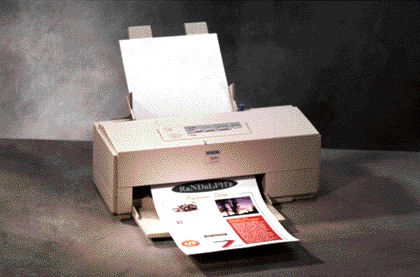
Output technology The two broad categories of output technology are hard copy output and soft copy output. As the name suggests, hard copy output involves printing out the desired output on paper. There are a number of options available for obtaining hard copy output, which we will discuss below. Soft copy output involves displaying the output on the user's computer screen (also called the monitor or “video display terminal”). A number of characteristics determine the quality of the soft copy output. These will also be discussed later. Hard copy output options Printers can be broadly classified into two categories: impact printers and non-impact printers. Dot matrix printers represent older technology. They are “impact printers” and generate output by forming characters from a matrix of pins which then strike an inked ribbon. Although dot matrix printers are slow and noisy, and are only slightly cheaper than ink jet and low end laser printers, they are still in use because of one significant advantage over ink jet and laser printers - dot matrix printers can generate multiple copies simultaneously. This feature is particularly useful for printing out invoices, receipts, orders, and similar documents when multiple copies are almost always required. The speed of printing of dot matrix printers is measured in terms of the number of characters per second (cps) that are printed. Ink jet printers are one type of non-impact printers. An ink jet printer generates output by shooting a microscopic jet of ink from the print head onto the paper. The ink is of special quality and dries almost instantly. Although the quality of ink jet printing is very good, the printed images will appear somewhat smudged when regular copier/printer paper is used. Special high-gloss paper, which is more expensive, results in better quality output. Ink jet printers available today provide inexpensive color printing. While some low cost color ink jet printers require the user to change the ink cartridge from black to color, other more expensive ones can automatically switch between printing in
Chapter 3: Technology
16 of 36
color and printing black using only a single ink cartridge. Like dot matrix printers, ink jet printers also print a character at a time. Print resolutions of ink jet printers are expressed in terms of dots per inch (dpi). Expect resolutions of 600 to 1200 dpi even for inexpensive printers. The speed of mid-range ink jet printer is roughly nine pages a minute in black and six pages per minute in color.
A laser printer uses laser beams to create an image of the output on a photosensitive drum. The drum, which contains toner ink, then rolls against a sheet of paper to transfer the image onto the paper. Laser printers thus print an entire page at one time. The print resolution of laser printers is also expressed in terms of dots per inch (dpi). Three hundred dpi is the minimum resolution of laser printers, while 600 dpi and 1200 dpi are common. In terms of speed, laser printers print at a minimum of roughly twelve pages per minute (PPM), while speeds well above 20 PPM are not uncommon. A number of black and white laser printers are now available for under $100. A recent trend in laser printers is the falling cost of color laser printers. A basic color laser printer can now be purchased for under $150.
Soft copy output
The quality of soft copy output, i.e., screen or video display, is a function of the video card and the monitor. Let us examine each of these issues. Video card: In a microcomputer, the processing tasks related to video display are usually handled either by a dedicated video card that fits into a slot on the system motherboard or by a special chip integrated onto the system board. The latest interface for the video card is the accelerated graphics port (AGP). AGP cards offer up to 533 mbps in contrast to 133 mbps on the older PCI bus graphics cards. The amount of memory in the video card is another characteristic that determines the speed and quality of video display. On present day PCs, 32 megabytes of RAM for video is considered a bare minimum, with 128 and 256 megabytes increasingly becoming the norm. Memory reserved for video display determines the number of colors that can be displayed on the screen at a particular screen resolution; the more the memory, the more the number of colors that can be displayed. Monitor: The resolution of a microcomputer's monitor is expressed in terms of the number of columns by the number of rows (pixels) that are displayed. Standard VGA (video graphics array) resolution displays 640 columns by 480 rows. Super VGA resolution is 800 x 600, while extended VGA (XGA) is1024 x 768. These resolutions have more recently been facilitated by Cathode Ray Tube (CRT) monitors. These CRT monitors are quickly giving way to Liquid Crystal Displays (LCDs) or flat panel monitors. In fact, CRT monitors are found mostly on the less expensive PCs. In concert with video cards supporting higher levels of video RAM, LCD monitors support much higher resolutions than ever before. At this point in time, resolutions in the range of 1600 x 1200 resolutions are not uncommon. Many of these LCD monitors feature analog as well as the Digital Visual Interface (DVI). The DVI is a video interface standard designed to maximize the visual quality of digital display devices such as flat panel LCD computer displays and digital projectors. DVI handles bandwidths in excess of 160
Chapter 3: Technology
17 of 36
MHz and thus supports UXGA and HDTV with a single set of links. In addition to high clarity outputs for normal PC applications like Excel or Word, more graphically intensive applications like CAD/CAM or gaming software are facilitated with very high clarity. The latest interface which has become the standard for high-definition audio and video connections is HDMI – High-Definition Multimedia Interface. HDMI supports data transfer at the rate of about 4 gigabits per second and resolutions of 1920 x 1200 or better. This more than sufficient for high-definition video.
Television has been facilitated on PC monitors for some time. With a video card supporting television (TV Tuner) and a TV signal from a cable or satellite TV provider, one can watch television on a computer monitor. What is exciting is that high definition television content will very quickly find its way to the personal computer. Many who watch television are beginning to use HDTV Tuner Cards to watch the High Definition (HD) content on LCD display devices connected to a PC.
Apart from hard and soft copy output, the sound card present on most microcomputers offers an output option. For example, a microcomputer with a sound card and CD or DVD drive can play an audio CD. An electronic piano keyboard can interface with a computer using a MIDI (musical instrument digital interface) port on the sound card. Thus, with support software and a MIDI port, an electronic piano keyboard can be used as an input device to a microcomputer. Musical selections previously input can be played back as outputs. It is also possible using programs available today to have the computer convert text to speech, so that text in a document can be “played” through the sound card and heard on the computer’s speakers.
SOFTWARE Having discussed a considerable number of hardware terms and concepts, let us now turn to a discussion of computer software. The most basic definition of software is that it comprises instructions that the hardware can execute. The two broad categories of software are systems software and applications software. Systems software consists of the operating system and other utility programs that allow application programs to interact with computer hardware. Applications software consists of programs written to process the user's data and convert it into information.
The relationship between applications software and systems software is easily understood in the context of an application designed to convert the user's data into meaningful information. Let us assume that a user has designed an application program to process payroll time tickets resulting in the printing of employee paychecks. The time tickets represent data that needs to be processed. The application program sends the data and the program instructions detailing how the data is to be processed to the operating system. The operating system in turn directs the hardware devices (i.e., the central processing unit) to perform the functions necessary to process the data and return the results to the user (i.e., display the results on the computer screen or output to the printer).
Chapter 3: Technology
18 of 36
Systems software The various types of systems software include the operating system, utility programs, and language translators. The operating system manages and directs the functioning of all CPU and peripheral components. Allocating resources such as memory and processor time for tasks is one of the primary functions of the operating system. Tasks such as writing data from primary memory to secondary storage devices such as disk and tape drives are also handled by the operating system. As needed by application programs, the operating system allocates memory and processor time for the specific tasks that need to be performed in execution of the user's application program.
Three capabilities of operating systems are noteworthy: (1) multitasking, (2) multiprogramming, and (3) multiprocessing. Most present-day operating systems such as UNIX and OpenVMS for mainframe computers, and the Microsoft Windows variants and the Macintosh OS for personal computers, are capable of multitasking. Multitasking is the ability of the operating system to concurrently handle the processing needs of multiple tasks. Thus, the user can perform word processing functions at the same time that the spreadsheet program prints a large file. Both personal computers and mainframe computers can perform multitasking. Mainframe computers alone are capable of multiprogramming. In a multi-user mainframe computing environment, multiprogramming is the ability to rapidly switch back and forth between different users' jobs. Each user receives a response very quickly, giving the user the impression that the computer is dedicated to that user's job. The immense speed of the mainframe computer allows it to switch between jobs very quickly, but at any one instant the computer is processing only one job. Another related ability of both mainframes and high end personal computers is multiprocessing, which is the ability to simultaneously control multiple processors (CPUs) within the same computing system. Whereas typical computers have only one CPU, a multiprocessing computer actually has several CPUs that are linked together. Only very complex scientific and mathematical processing jobs require multiprocessing. Some advanced servers can also benefit from multiple CPUs. The two most popular operating systems for personal computers today are Microsoft Windows and the Macintosh Operating System (Mac OS-X). Most Windows desktop and laptop computers today operate on Windows 7. Compared to prior versions, Windows 7 has a much improved taskbar with some new functionality (like the ability to pin any program to the taskbar), you can easily see the files you have been most recently working on by right-clicking the application’s icon, the desktop interface has been improved, and a new search facility is provided.
The latest operating system from Microsoft is Windows 8, which is a radical departure from Windows 7. The main innovation in Windows 8 is that it uses a “touch screen” interface, similar to that on the Apple iPad tablets. An interesting feature in Windows 8 is “live tiles” which automatically animate with the latest information (news), status updates from social media (Facebook, Twitter), weather forecasts, and more. Like the iPad, Windows 8 also offers a number of “apps” for productivity, games, and more. A big advantage of Windows 8 is that it can run the full suite of Microsoft software products such as Microsoft Office, as well as older applications designed for the
Chapter 3: Technology
19 of 36
Windows operating system. Time will tell if Windows 8 is accepted widely, but as of August 2013 Windows 8 has been met with a rather cool reception by consumers.
The most recent server version of Windows is called Windows 2012 Server. The prior versions, Windows 2003 Server and Windows 2008 Server, are still widely in use. Both of these server OS’ include a component called IIS (Internet Information Service) which provides native web server capabilities. Many small and medium-sized networks run on the Windows 2008 or 2003 server operating system.
For its part, Apple has continued to modify and improve its operating system for the Macintosh. Recently, Apple announced the next version of its OS called the OS X Mountain Lion. This OS offers faster system performance, a new user interface, improved network compatibility, the ability to easily play DVDs and burn CDs, and improved graphics and printing. Like the previous incarnation of OS X, the Mountain Lion OS has a number of unique features (relative to the Windows OS), such as Exposé which allows the user to instantly view all open windows with a single keystroke. Another nice feature in OS X is Stacks, which lets you see all files in a folder at a glance right from the “dock” at the bottom of the screen (similar to the “taskbar” in Windows). Backup is automated through the “Time Machine” utility, which is truly a “set-it-and- forget-it” backup utility. Critically acclaimed as a very easy to use and reliable operating system, OS X is considered by many to be far superior to the Microsoft’s Windows operating system. One almost never hears of a Mac OS X computer “crashing.” Being Unix-based, the Mac OS X operating system is also resilient against computer viruses, much more so than a Windows operating system.
An interesting feature of the Mac OS X operating system, especially for long time Windows users, is the “Bootcamp” utility. This utility provides a “dual boot” capability to run Windows on a Mac computer. BootCamp allows the Mac user to boot to the Apple OS or to the Microsoft OS. Alternatively, software products called Parallels and VM Ware Fusion can also run Windows in emulation mode. These products allow the Mac user to switch between the Mac OS X operating system and the Windows operating system without having to reboot the computer.
Another operating system of some interest in this space is Linux (often pronounced lynn-ucks ), which is a UNIX-like operating system. The idea behind Linux was to provide personal computer users a free or very low-cost operating system comparable to traditional and usually more expensive UNIX systems. Linux has a reputation as a very efficient and fast-performing system. Linux's kernel (the central part of the operating system) was developed by Linus Torvalds at the University of Helsinki in Finland. To complete the operating system, Torvalds and other team members made use of system components developed by members of the Free Software Foundation for the GNU project.
Linux is a remarkably complete operating system, including a graphical user interface, X Window System, TCP/IP, the Emacs editor, and other components usually found in a comprehensive UNIX system. Although copyrights are held by various creators of Linux's components, Linux is distributed using the Free Software Foundation's copyleft stipulations that mean any copy is in turn freely available to others. Red Hat and
Chapter 3: Technology
20 of 36
Novell’s SUSE Linux are two popular distributions of the Linux operating system. While these vendors offer technical support for a fee, note that all the software necessary to run a web server from a Linux box can be downloaded for free. Dell Computer Corporation offers Linux as a preloaded option on some of its computers. Linux is sometimes suggested as a possible publicly-developed alternative to the desktop predominance of Microsoft Windows. Although Linux is a popular option for web servers and for users already familiar with UNIX, it remains far behind Windows in the number of installations on PC desktops.
Utility programs are the second category of systems software. Mini-programs for performing commonly used functions like formatting disks, compressing files, scanning for viruses, and optimizing the hard disk are some examples of utility programs. In essence, utility programs complement the operating system by providing functions that are not already built into the operating system. Third party vendors typically provide suites of utility programs that extend the functionality of the operating system.
The third category of systems software is language translators. Assemblers, interpreters, and compilers are the three types of language translators. As the term implies, a language translator takes a program written by the user, which is called the source code, and converts the source code into machine language which is called the object code. The source code program is written in English using a text editor or a word processor capable of creating an ASCII (text) file. (Incidentally, the ASCII stands for “American Standard Code for Information Interchange,” which is the most common format for computer files and is recognized by virtually all computer systems.) The computer's hardware can only understand machine language commands (object code) which are in binary code consisting of 0s and 1s.
Interpreters convert source code into object code one line at a time. Some versions of the BASIC (Beginner's All-purpose Symbolic Instruction Code) programming language used an interpreter for execution. The interpreter must be invoked each time the program is to be run. An assembler is used to convert an assembly language program, rarely used these days, to machine language. Assembly language is referred to as a “second generation” programming language (machine language is considered to be the “first generation” programming language). Compilers are used to convert the source code of “third generation” programs such as COBOL (Common Business Oriented Language), C and C++ into object code. Unlike interpreters, compilers process the entire source code file and create an object code or executable file if the program is successfully compiled. Interpreters, assemblers, and compilers check the source code program for syntax errors (logic errors can be detected only by running test data and comparing the actual results to expected results). An interpreter indicates the syntax error and simply does not execute the line of code. A compiler generates a listing file highlighting each line of code with syntax errors. A successful compilation will generate an object file. The object file is then linked to other needed object libraries, and the output of this process is an executable file. Debuggers are useful utility programs that allow programmers to process a program one step at a time while examining how variables change values during execution. Debuggers thus assist in the detection of logic errors. Once a program is successfully compiled and an executable file is created,
Chapter 3: Technology
21 of 36
the user can run the program simply by executing the resulting executable file (.exe file); the source code file is not required to run the program. In fact, in most applications it will be appropriate to distribute only the executable file to users without providing them with the source code.
Programming languages The purpose of a programming language is to provide instructions to the computer. Programming languages must be extremely precise and complete. It is the task of the programmer to employ the correct programming language constructs to tell the computer what to do, so that the output that appears when the program is executed is exactly what the programmer intended. Computers do not make errors, (human) programmers do! Early programming languages were oriented around hardware instructions for controlling the movement of data between memory registers and making calculations. Later programming languages added features letting the programmer use English-like syntax that was in turn translated into machine level instructions during the process of program compilation. Consequently, later higher-level languages allowed programmers to become more productive.
In the above discussion of language translators, we have already discussed first, second, and third generation programming languages. To repeat, machine language programming using 0s and 1s represents the first generation programming language. Assembly language using cryptic symbols comprises the second generation programming language, in which the assembly language program needed to be “assembled” or converted to machine language.
Third generation languages use plain English syntax to create the source code program that must then be compiled to create an object program or executable file. COBOL, FORTRAN, Modula, Visual Basic, and C are examples of third generation languages. Third generation languages comprise both general purpose and special purpose languages. An example of a special purpose language is ALGOL (ALGOrithmic Language) which is designed specifically for programming scientific computations. A language originally designed specifically for embedded and real-time systems is ADA (named for Ada Lovelace, who is thought to be the first female programmer). COBOL, which stands for “Common Business Oriented Language” is targeted specifically for business data processing. Most of the early computerized accounting systems were programmed using COBOL. When you hear the term “legacy code” in a business data processing context the reference most likely is to COBOL programs. Languages like Visual Basic and C are general purpose languages that can be used for business applications, scientific applications, or manufacturing applications.
Fourth generation languages, referred to as 4GLs, are even more high level than third generation languages and use a very English-like syntax. Third generation languages are procedural languages in that the user must specify exactly how data are to be accessed and processed in order to generate desired output. In contrast, 4GLs are non- procedural, meaning that the user simply specifies what is desired (i.e., procedural details regarding how the data should be processed need not be provided). FOCUS and SQL (structured query language) are two examples of 4GLs. SQL (pronounced
Chapter 3: Technology
22 of 36
“sequel”) is a very popular 4GL and is fast becoming the standard language for interacting with relational database systems. Both third and fourth generation languages adopt the perspective that data are separate from processes. Data are stored in repositories, and programs specify the processing steps that modify data. A radically different viewpoint is adopted by object-oriented programming languages (OOPL). Rather than focusing on data versus processes, an OOPL simply focuses on the objects of interest in a particular domain. For example, in a sales order processing application, the objects of interest would be customers, inventory, and orders. For each object, an OOPL defines attributes that need to be stored and also the processing methods that would be used to modify those attributes. For example, a “customer” object might have the following attributes: name, address, phone number, balance, and credit limit. The methods associated with the customer object might be addnew (to add a new customer), addbalance (to increase the customer's balance to reflect a credit sale), deductbalance (to decrease the customer's balance to reflect a collection received from the customer), and showbalance (to show the customer's current outstanding balance). In an OOPL, the attributes and the methods are defined together in one package. This property of OOPLs is called encapsulation.
Objects can communicate with one another by means of messages passed between them. For example, when a new sales order is placed, a new instance of the “orders” object is created. After this new order instance has been created, messages would be passed to the “customer” object to update the customer's balance, and also the “inventory” object to decrease the on-hand quantity of the items ordered (and presumably to be shipped). In effect, the messages passed between objects trigger methods that have been defined and stored internally within each object. Another unique feature of OOPL is polymorphism. The same message passed to different objects might result in different actions depending on the exact specification of the method invoked within each object as a result of the object. For example, a “depreciate” message passed to several asset objects might result in different actions as a function of the depreciation method defined for that asset.
A third feature unique to OOPL is inheritance. New objects can be created based on existing objects. The new objects can simply inherit the attributes and methods already defined for an existing object. Attributes and methods unique to the new object would be defined within the new object. As an example, a new “international customer” object can be created by inheriting the attributes and methods of an existing “customer” object. Only attributes and methods unique to international customers, such as the country and currency, would have to be defined in the new “international customers” object. In this manner, OOPL facilitates code reusability, thereby simplifying the process of developing new applications. In summary, OOPL have three unique features: (1) encapsulation, (2) polymorphism, and (3) inheritance.
Two popular OOPLs are Java and C++ (called C plus plus). The promise of the much- hyped Java language is its “platform neutrality,” which means that developers can write software on one platform but the software will run on many different platforms. With the Java language, applications can be created that run within a Web browser (these are
Chapter 3: Technology
23 of 36
called “applets”). A variant of Java, called JavaScript, can be used to create both client- side applications and server-side applications. The “client-server” computing model will be explained in the next chapter, but for now you should note that in a networked environment, the “client” is a device interacting with a remote machine, and the “server” is the remote machine providing a service. The Java language can also be used to write applications for devices such as pagers, cell phones, and other consumer devices. Sun Microsystems, the main proponent of the Java language, has a useful web site for users new to the Java language.
Microsoft’s earlier implementation of the C++ language is called Visual C++. Unlike Java, C++ is platform-specific, which means that a C++ application created in a Windows environment will not run on a UNIX machine. Microsoft is promoting a new variant of C++, which is called C# (pronounced C sharp). The C# language was created with the goal of being easy to write, read, and maintain like Visual Basic, yet providing the power and flexibility of C++. C# builds on the structure and semantics of the C++ language but allows developers to take advantage of Microsoft’s new .NET programming platform. In the next chapter, we will take a closer look at Microsoft’s ambitious .NET initiative. Programming languages can also be viewed from different paradigms. Functional programming involves the evaluation of mathematical functions and is used primarily in the academic world. The roots of functional programming lie in APL, which literally stands for “A Programming Language”—one of the earliest programming languages created. Other functional programming languages are ML (for “metalanguage”) and its relatives Standard ML and F#. Another paradigm is systems programming, which involves the creation of operating systems. The main language in this paradigm is C which was developed in the late 1960s and early 1970s and is still used today. Yet another paradigm is logic programming. Based in mathematical logic, this approach involves the declaration or specification of the properties of a correct answer rather than the process used to obtain the answer. Therefore, logic programming is often called declarative programming, as opposed to procedural programming which is the approach most languages employ. The foremost logic programming language is Prolog and other languages in this paradigm are Mercury and Oz.
An important development in programming languages is the creation of “scripting languages.” These languages have reengineered the traditional “write source code, compile, debug, rewrite, compile, execute” loop, which conventional languages like Visual Basic require programmers to go through. These languages are interpreted at run-time rather than having to be compiled beforehand. Perl (Practical Extraction and Reporting Language), Python, VBScript and JavaScript mentioned earlier are some examples of scripting languages. The explosive growth of the Internet in the last decade has fueled interest these languages because they facilitate the development of dynamic user-specific Web sites. In the Microsoft-centric Web environment, the scripting language is called Active Server Pages or ASP for short. The latest version of ASP is geared specifically to Microsoft’s .NET environment and is accordingly referred to as ASP.NET. In the non-Microsoft world, the most commonly used scripting languages are Java Server Pages (JSP) and PHP. You are encouraged to visit this Wikipedia link for more information about scripting languages.
Chapter 3: Technology
24 of 36
The task of software development has become considerably simplified in recent years with the development of platforms called integrated development environments (IDE). Microsoft’s Visual Studio IDE is commonly used for development work in the Microsoft environment. More recently, several open source IDEs have been developed, the most popular of which are Eclipse and Netbeans, both of which were created in the Java programming language. As you are likely aware, “open source” software products can be used for free and the source code for the software can be modified and redistributed within the guidelines of the open source license. The open source approach is in contrast to Microsoft’s license-fee concealed source code approach. Closely related to the IDE concept is that of a web application development framework. The foremost of these is “Ruby on Rails” -- an open source web application framework written in the Ruby object-oriented language. The Ruby on Rails framework facilitates the rapid development of applications with very little coding and minimal configuration.
Another popular web application development method is called Ajax, which is short for asynchronous JavaScript and XML. The key feature in Ajax technology is that web applications can retrieve data from the server asynchronously in the background. In standard Web applications, the interaction between the user and the remote server is synchronous, meaning that data are retrieved from the server in response to some action by the user (e.g., click on a button or link). With Ajax, the JavaScript code that is loaded when the page is initially loaded handles most subsequent data manipulation tasks via the Ajax engine, without requiring constant trips to the remote server. Two Ajax-powered applications that you are probably familiar with are Google’s Gmail and Google Maps.
Applications software
Writing a program using a programming language such as C, C++, COBOL or Visual Basic is one way of converting raw data into useful information. However, the vast majority of users would more likely use applications software packages such as spreadsheets and database programs to perform common data processing tasks. Applications software packages are designed with a host of features and are easily customizable to meet almost any user need. The two broad categories of applications software are (1) general purpose applications software such as word processing, spreadsheet, database, graphics, and communications, and (2) special purpose applications software such as accounting software packages. Both categories of software packages have several offerings for both the PC and Macintosh platforms. General purpose applications software You are probably already very familiar with word processing and spreadsheet software, and possibly with database software as well. Microsoft Word is the leading word processing software packages (older packages such as Corel WordPerfect are rarely used these days). Microsoft Excel is the leading spreadsheet package (again, older packages such as Lotus 1-2-3 are rarely used today). Microsoft Access is the major desktop database software package. All of these software packages listed are for the Microsoft Windows operating system, the latest version of which is Windows 8.
Chapter 3: Technology
25 of 36
Software programs such as Microsoft Powerpoint are used to create presentation graphics. Data graphics—presenting data graphically—is a function included in most spreadsheet software.
Communications software and fax software such as Symantec’s WinFax Pro are also quite popular. However, the functionality provided by such software packages is increasingly being integrated into the operating system, obviating the need to obtain separate software packages for that functionality. For example, more recent versions of Microsoft's Windows operating system include accessories for dialing-in to remote computers using a modem and also for sending and receiving faxes using a fax modem. Other types of applications software include project management software such as Microsoft Project, and personal information managers such as Evernote and comprehensive email systems like Microsoft Outlook.
Special-purpose applications software
Although there is a host of special-purpose applications software packages, such as packages for keeping track of real estate listings, we will focus exclusively on accounting software packages. Accounting software packages can be broadly categorized into three groups. The first category comprises low end packages for use by small business and are nothing more than sophisticated electronic checkbooks. Packages like Intuit Quicken, Quickbooks Pro, and Sage 50 fall into this category. Many home users find packages like Quicken to be very useful for tracking their checking account use and to manage their finances. Some of these packages can be used by small businesses and include some very basic accounting functions. Most of these software packages can be purchased for under $200. Installing and configuring these low end packages is also relatively easy.
The second category comprises mid-range packages such as Sage PRO ERP, Microsoft Dynamics, and Intacct. These packages can cost anywhere from $5,000 to $15,000 and usually require the expertise of a consultant or a “value added reseller” (VAR) to install and configure the package. Most medium sized businesses will likely find that one of these packages will meet their accounting information processing needs. It should be noted that these packages are considered “modular” in that separate modules, such as inventory, payroll, and general ledger, can often be purchased separately. Subsequently, when the company grows and intends to automate additional accounting processes, the remaining modules from the same package can be purchased and integrated along with the existing modules. The first two categories of software almost always use proprietary file management systems to manage the necessary files within the software packages. The data files are accessible only through the file manager interfaces provided by the accounting software package.
The third category comprises ERP packages such as SAP and Oracle Applications. You may be aware that Oracle acquired PeopleSoft in a hostile takeover. Oracle also acquired JD Edwards in a further compression of the market place for ERP software. These software packages are referred to as enterprise resource planning (ERP) systems since they typically span the entire enterprise and address all of the enterprise's resources. Depending on the configuration, these packages can cost a
Chapter 3: Technology
26 of 36
company several hundreds of thousands of dollars. Taking into account the cost of analyzing and redesigning existing business processes, the cost of implementing an ERP system can run into millions of dollars! Just how much more sophisticated are ERP systems relative to other packages in the first two categories? Take SAP for example. This complex software is ideally suited for multinational companies that have operations in different countries with different currencies and accounting conventions. Employees throughout the world can obtain access to data regardless of where the data is located. SAP also automatically handles foreign currency translations as well as the reconciliations that are necessary between countries that have different accounting conventions.
A key feature of ERP systems is cross-functional integration. For example, for a manufacturing enterprise, an ERP system like SAP can be configured to automatically react to the creation of a new customer order by (1) updating the production schedule, (2) updating the shipping schedule, (3) ordering any needed parts, and (4) updating online sales analysis reports to reflect the new order. Without an ERP system, the four procedures indicated would have to be performed by employees in at least four different departments (sales, production, inventory, purchasing) perhaps using four different information systems. It is precisely this fragmentation of information systems across the company that ERP systems are designed to correct. Thus, the key advantage of an ERP system is the integration of related business processes. This cross-functional integration is enabled chiefly using relational database technology. You can therefore imagine that ERP systems such as SAP must indeed be very complex. Note that even the low- to mid-range packages such as Microsoft Dynamics and Intacct offer a significant degree of cross-functional integration; this feature is not exclusive to the high-end packages such as SAP and Oracle.
Unlike accounting packages in the first two categories, the high-end packages such as SAP almost always use relational databases to store the raw data. Thus, the data is accessible not only via the accounting package, but also through the relational database management system. This ability to access the data via the database management system allows for much greater flexibility in accessing and analyzing the data. The following table summarizes the various software categories.
Software Categories
Systems software Applications software Operating system Word processing Utility programs Spreadsheet Language translators (interpreters and compilers) Data base management
Programming languages (first, second, third, fourth, and object-oriented) Graphics
Communications Accounting
Chapter 3: Technology
27 of 36
SYSTEMS CONFIGURATIONS In this section of the chapter we discuss the basic classes of computers and bring together the above discussion of hardware and software. There are at least seven different classes of computers in use today. They are super computers, mainframe computers, mini computers, servers, workstations, desktop computers, and notebook computers. Although these classes are somewhat arbitrary, the major way in which these computers are typically categorized is their performance (i.e., how fast they serve the needs of users). One of the more common comparative variables (a speed rating) is Tflops (trillions of floating point operations per second) and Mflops (millions of floating point operations per second). The following discussion is not intended to be comprehensive but rather presented for comparative purposes. Type of
Computer Example Speed (Tflops,
Mflops), Operating systems
Distinguishing features Application
Super Computer
Cray XK7 ($1M - $30M) See the excellent video presentations discussing supercomputers at the Cray website.
100+ TFLOPS Unix
* Combination of multiple vector processors and very dense microprocessors
* Terabytes of data storage * Gigabytes of main
memory
* Numerically intensive scientific calculations
* Interrogation of extremely large data sets
Mainframe Computer
IBM zEnterprise BC12 ($500,000 - $10 M)
500 - 20,000 Mflops z/OS
* Multiple processors * Terabytes of data storage * Gigabytes of main
memory * Ability to handle
thousands of concurrent users
* Large business general data processing
* Server in client/server applications
Mini Computer
IBM Power Systems ($50,000 - $500,000)
250 - 1,000 i5/OS or Linux
* Multiple processors * Up to a terabyte of data
storage * Up to 12 gigabytes of
main memory * Ability to handle hundreds
of concurrent users
* Server in client/server applications
* Midsize business general processing
* Scientific computing in universities
Server Dell, HP/Compaq, Sun Microsystems ($2,000 - $50,000)
200 – 500
Unix, Windows 2012
Server
* Multiple processors * 20 - 160 GB Ultra SCSI
drive * 2 GB to 8 GB of ECC
RAM * 1 Gbps networking card * Redundant power supply * RAID controller
* Server in client/server applications
* Server for local area network
* Web server
Chapter 3: Technology
28 of 36
Workstation Dell, HP/Compaq ($2,500 - $10,000)
200 - 500 Unix,
Windows 8
* Single or dual processor * 1 – 4 TB SATA drive * 4 – 8 GB RAM * High-end video card
* Computationally intensive applications (CAD/CAM, graphics design)
Desktop computer
Dell, HP/Compaq, ($400 - $2,500)
50 – 400 Windows 8
* Single – dual processor * 500 GB – 1 TB SATA
drive * 4 – 6 GB RAM * Network adapter card * Multimedia capabilities
* Personal computing
* Client in Client/server applications
Notebook computer
Toshiba Tecra, Lenovo Thinkpad, Dell Latitude & Inspiron ($400 - $2,500)
50 - 300 Windows 8
* Single – dual processor * Active matrix (thin film
transistor - TFT) display * 320 - 500 GB SATA drive * 4 - 6 GB RAM * Long life battery * Multimedia capabilities * Built in modem, network
adapter and wireless network adapter
* Mobile computing * Client in
client/server applications
For the last several years, the trend in computing has been to combine the functionality of multiple devices into one and to make devices more portable. In the early 2000s, the category of “personal digital assistants” (PDA) was quite popular, with the Palm Pilot being the foremost of such devices. These devices fit in the palm of one’s hand (hence “Palm Pilot”) and provided quick reference to contacts, appointments, notes, calculator, and such productivity tools. Later generation PDAs included the ability to connect to and browse the Internet, send and receive emails, etc.
Lately, however, with the advent of “smartphones” such as the iPhone, Samsung Galaxy, and Blackberry z10, the older PDA technology has become obsolete. In conjunction with a cell phone carrier (e.g., Verizon, AT&T, T-Mobile, etc.), these smartphones provide all the functionality of a PDA while also enabling phone calls, text messaging, and browsing the Internet. For a monthly “data connection fee” from the mobile phone carriers ($20 - $40 per month), the smart phones can facilitate wireless email (via Wi-Fi), messaging, web browsing, photos and streaming audio/video. In addition to the Wi-Fi capability, many of these devices support the Bluetooth wireless technology and provide Integrated Quad Band connectivity (i.e., they are “world phones” providing the ability to make and receive phone calls anywhere in the world).
Of late, a new category of personal computing has taken the market by storm—the “tablet” computer. Apple should be credited with creating this market with the introduction of the hugely popular iPad. These devices are thin, lightweight, have large touch screens, and provide a range of functions typically associated with a laptop computer. The iPad comes in two main flavors—the original iPad and the iPad mini. Not to be outdone, Apple’s chief competitor in this space Samsung has introduced its answer to the iPad, i.e., the Samsung Galaxy Tab. These handheld tablet computers
Chapter 3: Technology
29 of 36
are fast replacing laptops for a range of applications in businesses. You may have seen the iPad in a restaurant or at an airport (e.g., LaGuardia airport in New York City). Sales teams are increasingly using tablet computers and it is also being used in warehouses and distribution centers to manage inventory. Even in retail stores, the iPad is being used in a number of innovative ways, such as this example at a Kate Spade store in Japan.
It is appropriate to note that many of the machines or devices described above form the basic building blocks of networked environments. These networked environments are discussed in more detail in the next chapter (chapter 4). What is appropriate at this point is to recognize that a machine designated as a “server” is a computer that provides the major processing capabilities in a networked environment. This machine can typically be configured with multiple processors, a considerable amount of RAM, and fairly sizable SCSI hard drives. In networked environments, servers exist to provide connectivity to the clients and to other machines outside the network, printing facilities, large amounts of disk space, and application programs. If the server machine is in the microcomputer or workstation class, these machines will typically use the Microsoft Windows 2012 Server or UNIX operating systems. UNIX is an operating system originally designed by Bell Laboratories and is widely used across a range of machine types. UNIX is a difficult operating system to learn, use and manage. “Client” machines are those computers that are connected in some way to a “server.” Right now, as you sit and access the CyberText Publishing web site, the machine you are using is a “client” machine, and the Pentium-powered machine at CyberText is the “server.”
The blending of hardware, software and people to accomplish a specific set of tasks can in some instances be very simple or highly complex. For example, the need to bring an enterprise-wide solution like SAP to facilitate management decision-making can be a very, very expensive undertaking. Yet the need to do basic data analysis using a spreadsheet program on a personal computer can be a straightforward and relatively inexpensive proposition. Underlying both of these examples is a basic premise that the user's needs drive the determination of which software will be employed and the software will determine the hardware to be employed. If you are called upon to recommend computer hardware, you should first examine the nature of the applications to be executed using the hardware. By reference to the table presented above, you can then determine the specific type of hardware configuration that would meet the user's needs (e.g., server, workstation, or personal computer).
Chapter 3: Technology
30 of 36
SUMMARY This chapter focused on information technology. Hardware concepts were described in terms of input, processing, storage, and output technologies. Regarding input, various technologies such as key input, mouse input, and automatic input of data using bar code scanners and similar devices were described. Newer technologies such as voice input were also discussed. The central processing unit was then discussed in terms of its components such as the arithmetic-logic unit, the memory unit, and the control unit. Regarding storage technology, both temporary memory comprising random access memory, cache memory, and read-only memory, and permanent storage such as magnetic disks, CD/DVD drives, and the latest Solid State Drive technology were described. Hard copy options such as impact and non-impact printers and soft copy output options such as screen display were discussed. Systems software was discussed in terms of the two broad categories of systems software and applications software. Systems software includes the operating system, utilities for performing functions like formatting disks, and language translators for converting source code programs into object code (machine language). A number of programming languages were also discussed, including the generations of languages from the first to the fourth generation. Special purpose application software, specifically accounting software packages, was discussed in some detail. Alternative systems configurations were then presented, ranging from super computers to notebook computers. The chapter concluded by briefly discussing how users' needs should drive the choice of software and hardware.
Key Terms Address bus AGP Applications software Arithmetic-logic unit Audio input Bar code scanners BIOS Cache memory Central processing unit Clock unit Control bus Control unit DVI DVD Data bus Debuggers Dot Matrix First generation programming language Flash Memory Fourth generation languages Impact printers
Chapter 3: Technology
31 of 36
Ink jet Internal bus Internet Keying device Language translators Laser printer Light pens Linux Magnetic disks Magnetic ink character readers Magnetic tape Mbps Memory unit Modem Mouse Multiprocessing Multiprogramming Multitasking Non-impact printers Object-oriented programming languages Off-line On-line Operating system Optical character readers PCI Personal Digital Assistants Point of sale device Random access memory (ram) Read-only memory (rom) Scanners SDRAM memory Second generation programming language Systems software Third generation languages Touch screen devices Trackball Trackpad Trackpoint Ultra ATA drive Ultra SCSI drive Utility programs USB Video input
Chapter 3: Technology
32 of 36
Key Web Sites HARDWARE
• AMD—A manufacturer of microprocessors. Providing stiff competition to Intel.
• Apple—A producer of computer hardware and software. The most notable product is the Apple MacIntosh.
• Dell Computer Corporation—A manufacturer of personal computers. This company is one of the predominant producers of personal computers. Started in a dorm room at the University of Texas at Austin.
• Hewlett Packard - A manufacturer of personal computers, printers, scanners and electronic instrumentation devices.
• Intel - Designer and manufacturer of the Intel Pentium line of microprocessors.
• International Business Machines - “Big Blue.” Producer of the IBM ThinkPad laptop computer (now sold to Lenovo, the Chinese computer company) and the OS/2 WARP operating system for the personal computer.
• Motorola - Manufacturer of a range of electronic and semiconductor devices and microprocessors. PowerPC line of processors used in Apple's Power Macintosh line of personal computers.
• Seagate—Manufacturer of hard drives.
• Western Digital—Manufacturer of hard drives.
SOFTWARE
• Adobe – Vendor of a range of popular software products, including Acrobat, InDesign, Dreamweaver, and Photoshop.
• Corel—Software manufacturer. Vendor of Corel Draw and WordPerfect.
• Microsoft - Software and hardware manufacturer. The Bill Gates Company. Producers of Windows 98, Windows 2000, Windows XP, and the Microsoft Office suite of software programs.
• Oracle—developer of a suite of programs called “Oracle Applications” (one of the applications is Oracle Financials—a high end accounting package that interfaces with a relational database)
• SAP—Developer of a popular high-end “enterprise resource planning” software-- SAP R/3.
Chapter 3: Technology
33 of 36
• TUCOWS—The Ultimate Collection of Windows Software
• Shareware.com—A terrific site for lots of neat freeware and shareware for the personal computer.
OTHER
• whatis.com—An excellent site providing answers to virtually any “what is” question relating to technology
• Computer Dictionary – An online computer dictionary.
• CNet—a “one stop shopping” site for anything to do with computers
• PC technology guide—a web site offering explanations of various PC technologies
• Webopedia—an online encyclopedia of computer technology
Chapter 3: Technology
34 of 36
Discussion Questions 1. Distinguish between on-line and off-line data entry devices.
2. Briefly describe the following input devices: mouse, trackball, and trackpad.
3. Describe technologies that automate the data input process.
4. What are the components of the central processing unit?
5. Distinguish between random access memory, read only memory, and cache memory.
6. Explain the function of each of the following components of the internal bus: data bus, address bus, and control bus.
7. Distinguish between CISC and RISC processors.
8. Distinguish between magnetic tape and magnetic disks.
9. Identify the two primary interfaces for magnetic disks.
10. What are some alternatives to the 1.44 megabyte 3.5” floppy disk drive for portable data storage for personal computers?
11. What are some of the uses of CD-ROM drives for personal computers?
12. Distinguish between impact and non-impact printers.
13. What are the determinants of “good” video displays for computer systems?
14. Distinguish between systems software and applications software.
15. Describe the capabilities of present day operating systems for (a) mainframe computers and (b) personal computers.
16. Giving examples, explain the concept of utility programs.
17. What is the function of a language translator? Distinguish between compilers and interpreters.
18. Distinguish between first, second, and third generation languages.
19. What is an object-oriented programming language? Explain giving examples.
20. What are the major categories of applications software? Provide examples of software in each category
21. Distinguish between mainframe computers, mini-computers, servers, workstations, desktop computers, and notebook computers.
Chapter 3: Technology
35 of 36
Problems and Exercises 1. In your first week at a new job, your boss asks you to give her a “wish list” for a microcomputer. What specifications would you list for the processor, memory, video display, and the hard drive? You may make any assumptions regarding the types of applications you might be using.
2. The basic elements of an information system include the following: (a) Input, (b) Processing, (c) Storage, and (d) Output. Classify each of the following items into one of the four previous categories. For some items, more than one answer is possible.
Optical disk: ________________
Point-of-sale recorder (POS): ________________
Floating-point unit: ___________________
Light pen: ____________________
3. Explain all the technical terms used in the following advertisement for a desktop PC on the HP website.
Chapter 3: Technology
36 of 36
4. Browse through Intel's Web site and identify an emerging topic of relevance to the discussion of processor or communications technology in this chapter. Send your instructor electronic mail highlighting your finding. 5. Search the World Wide Web for information on the following topics related to information technology. Be prepared to make a brief presentation to the class about the results of your search. (Hint: you will find these terms explained in online glossaries, such as whatis.com or the PC webopaedia).
• ATAPI • Cardbus • DIMM • DLL file • IrDA • ODBC • FireWire • FED • Fibre Channel
6. Visit the Web sites of Dell Computer Corp. and HP. Specifically explore their “on-line systems configurators.” Assume that your boss has asked you to provide a “custom configuration” specifically for your company's needs. Make assumptions about system requirements for your hypothetical company and experiment with different configurations to determine the effect of adding and/or subtracting features from the standard configuration. Be sure that you understand the implications of each configuration change.
7. Imagine that you have just been hired as an accountant at a company. In light of your knowledge of computer technology and the fact that you are a recent college graduate, your manager asks you to propose ways in which tablet computers can be used in the company. Assume that the company is a specialty clothing manufacturer with a large number of retail outlets throughout the United States. Write a brief report outlining some possibilities for the use of tablet computers in the company’s retail outlets.
8. Ms. Mary Brown is the partner-in-charge of a small CPA firm that has 12 CPAs and 3 other employees. Ms. Brown is contemplating replacing the existing set of 10 computers running the aging Windows Vista operating system. She is not sure whether to order machines with the Windows 7 operating system or the recently release Windows 8 operating system. Prepare a report to Ms. Brown outlining which of the two operating systems she should select. Use the Microsoft web site at www.microsoft.com to assist you in preparing your recommendation, in particular this page that shows all the Windows products.
Last Updated: August 19, 2013
Copyright © 1996-2013 CyberText Publishing, Inc. All Rights Reserved
- HARDWARE
- Input technology
- Processor technology
- Storage technology
- Temporary storage
- Permanent Storage
- Output technology
- Hard copy output options
- Soft copy output
- SOFTWARE
- Systems software
- Programming languages
- Applications software
- SYSTEMS CONFIGURATIONS
- SUMMARY
- Key Terms
- Key Web Sites
- Discussion Questions
- Problems and Exercises